GETTING STARTED
Verifying Emails from the Dashboard
Verifying Emails from the Dashboard
This guide walks through the dashboard UI step by step — no API key required. If you'd rather integrate BounceCheck into your own app, see Quickstart and Authentication instead.
1. Sign in
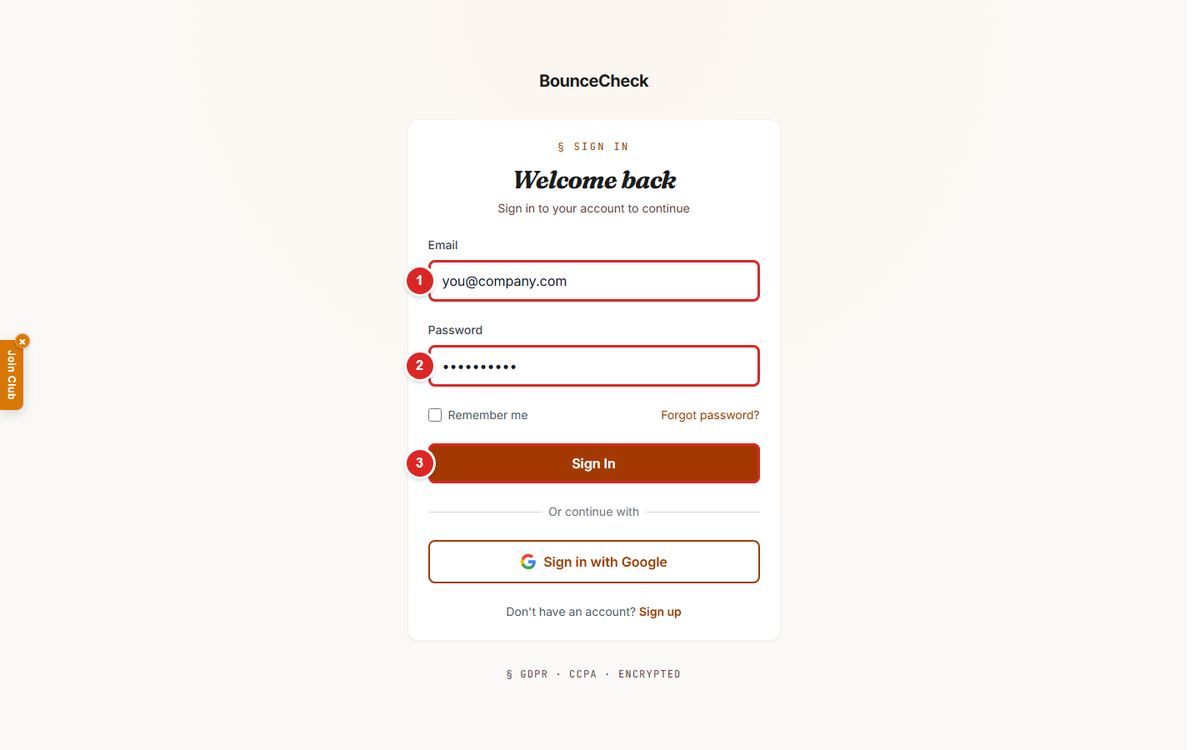
Go to bouncecheck.email/login, enter your email and password, then click Sign In.
2. The Dashboard
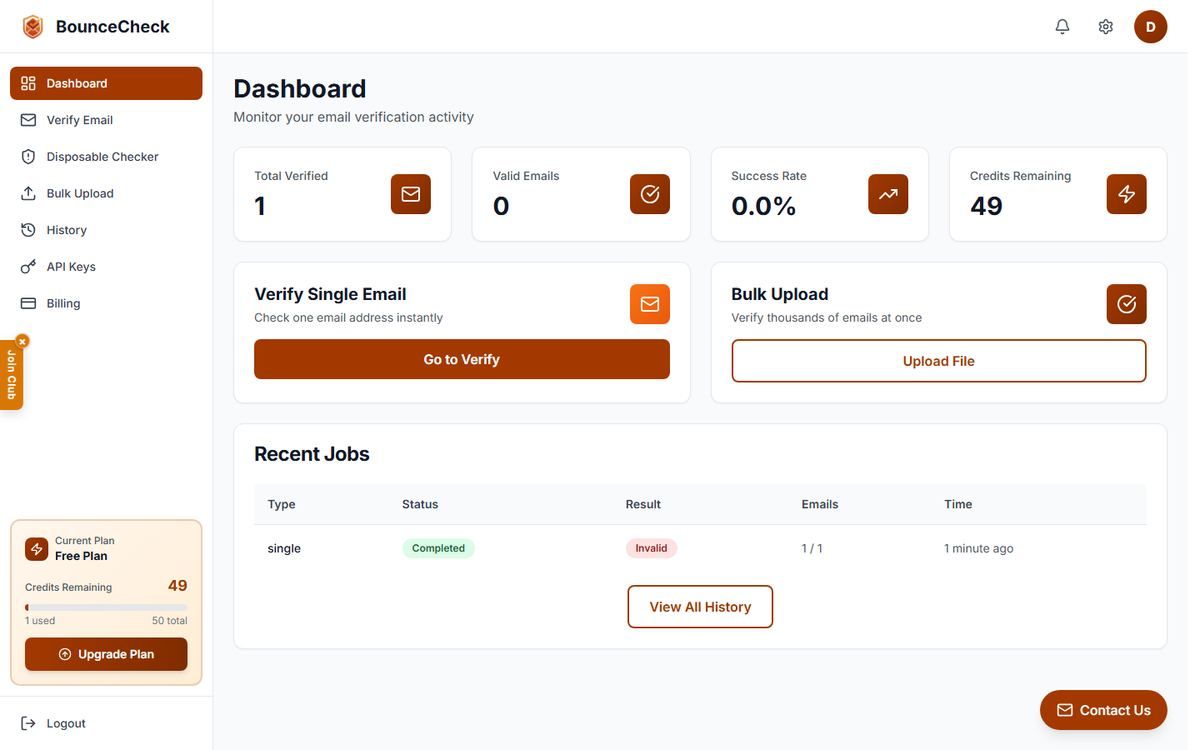
After signing in you land on the Dashboard, showing your verification stats (Total Verified, Valid Emails, Success Rate, Credits Remaining) and quick links to Verify Single Email and Bulk Upload.
Two ways to verify
Use Verify Email for one address at a time (instant result). Use Bulk Upload for a list of addresses (paste or upload a file, processed as a background job).
3. Verify a single email
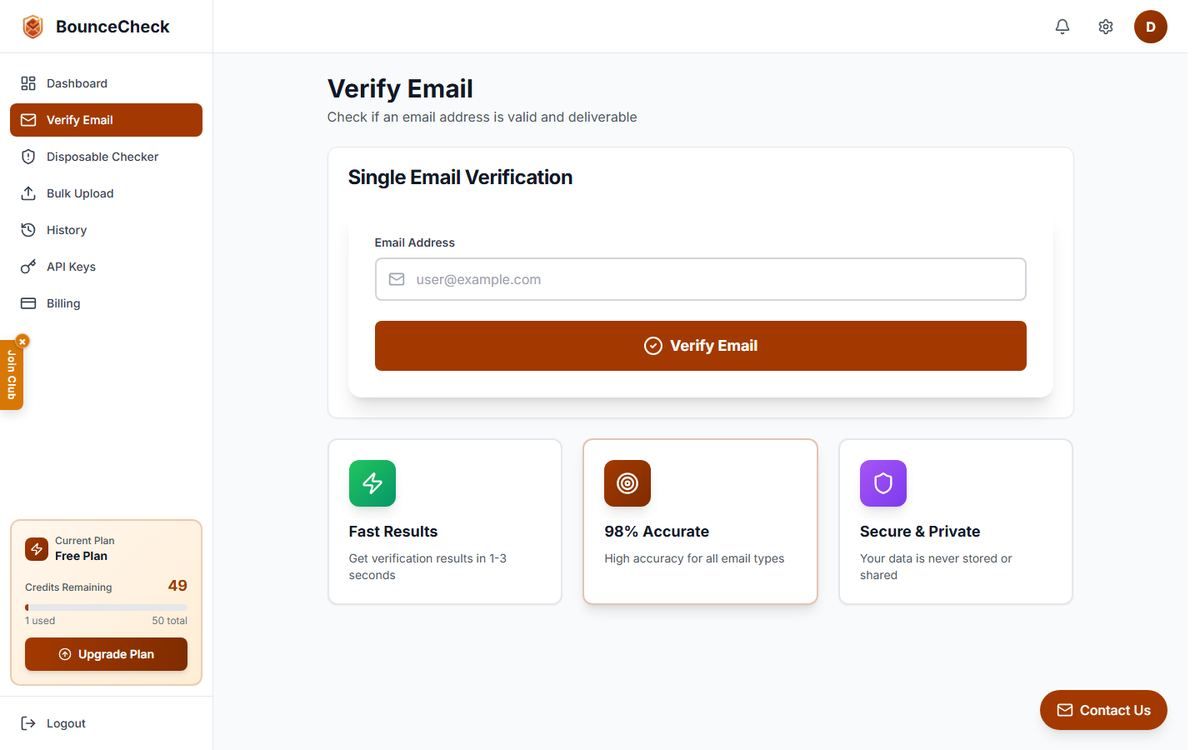
Open Verify Email from the sidebar. Type an email address into the field, then click Verify Email.
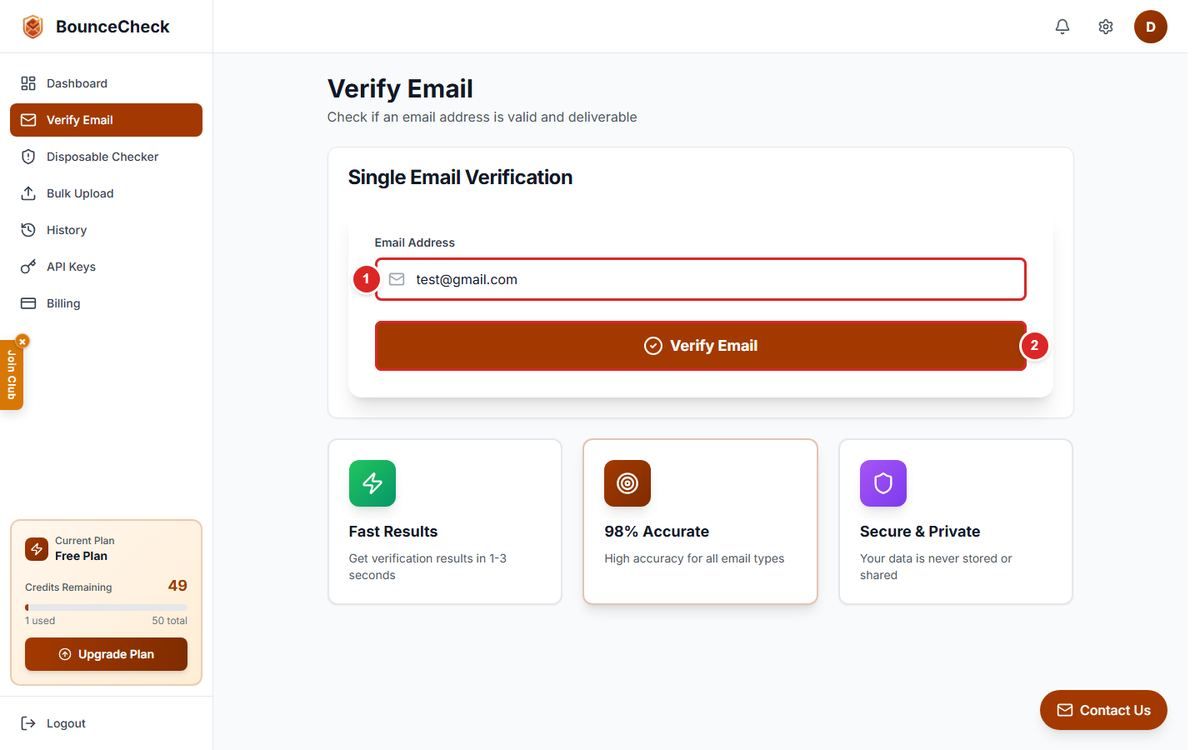
The result appears instantly below the form — status (Valid, Invalid, Catch-all, Unknown, Hard Bounce or Soft Bounce), a short message, and the SMTP response code. Each check uses one credit from your plan.
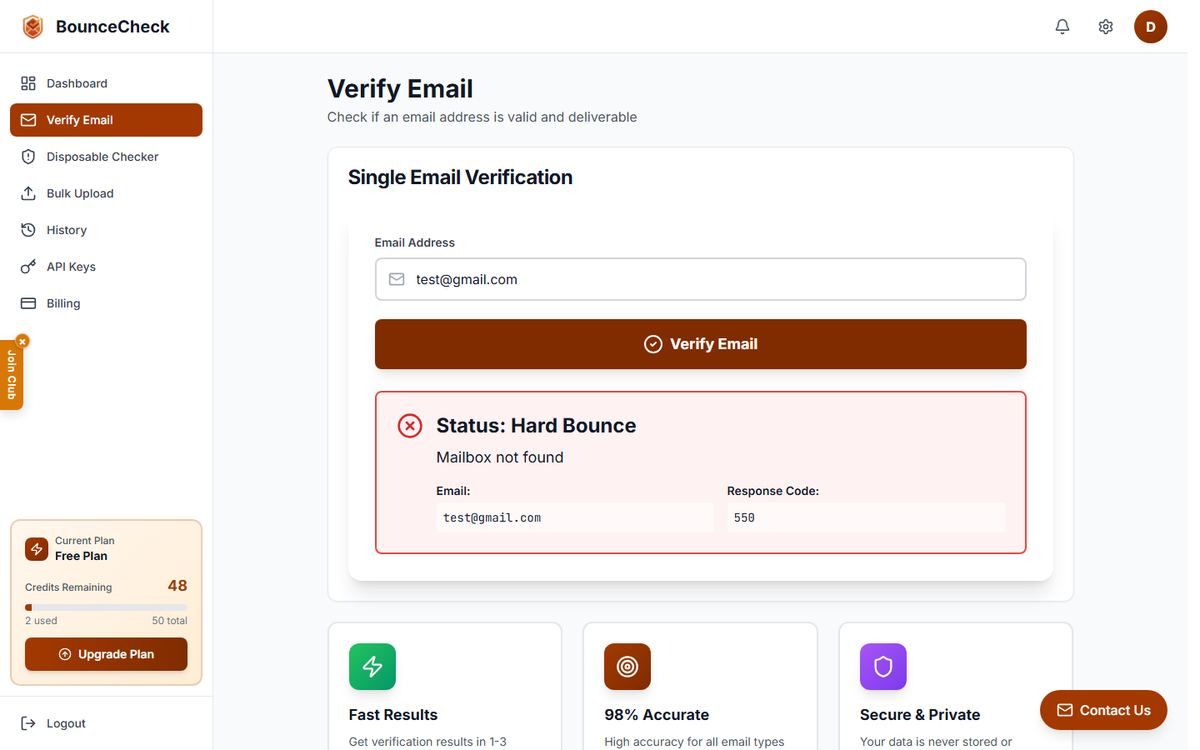
See Understanding Results for what each status means.
4. Verify a list in bulk
Open Bulk Upload from the sidebar. You can either paste a list of emails or upload a file.
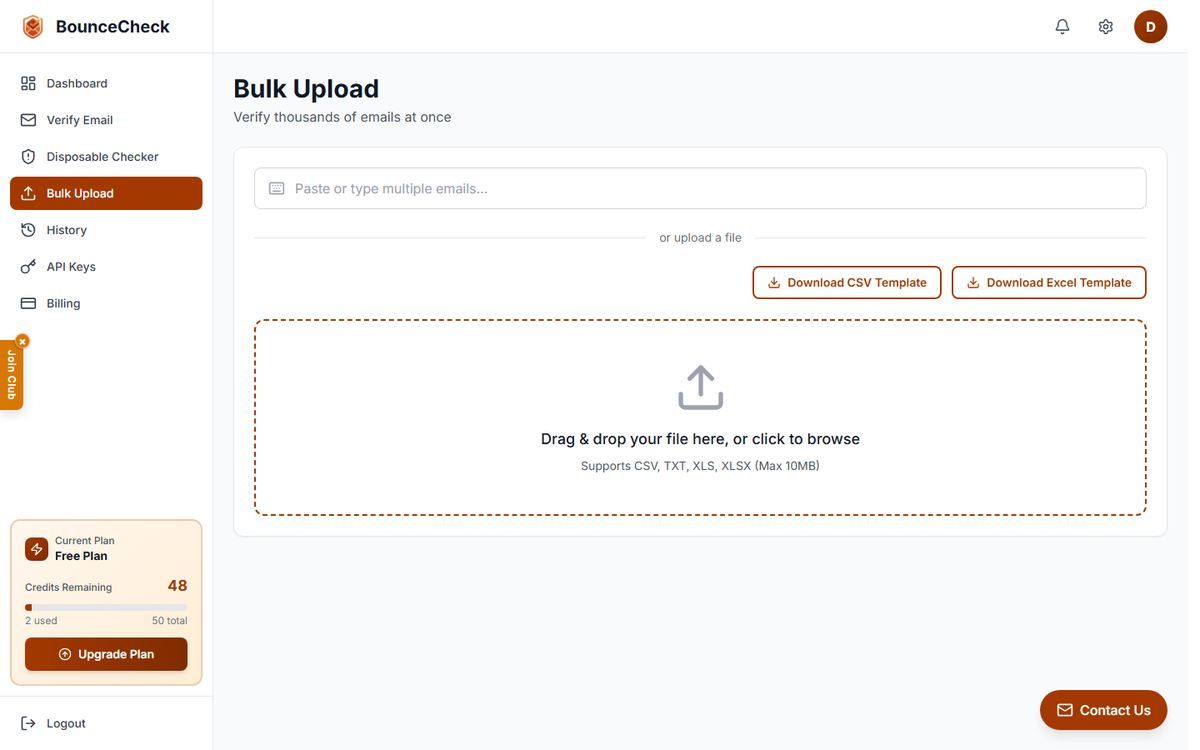
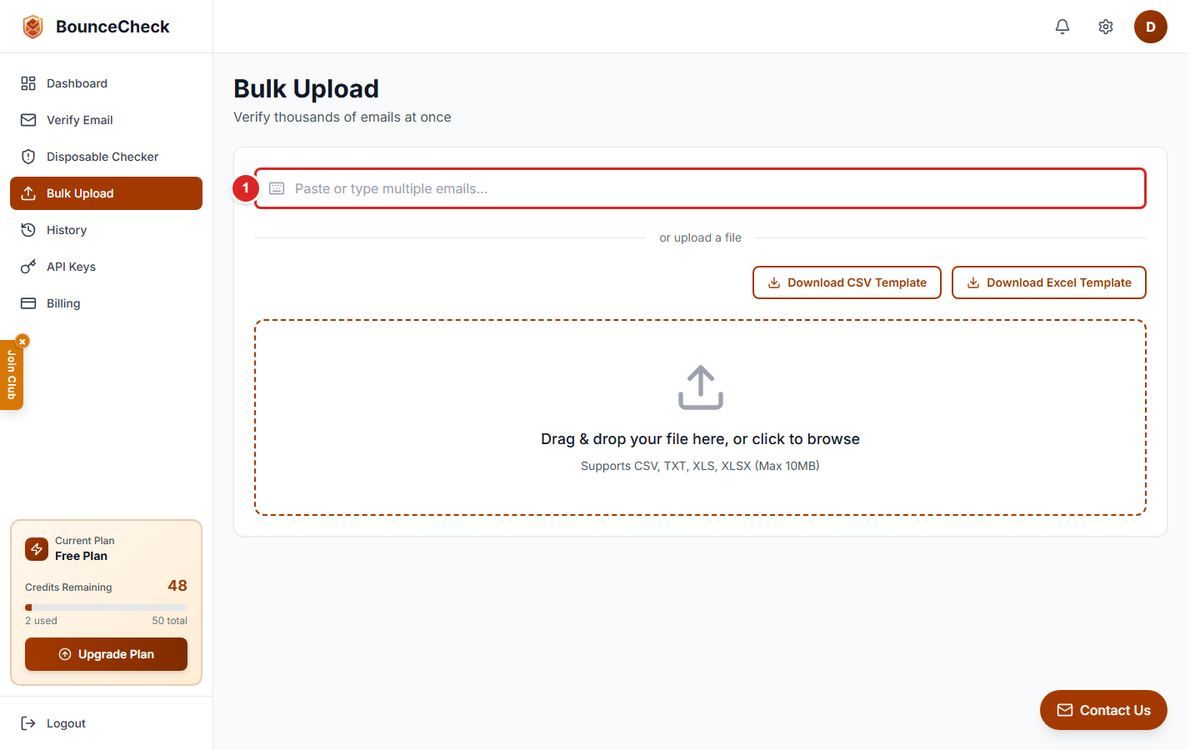
Paste or type one email per line (comma or semicolon-separated also works, up to 100 at a time this way). The page shows a live count of accepted, duplicate and invalid addresses. Click Verify N emails to submit.
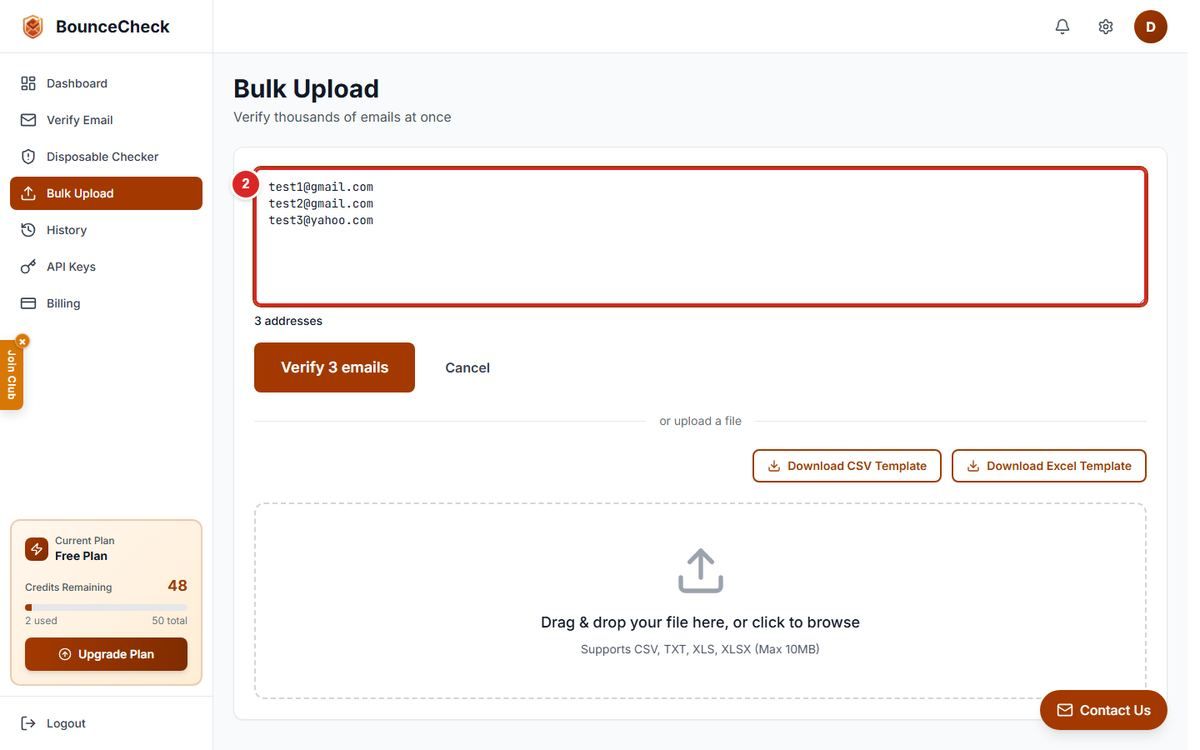
Uploading a file instead
For larger lists, use or upload a file below the paste box: drag and drop, or click to browse a CSV, TXT, XLS or XLSX file (max 10 MB, must include an email column). Template downloads are provided on the page.
5. Track progress and get results
Either path redirects you to History, where the job polls automatically until it finishes. Open the job to view or download the full results.
See Job Status and Results & Download for details on the job lifecycle and export formats.