SendGrid SPF Record: How to Set It Up (2026 Guide)
 BounceCheck Team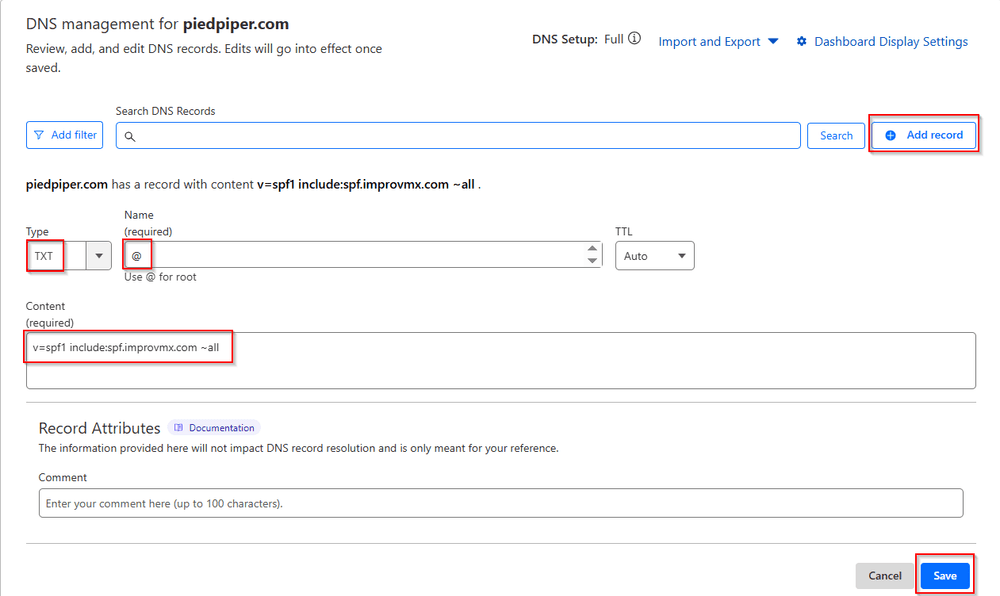
Before your next send Find the addresses that will bounce.
Verify an email freeA SendGrid SPF record is a DNS entry that tells receiving mail servers SendGrid is allowed to send email for your domain. The core of the setup is adding include:sendgrid.net to your domain's SPF record, so a minimal published record reads v=spf1 include:sendgrid.net ~all. SendGrid can also manage this for you through its Automated Security feature. This guide covers both methods, how to pair SPF with DKIM, and why SPF alone will not pass DMARC on SendGrid.
What is a SendGrid SPF record?
A SendGrid SPF record is a DNS TXT record that lists SendGrid's servers as authorized senders for your domain, most simply by including include:sendgrid.net. SPF (Sender Policy Framework, defined in RFC 7208) lets a domain publish, in DNS, the list of servers allowed to send email on its behalf. It lives as a TXT record. When a mailbox provider receives your message, it looks up that record and checks whether the sending server is authorized. A match helps the message reach the inbox; a mismatch gets handled according to your DMARC policy.
Send through SendGrid without authenticating your domain and recipients often see a "via sendgrid.net" note next to your sender name, because the mail is technically sent from SendGrid rather than your brand. Adding include:sendgrid.net to your SPF record authorizes SendGrid's servers and clears up that ambiguity. SPF authenticates the Return-Path address; it does not by itself control who can send from your domain, which is why DKIM and DMARC still matter.
Automated Security vs manual SPF setup
SendGrid gives you two ways to handle authentication, and the right one depends on how much DNS control you want.
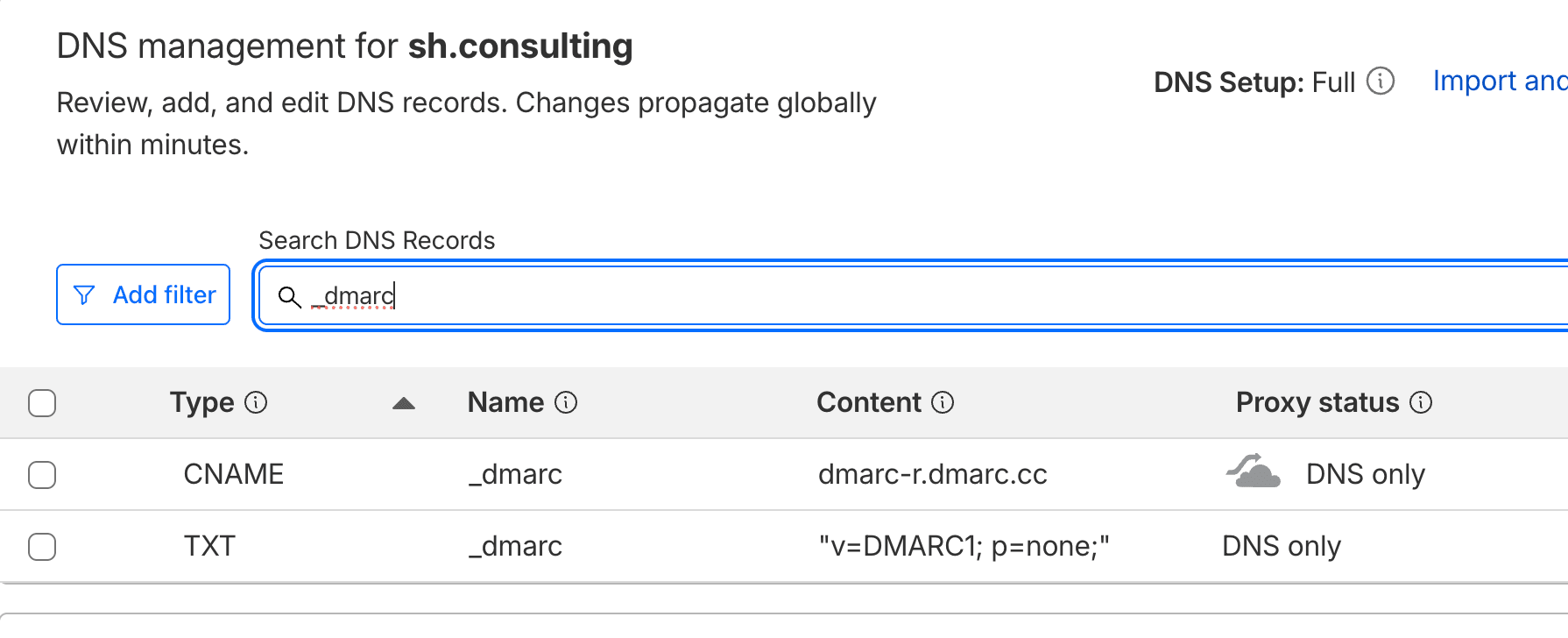
- Automated Security, which SendGrid recommends: you delegate a subdomain such as
em123.yourdomain.comto SendGrid using CNAME records. SendGrid then generates and maintains the SPF record, an MX record, and rotating DKIM selectors at that subdomain. You add these as CNAME records once: theemsubdomain plus two DKIM selectors,s1ands2. - Manual setup: you keep full control and add a standard SPF TXT record yourself, including
include:sendgrid.net, plus the DKIM CNAMEs SendGrid provides.
Automated Security keeps a single SPF record scoped to the em123 subdomain, so incoming mail gets checked against that record rather than the one on your root domain. Manual setup suits you better if you already manage a shared SPF record for several senders and want everything in one place.
How to add the SendGrid SPF record manually
If you are setting SPF yourself, the include mechanism does the work.
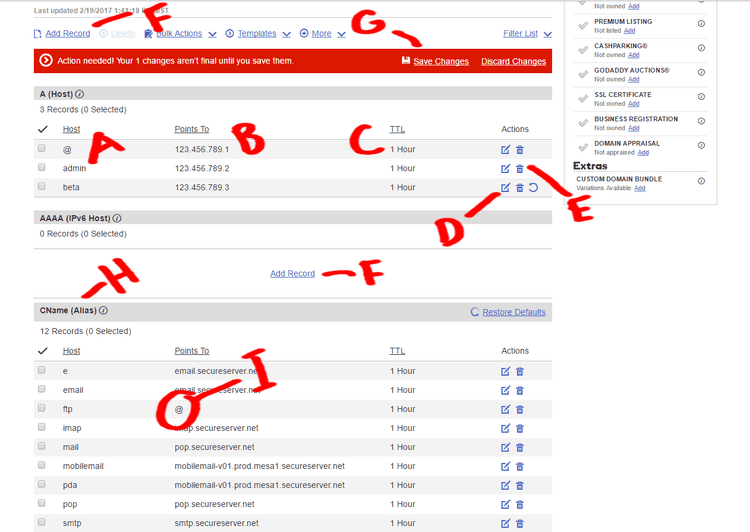
- Log in to your DNS host and look for an existing TXT record that starts with
v=spf1. - If no SPF record exists, create a new TXT record with the value
v=spf1 include:sendgrid.net ~all. - If a record already exists, add
include:sendgrid.netbefore the terminating mechanism instead of creating a second record. For example,v=spf1 a -allbecomesv=spf1 a include:sendgrid.net -all, andv=spf1 mx ip4:1.2.3.4 ~allbecomesv=spf1 mx ip4:1.2.3.4 include:sendgrid.net ~all. If you are combining several senders, you can build the merged SPF record with a generator instead of editing it by hand. - For a subdomain, enter only the sub part in the Host or Name field. For
mail.yourdomain.com, entermail. - Save the record, then confirm it with
dig txt yourdomain.comon macOS or Linux, or an online SPF lookup, and check that only onev=spf1record comes back.
Keep exactly one v=spf1 record per domain. A second one makes SPF fail.
How to set up SendGrid domain authentication with DKIM
SendGrid enables DKIM signing for all mail automatically, whether you use a shared or dedicated IP, but you still publish CNAME records so those signatures validate against your domain. To authenticate through the dashboard:
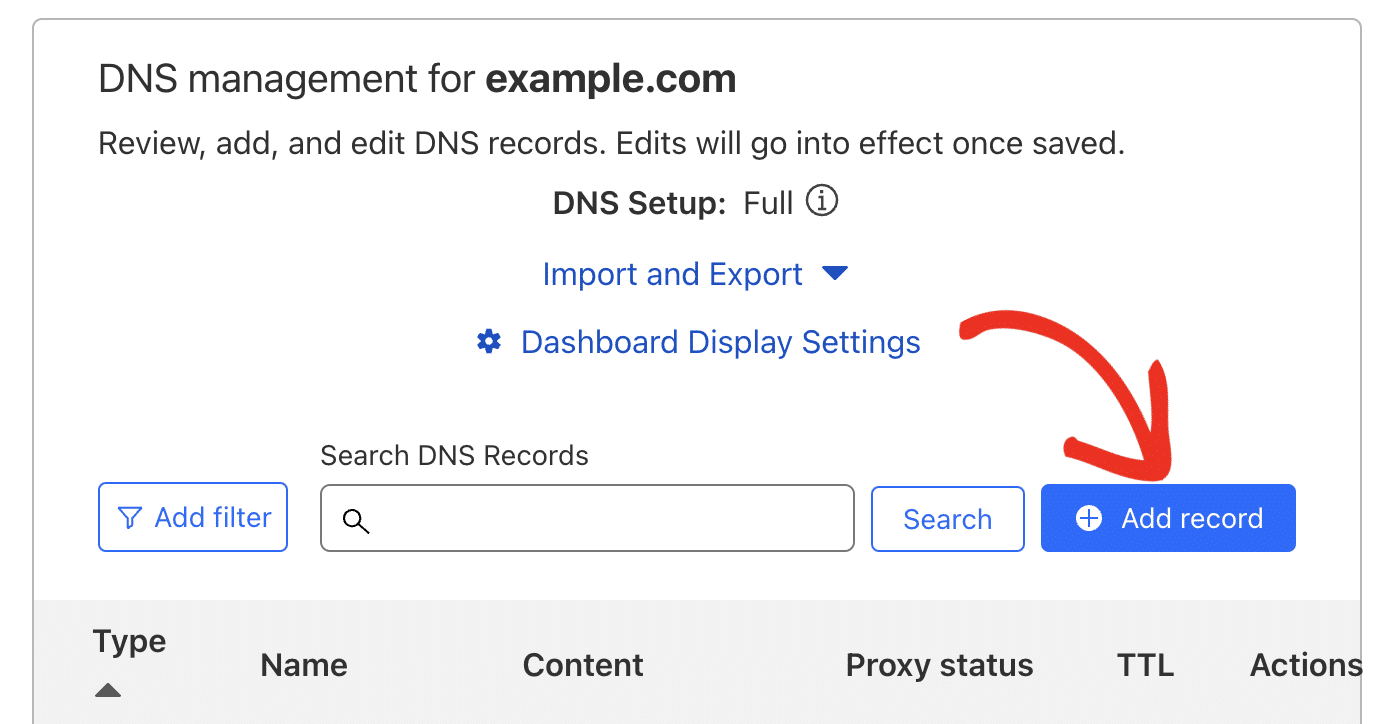
- Go to Settings > Sender Authentication and choose Authenticate Your Domain. SendGrid's domain authentication guide walks through the same screens.
- Select your DNS host and enter the domain you send from, for example
yourdomain.com. - SendGrid generates the records, including two DKIM CNAMEs that use the selectors
s1ands2. - Publish the CNAME records at your DNS host. They follow this pattern:
| Record type | Host | Value |
|---|---|---|
| CNAME | s1._domainkey.yourdomain.com | s1.domainkey.uXXXX.wlXXX.sendgrid.net |
| CNAME | s2._domainkey.yourdomain.com | s2.domainkey.uXXXX.wlXXX.sendgrid.net |
SendGrid shows your exact values in the dashboard, so copy them from there rather than the example above. You cannot supply custom DKIM keys: SendGrid owns the selectors and rotates them through the CNAMEs for you.
Why SendGrid SPF fails DMARC alignment, and how DKIM fixes it
Passing SPF is not the same as passing DMARC. On a default shared setup, SendGrid uses one of its own domains for the Return-Path address, so SPF authenticates against sendgrid.net rather than your domain and does not align. On that shared setup SendGrid provides no way to force SPF alignment, which is why DKIM does the heavy lifting.
DKIM is what carries the alignment. Because the DKIM signature is tied to your domain, enabling DKIM lets your mail pass DMARC even when SPF alignment does not. Rely on SPF alone and DMARC can still fail. With Automated Security, keeping your own domain on the From line aligns the From and Return-Path domains, which satisfies DMARC. That is why every SendGrid setup pairs SPF with DKIM, the same principle behind SPF, DKIM, and DMARC as a group. Authentication is also separate from list quality: SendGrid's email validation checks whether addresses are real, while SPF and DKIM prove who you are.
Common SendGrid SPF mistakes

- Publishing two
v=spf1records. Only one is allowed per domain, so merge the includes into a single record. - Adding
include:sendgrid.netafter the~allor-allmechanism instead of before it. Anything after the terminating mechanism is ignored. - Assuming SPF alone authenticates your mail. Without DKIM, SendGrid mail can still fail DMARC because SPF does not align.
- Exceeding the lookup limit. RFC 7208 caps SPF at 10 DNS lookups, and stacking many include statements can trigger a PermError that breaks the whole record.
- Skipping verification. Run
dig txt yourdomain.comor an SPF checker after saving so a typo does not go live.
Fixing authentication is one lever, not the whole picture. To improve email deliverability you also need clean lists and steady engagement.
FAQs
Is an SPF record required for SendGrid?
SendGrid can send without one, but your mail is more likely to land in spam and recipients may see a "via sendgrid.net" label. Adding include:sendgrid.net, or using Automated Security, authorizes SendGrid and improves deliverability.
What does a SendGrid SPF record look like?
A minimal record is v=spf1 include:sendgrid.net ~all. If you already send from other services, add include:sendgrid.net to the existing record before the ~all or -all mechanism rather than creating a new one.
Can I have two SPF records for one domain?
No. A domain must have exactly one v=spf1 TXT record. If you use multiple senders, combine their include statements into that single record.
Do I still need DKIM if I set up SPF?
Yes. SendGrid's default Return-Path does not align SPF with your domain, so DKIM is what lets your mail pass DMARC. SendGrid publishes DKIM as two CNAME records using the s1 and s2 selectors.
How do I check my SendGrid SPF record?
Run dig txt yourdomain.com on macOS or Linux, or use an online SPF lookup tool, and confirm a single v=spf1 record that contains include:sendgrid.net.
Clean lists matter as much as authentication. Before your next SendGrid campaign, run your list through BounceCheck to remove the invalid addresses that would hard-bounce and drag down the sender reputation you just set up.
§ Before your next send
Find the addresses that will bounce
Verify a single address free, or upload a CSV — the free plan includes 50 checks a month, no card needed.

BounceCheck Team
The team behind BounceCheck - helping businesses verify emails and improve deliverability.