550 5.0.350 Remote Server Returned an Error: Find the Cause and Fix It
 BounceCheck Team

Before your next send Find the addresses that will bounce.
Verify an email free550 5.0.350 Remote server returned an error is Exchange Online’s generic permanent-failure wrapper. The remote server’s inner reply gives you the underlying cause and determines the fix. Use the lookup table below to match that rejection and identify who needs to act.
If you have only the summary, open the full Non-delivery report (NDR) and find Diagnostic information for administrators. That detail lets you distinguish a message you can correct from an address rejection or a receiving-route problem requiring the recipient administrator.
550 5.0.350 Remote Server Returned an Error: Match the Inner Reply
Match the exact rejection before choosing a message change, address check, or receiving-route repair. Microsoft documents the first two rows. The rest are bounces senders have reported, each with the situation it came from.
| Exact inner reply | Meaning | Responsible person | Action |
|---|---|---|---|
x-dg-ref header is too long |
Documented by Microsoft: a header-length problem associated with Outlook Rich Text Format. | Sender | Change the message format to HTML rather than Rich Text Format before resending. |
Requested action not taken: policy violation detected (AS345) |
Documented by Microsoft: an attachment with 20 or more embedded files. | Sender | Remove the embedded files from the attachment, then resend. |
552 message size exceeds maximum size |
Reported recipient-server size rejection. | Sender; recipient administrator if clarification is needed | Reduce encoded message size. Ask the recipient administrator for the receiving limit if necessary. |
550 Too many MIME parts: 150 > 100 |
Reported MIME-part count exceeding that receiving server’s limit, not a universal limit. | Sender; sending administrator | Inspect the MIME structure and reduce attachments or unnecessary message parts. |
550 #5.1.0 Address rejected. |
Reported recipient-address rejection. | Sender; recipient administrator | Confirm the exact address. If correct, request recipient-side diagnosis; rejection alone does not establish a nonexistent mailbox. |
553 Relaying disallowed |
Reported receiving-side relay refusal, seen after the recipient’s domain was set up to run two mail hosts side by side. | Recipient administrator | Check accepted domains and the receiving route, including any third-party filtering service. |
553 you are trying to use me [server-30.tower-248.messagelabs.com] as a relay, but I have not been configured to let you [...] do this. (#5.7.1) |
Reported unauthorized-relay refusal by the remote server. | Recipient administrator and filtering-service administrator | Forward the full NDR so they can inspect domain acceptance and relay authorization on the receiving service. |
| No inner reply; your filter or message trace shows the message as delivered | Reported: Exchange Online still sent the 5.0.350 NDR although the filtering service logged a successful delivery. | Recipient administrator; Microsoft support | Send the full NDR to the recipient’s mail team, or open a case with Microsoft. |
Find the Original Rejection in Your Full NDR
Within Diagnostic information for administrators, locate the original rejection from the delivery attempt. Read beyond the Exchange Online summary. This diagnostic text is the basis for determining the issue and who can fix it.
| Component | Meaning |
|---|---|
SMTP reply 550 |
This is the SMTP-level permanent negative reply. |
Enhanced status 5.0.350 |
This uses class.subject.detail: permanent-failure class 5, undefined-status subject 0, and Microsoft’s generic detail 350. |
Microsoft uses that detail for varied, nonspecific errors, typically returned by the recipient’s email organization. Unlike the other 550 bounce codes, it names no specific cause.
RFC 3463’s status-code definitions explain the three-field structure and permanent-failure semantics. Resending a permanent failure unchanged is unlikely to succeed. Use the original rejection to identify the required message or destination correction before retrying.
Fix Outlook Rich Text and AS345 Attachment Rejections
Follow Microsoft’s message-correction instructions for the matching rejection.
Switch Rich Text Messages to HTML
This rejection is associated with Outlook Rich Text messages, particularly nested attached emails.
- Open the affected message in Outlook.
- Change its message format from Rich Text to HTML.
- Send the corrected message.
If this recurs, ask your Exchange Online administrator to review TNEF settings, including any X-MS-TNEF-Correlator header implicated in the rejection. Admins can control TNEF through remote-domain settings and mail contact or mail user properties.
Remove Embedded Files Behind AS345
Microsoft’s documented AS345 trigger is an attachment containing 20 or more embedded files, for example a Word file with Excel or Word files inside it.
Edit the attachment itself, then replace the original attachment in your outgoing message. Resend the version containing fewer embedded files.
Reduce Message Size or MIME Parts Before Resending
Reduce the payload for a size rejection; simplify the message structure for a MIME-part rejection.
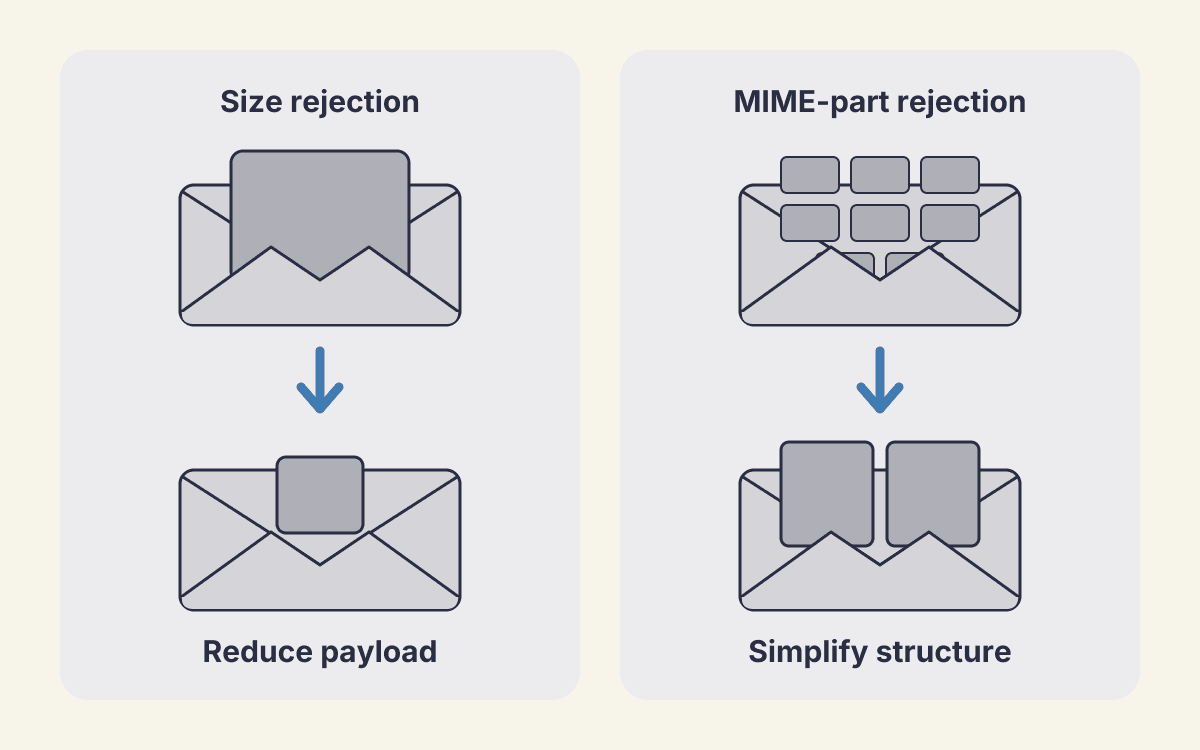
Encoded message size includes the attachment’s email encoding, not just its size on disk. A file that appears small enough can still push the message over the limit. A message must fit both the sender’s and recipient’s limits, so a file the sender can send may still bounce if the recipient’s incoming limit is lower. The attachment limits by provider show how far those limits differ.
Use the correction that matches the inner rejection:
- Message size: Replace attachments with cloud links, compress the files, or split them across smaller emails.
- MIME parts: Remove unnecessary attachments, repeated signature images, and long-thread clutter. Signature images repeated through a reply chain can increase the part count.
If the required message structure still triggers rejection, ask the recipient administrator whether the receiving system can accept more MIME parts.
Check the Address Only When the Rejection Points There
Use address verification when the inner rejection points to the recipient. Check spelling and confirm the intended address with the recipient first.
For an address-related failure, check a suspect recipient before retrying. The checker asks the receiving server whether it would accept mail for that exact mailbox, then disconnects without sending.
| BounceCheck result | Meaning |
|---|---|
Invalid |
The mailbox does not exist, the domain has no mail servers, or the address is malformed. Sending to it produces a hard bounce. Remove the address from your send list. |
Valid |
The receiving server confirmed that the specific mailbox exists. Keep investigating the inner reply. |
Risky |
The server was reached but would not confirm the mailbox, usually because of a catch-all domain or a provider that blocks verification. Confirm the address with the recipient another way. |
Microsoft 365 needs a second look here. In August 2026 BounceCheck found that corporate Exchange Online tenants can answer a verification check with 550 Mailbox not found for every address, including local parts invented on the spot. So when the recipient’s MX host ends in .mail.protection.outlook.com, BounceCheck does not take that first 550 as proof the mailbox is gone: it repeats the check from a different IP. iCloud and Mimecast mail hosts get the same second check. The same caution applies to any probe you run yourself: one 550 from a Microsoft 365 host is not enough reason to delete an address.
Verification checks mailbox acceptance, not message-content acceptance, delivery, consent, or engagement. It cannot repair message-size, formatting, attachment-policy, or recipient-routing failures, including relay refusals.
Choose your next step based on the rejection’s scope:
- One recipient: Recheck the address and investigate that recipient’s rejection.
- All external recipients: Have your administrator investigate the broader delivery path.
- Other users affected: Include their full NDRs when escalating, so your administrator can compare the inner replies.
Send Relay Refusals to the Admin Controlling the Receiving Route
Use the rejecting hostname to identify the receiving service responsible for investigating a relay refusal. The server generating your NDR is not necessarily the server that refused delivery.
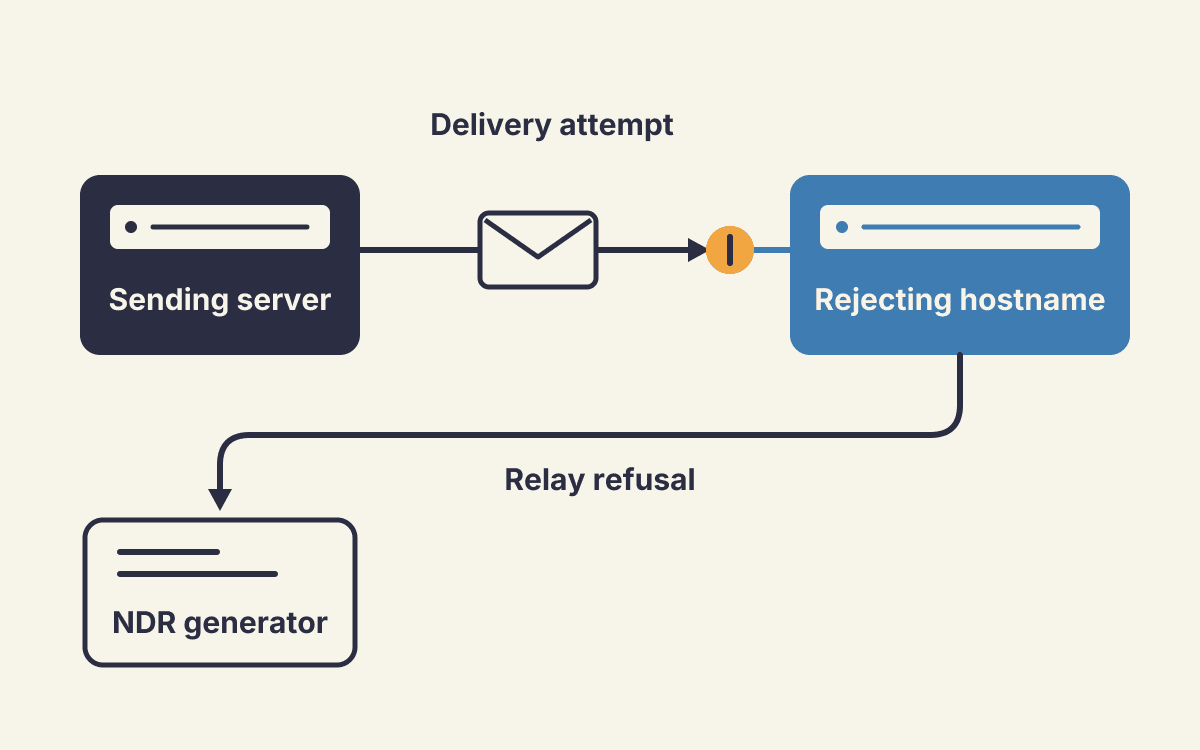
These fields identify different roles in a reported case:
| NDR field | Role |
|---|---|
DSN generated by: AB1PR01MB0000.namprd01.prod.outlook.com |
Server that generated the delivery status notification |
Remote Server: server-30.tower-248.messagelabs.com |
Remote server involved in the reported failure |
The sender reported using Exchange Online without MessageLabs or Symantec products locally. A remote hostname can point to a third-party filtering service, even if your organization does not use it.
For a receiving-side relay refusal:
- Contact the recipient through another channel.
- Ask them to involve their email administrator and, where applicable, their filtering service.
- Forward the full NDR, including the rejecting hostname, inner error code, and exact error message.
Have the recipient administrator investigate the receiving route. Do not automatically change your sender SMTP settings because the reply mentions relaying.
Before Retrying, Change the Cause or Forward the Full NDR
If no inner reply appears, forward the full NDR to your email administrator. Other unresolved cases also require administrator review; recipient-side failures usually require the recipient’s administrator.
Include:
- The affected recipients.
- Whether other senders reproduce the failure.
- Any message or address changes already attempted.
If the inner reply pointed at the address, verify the corrected address before you send again.
Resume sending only after correcting the identified cause. If it remains unclear, give your administrator the full NDR and reproduction details to coordinate with the receiving organization.
§ Before your next send
Find the addresses that will bounce
Verify a single address free, or upload a CSV — the free plan includes 50 checks a month, no card needed.

BounceCheck Team
The team behind BounceCheck - helping businesses verify emails and improve deliverability.