550 5.7.26 Unauthenticated Email: Find and Fix Gmail’s Rejection
 BounceCheck Team
Before your next send Find the addresses that will bounce.
Verify an email freeGmail’s 550 5.7.26 unauthenticated email error means Google permanently rejected your message because sender authentication failed or did not meet its requirements. Your message was rejected before delivery to either the inbox or spam folder. The SMTP reply 550 signals permanent rejection; the enhanced status code 5.7.26 places the failure in an authentication/security context.
The reply text identifies the authentication problem. Repair SPF, DKIM, and required alignment on the actual sending service rather than deleting DMARC. Start with the exact reply, then check message headers, make service-specific repairs, and verify the result with a fresh message.
Match your 550 5.7.26 unauthenticated email reply
For both reported replies, you or your sending-domain administrator must make the repair. The recipient cannot fix it.
| Reported reply | Failure | Owner | Action |
|---|---|---|---|
gmail-smtp-in.l.google.COM: 550-5.7.26 This mail has been blocked because the sender is unauthenticated. |
Gmail blocked the message because the sender was not properly authenticated. | You or your sending-domain administrator | Identify the sending service and check its SPF authorization and DKIM signing. |
550 5.7.26 This Mail is Unauthenticated |
The sending domain did not meet Google’s authentication requirements. | You or your sending-domain administrator | Check which authentication mechanism failed, then repair it on the service sending your mail. |
550-5.7.26 Unauthenticated email from example.com is not accepted due to domain's DMARC policy. |
Reported on the Gmail Community: the message failed DMARC and the From domain publishes a policy that asks receivers to reject it. | You or your sending-domain administrator | Align SPF or DKIM with the From domain on the service that sent the message. Keep the DMARC policy; loosening it hides the failure instead of fixing it. |
Google’s SMTP error reference sets the requirement behind these replies:
| Google requirement | Operational meaning |
|---|---|
| All senders must authenticate with SPF or DKIM. | Check authentication for the actual sending service, not just whether your domain has DNS records. |
Neither reply identifies the failed mechanism by itself. Before editing DNS, collect the rejected message’s sending-service details and available authentication results.
Read Authentication-Results before editing DNS
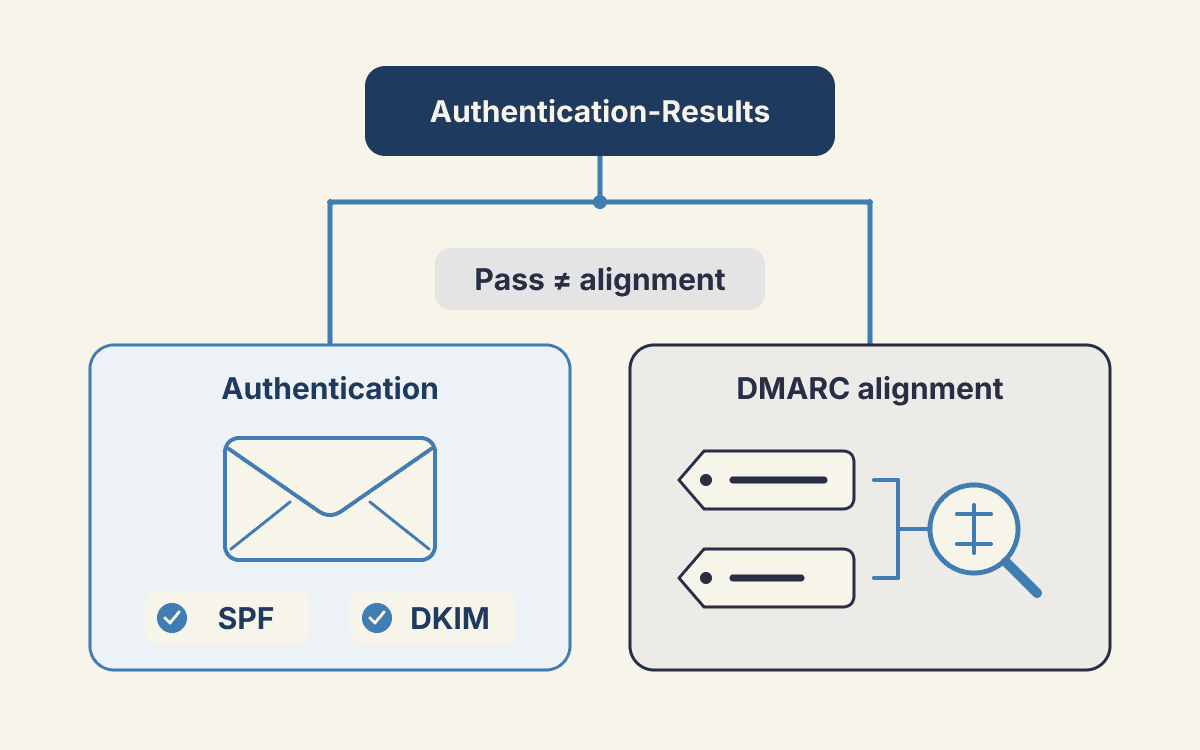
Authentication-Results separates authentication failures from domain-alignment failures. A successful SPF or DKIM check does not automatically mean that DMARC alignment passes.
- Preserve the full bounce and identify the sending service responsible for that message.
- Inspect
Authentication-Resultsin an available received copy from the same sending service. A rejected message may lack this header. - Compare the authentication results and identities together:
| Fields | What you check |
|---|---|
spf and smtp.mailfrom |
The SPF result and envelope sender domain evaluated for SPF. |
dkim and header.d |
The DKIM result and signing domain associated with that result. |
dmarc and header.from |
The DMARC result and visible From: header domain used for alignment. |
Authentication checks the sending identity. Alignment checks whether that authenticated identity matches the visible sender’s domain under your DMARC rules.
Google’s DMARC alignment guidance explains how aspf and adkim select strict or relaxed alignment.
| Alignment setting | Required domain comparison |
|---|---|
| Strict SPF alignment | The envelope sender domain must exactly match the From: header domain. |
| Strict DKIM alignment | The DKIM signing domain must exactly match the From: header domain. |
Record which check failed and which domains differ. Give those findings to the sending service and sending-domain administrator before changing authentication records.
Fix SPF and DKIM on the service sending your mail
Authorize the service that actually sends your mail, then configure it to authenticate using your domain. Your sending-domain administrator handles DNS; your sending service must supply the correct SPF authorization and DKIM settings.
- Update the applicable SPF policy. Include every legitimate sending service for that domain, not just your primary mailbox system. Obtain each service’s required authorization details before editing DNS.
- Enable DKIM signing at the sending service. Publish the service’s supplied key under its specified selector. Confirm that signing is enabled; a DNS record alone does not establish that.
- Configure an aligned domain. Set the service’s envelope sender domain or DKIM signing domain to align with your
From:header domain. Apply the alignment mode identified earlier. - Confirm the configuration with the sending service. Ask it to verify SPF authorization, the envelope sender domain, the DKIM signing domain, and the active selector.
Google’s sender guidelines specify these DKIM and alignment requirements:
| Setting | Requirement |
|---|---|
| DKIM key for personal Gmail delivery | At least 1024 bits; Google recommends 2048 bits if your domain host supports it. |
| Bulk senders’ direct mail | The From: header domain must align with either the SPF domain or the DKIM domain. |
Check the published records with the BounceCheck DNS Health Checker. It accepts a domain and returns a health score with specific fixes for email DNS issues.
Automatic selector discovery can miss your service’s DKIM selector. A missing discovery result is not proof that DKIM is absent. Obtain the active selector directly from the sending service and check its supplied key in DNS.
DNS checks confirm configuration. They do not prove message authentication or inbox placement. Send a fresh message to Gmail to verify the repaired sending path.
Keep your DMARC policy while repairing authentication
Keep your existing DMARC enforcement while you repair authorized sending paths. Lowering enforcement does not fix a failing SPF check, DKIM signature, or domain alignment.
Google’s Email sender guidelines distinguish minimum policy requirements from authentication requirements:
| Requirement | Scope and operational meaning |
|---|---|
| Personal Gmail scope | The guidelines apply to accounts ending in @gmail.com or @googlemail.com. |
| Bulk-sender authentication | Bulk senders must configure SPF, DKIM, and DMARC. |
| Minimum DMARC policy | Google allows p=none for bulk-sender compliance. That allowance is not a repair for failed authentication or a reason to reduce existing enforcement. |
Use Google’s DMARC setup guidance to review reporting and third-party authentication requirements. Google requires third-party services sending for your organization to authenticate messages and pass SPF and DKIM checks.
- Review existing DMARC reports. Identify legitimate third-party sending paths with authentication or alignment failures.
- Assign each failing path. Have the sending service correct its authentication configuration and your sending-domain administrator publish the required DNS changes.
- Preserve enforcement during repairs. Correct the failing path rather than deleting DMARC or changing your policy to
p=none. - Check the repaired path. Review subsequent reports and send a fresh message through that service to Gmail.
Verify the repair with a fresh message to Gmail
Confirm the repair with a new message through the previously failing sending path. DNS validation alone does not confirm delivery.
- Recheck public DNS. After authentication changes, recheck public DNS records. BounceCheck DNS Health Checker uses public DNS only and requires no login. Check the relevant SPF record, DKIM selector, and DMARC record.
- Send fresh mail. Use the same sending service and
From:address that previously failed. Testing another service leaves the original path unverified. - Inspect Gmail’s headers. Review the fresh message’s
Authentication-Resultsfor SPF, DKIM, and DMARC. Compare the authenticated domains with theFrom:header domain to confirm alignment as well as authentication. - Check placement separately. Gmail acceptance confirms the message was not rejected. Check whether it reached the inbox or spam folder.
- Escalate remaining failures. Send the full bounce, available message headers, sending-service details, and DNS changes to your sending service and sending-domain administrator. Include the envelope sender,
From:domain, DKIM signing domain, and selector so they can trace the failing path.
§ Before your next send
Find the addresses that will bounce
Verify a single address free, or upload a CSV — the free plan includes 50 checks a month, no card needed.

BounceCheck Team
The team behind BounceCheck - helping businesses verify emails and improve deliverability.