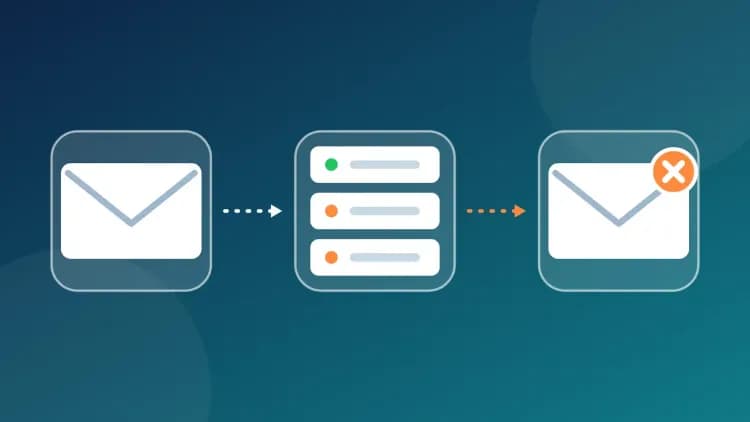
550 5.4.1 Recipient Address Rejected: Verify, Suppress, or Escalate
 BounceCheck Team
Before your next send Find the addresses that will bounce.
Verify an email freeMicrosoft Exchange Online’s 550 5.4.1 Recipient address rejected: Access denied means your message was permanently rejected. Commonly, Directory-Based Edge Blocking does not recognize the recipient address. Under RFC 5321, 550 is a permanent negative SMTP reply. In RFC 3463’s class.subject.detail format, 5 means permanent failure, 4 identifies network or routing status, and 1 specifies ‘No answer from host.’ For this Exchange Online rejection, interpret 5.4.1 alongside Microsoft’s exact reply text, which identifies a recipient-directory rejection.
Check the exact address, suppress confirmed-invalid addresses, and escalate confirmed addresses to the recipient’s Microsoft 365 administrator. Verification cannot repair their directory or accepted-domain configuration. You can correct an address error; their administrator must resolve a recipient-side configuration problem.
Match your 550 5.4.1 recipient address rejected reply
The reply text separates a recipient-directory rejection from a server refusing mail for the recipient’s domain.
| Reply text | Meaning | Fix owner | Next action |
|---|---|---|---|
550 5.4.1 Recipient address rejected: Access denied |
Exchange Online’s Directory-Based Edge Blocking (DBEB) rejected the address as invalid. | You verify the address; the recipient administrator repairs missing directory representation. | Check the exact address yourself. If confirmed, ask the recipient’s Microsoft 365 administrator to check its directory entry. |
5.4.1 with Relay Access Denied |
The rejecting mail server does not accept mail for the recipient’s domain. Server or DNS configuration can cause this rejection. | The recipient administrator owns domain acceptance and routing. | Check domain acceptance and routing |
Microsoft Learn’s recipient rejection guidance identifies DBEB as the mechanism behind the access-denied reply. That finding concerns directory recognition; the intended mailbox may still exist.
Capitalization differences do not create separate failure types. Read the complete reply in your Non-delivery report (NDR), rather than diagnosing from the enhanced status code alone.
A permanent rejection means the message was not accepted for delivery. It is not spam-folder placement or a temporary queuing delay. Use the reply text to assign the next check instead of resending the unchanged message. If the reply says 5.1.1 with "user unknown" instead, the mailbox itself was not found, and our guide to 550 5.1.1 user unknown covers that case.
Check the exact address before sending again
You can compare the bounced address character-by-character with the recipient’s confirmed address without recipient administrator access. Check the address recorded in the NDR, not just the display name in your contacts.
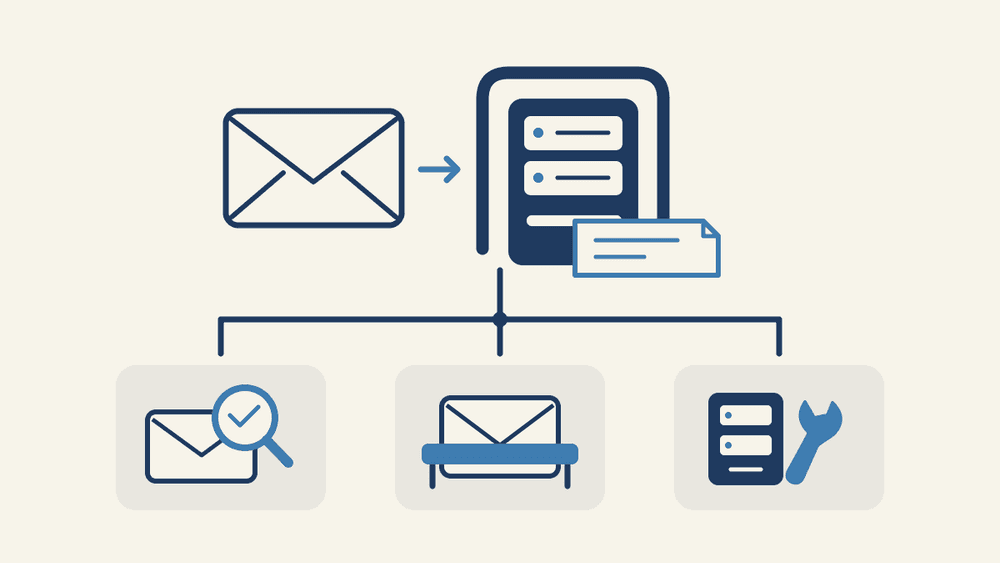
With BounceCheck Free Email Checker, you can paste an address to find out in seconds whether it is real, deliverable, or about to bounce. You can verify the exact address from the NDR without sending an email.
| Tool | Free daily allowance |
|---|---|
| BounceCheck Free Email Checker | 20 checks per day from this page without requiring signup |
- Syntax check: Catches typos, stray spaces and malformed domains before any network call.
- Domain & MX lookup: Checks whether the domain exists and publishes mail servers.
- SMTP handshake: Asks the receiving server whether it would accept mail for the exact mailbox, then disconnects without sending.
BounceCheck Free Email Checker never delivers an email or notifies the mailbox owner during checks. Keep the result alongside the original NDR so you can distinguish an address correction from an administrator escalation.
Use Invalid, Valid, and Risky results differently
BounceCheck Free Email Checker separates confirmed-invalid addresses from confirmed mailboxes and unresolved verification results.
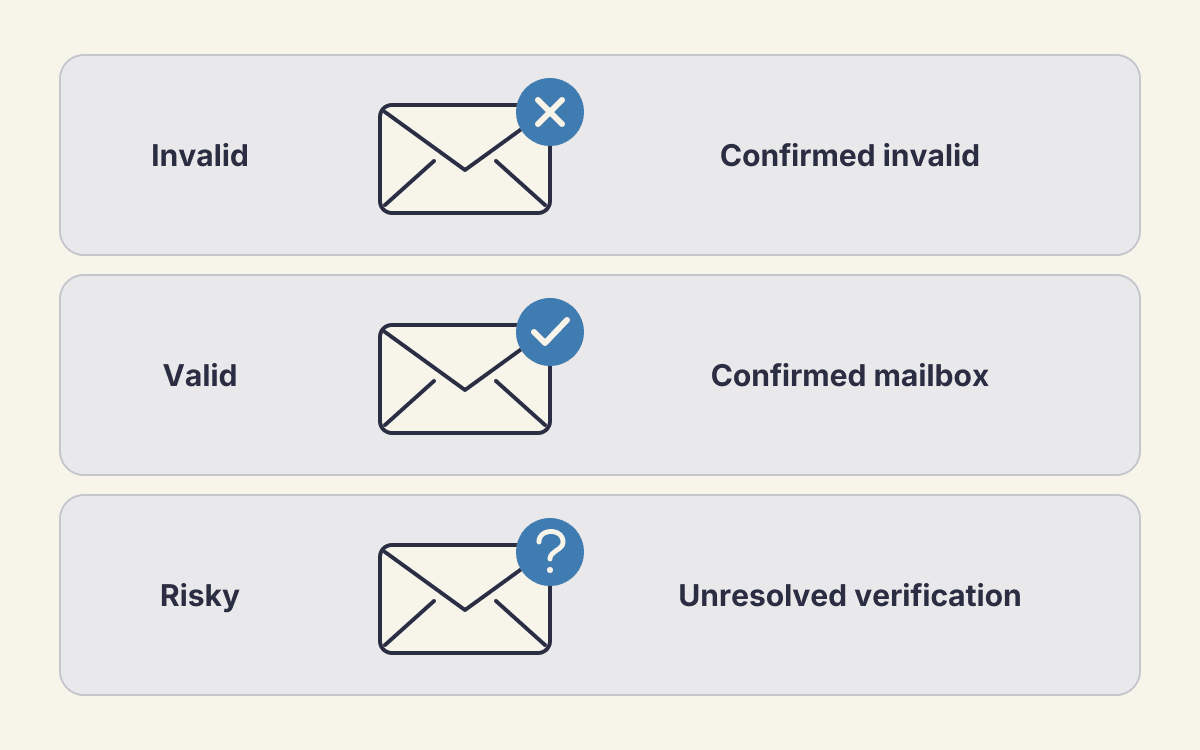
| Result | Exact meaning | Your sending decision |
|---|---|---|
Invalid |
The mailbox does not exist, the domain has no mail servers, or the address is malformed. Sending to the address produces a hard bounce. | Remove these addresses before your next send. |
Valid |
The receiving server confirmed that the specific mailbox exists. This is the only result BounceCheck describes as genuinely deliverable. | Investigate the existing rejection with the recipient’s Microsoft 365 administrator. The result is not consent and does not override the NDR or recipient policy. |
Risky |
The server was reached but would not confirm the mailbox, usually because of a catch-all domain or a provider that blocks verification. | BounceCheck recommends sending only if you can absorb a bounce. Uncertainty does not confirm a nonexistent mailbox or justify permanent suppression by itself. |
BounceCheck’s catch-all test probes with a random mailbox. Accepting every address does not, by itself, give a domain a Valid result.
For a Risky address with an existing rejection, resolve the uncertainty with the recipient or their administrator before another send.
Have the recipient's Microsoft 365 admin check DBEB and sync
A confirmed-address failure needs recipient-side repair. Domain-wide failures and isolated hybrid recipient failures require different checks. Check existing delivery results for other recipients in the same domain to establish the scope.
Microsoft’s accepted-domain and hybrid repair guidance assigns these changes to the recipient’s administrator.
All recipients fail: check accepted domains
Ask the recipient’s Microsoft 365 administrator to open Exchange admin center: Mail flow > Accepted domains and select the affected domain.
| Situation | Recipient administrator’s action |
|---|---|
| All recipients in the domain are affected | Resync the accepted domain by switching from Authoritative to Internal Relay, then back to Authoritative. |
| Exchange setup is still underway | Temporarily keep Internal Relay until all intended recipients are added to Exchange Online and fully replicated. Then change to Authoritative. |
| Domain uses Authoritative | Check that intended recipient SMTP addresses exist in Exchange Online. This setting blocks addresses absent from its directory. |
Internal Relay is setup guidance. It is not a universal permanent repair, and you cannot change it as an external sender.
One hybrid recipient fails: repair its directory representation
For an isolated failure, ask the administrator to identify the recipient object before changing synchronization settings.
| Affected hybrid recipient | Recipient administrator’s repair |
|---|---|
| On-premises user mailbox using Microsoft Entra ID directory synchronization | Reset the SMTP proxy address by changing it to a temporary address, then reverting it. |
| On-premises mail-enabled public folder | Verify that it is synced to Exchange Online. If missing, use the Sync-ModernMailPublicFolder PowerShell script. |
| On-premises dynamic distribution group | Create a mail contact in Exchange Online with the same external email address as the group. Dynamic distribution groups cannot sync to Exchange Online. |
| Update condition | Microsoft’s documented DBEB window |
|---|---|
| After an on-premises mailbox change | Allow up to 24 hours for Directory-Based Edge Blocking (DBEB) to fully update. |
Ask the administrator to confirm the recipient object’s repair and replication status before you arrange another delivery attempt.
Send an escalation packet
Give the recipient’s Microsoft 365 administrator evidence that separates an address problem from a domain-wide rejection. Include:
- The full Non-delivery report (NDR), including the rejecting server and exact reply.
- The exact address used, plus any corrected or recipient-confirmed address.
- Your verification result and which address you checked.
- The affected scope: one recipient, multiple recipients in that domain, or recipients across unrelated organizations.
Ask the recipient’s administrator to check the domain’s MX record with their registrar or DNS hosting service. An incorrect MX record can also produce the access-denied reply.
They should confirm the domain status is Active in the Microsoft 365 admin center. For domain configuration problems, they can select the domain and run Troubleshoot.
The recipient’s administrator should also check mail flow rules. The reply alone does not establish a rule as the cause.
If the same rejection affects recipients across unrelated organizations, involve your sending administrator too. That pattern makes a sender-side issue more likely.
Check the corrected address before resuming sends.
§ Before your next send
Find the addresses that will bounce
Verify a single address free, or upload a CSV — the free plan includes 50 checks a month, no card needed.

BounceCheck Team
The team behind BounceCheck - helping businesses verify emails and improve deliverability.