Google Sheets Email Outreach Tracker Template: Build It in 30 Minutes
 BounceCheck Team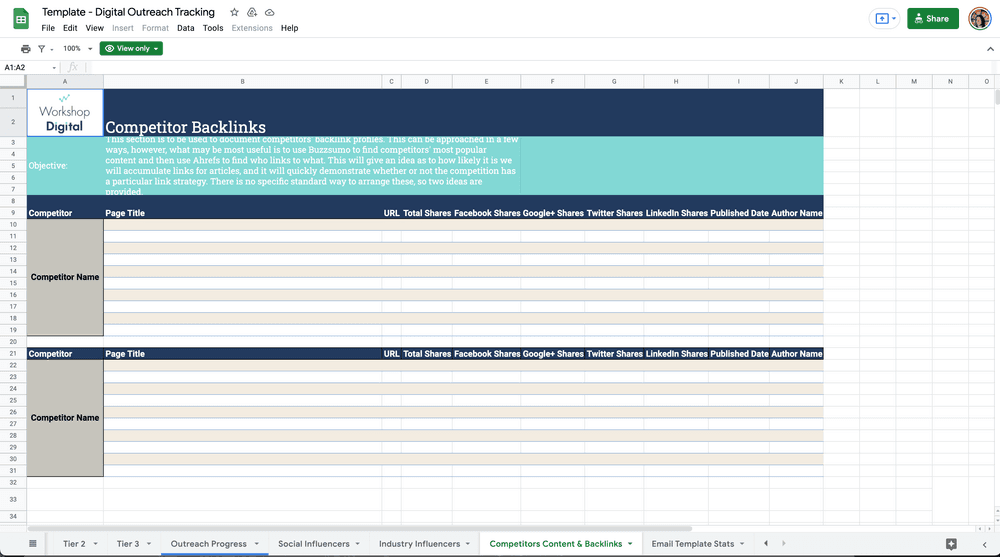
Most outreach fails because people send one email and forget about it. A Google Sheets tracker fixes that by turning your inbox into a pipeline you can actually see. You get pipeline visibility, scheduled follow-ups, and weekly accountability without paying for a CRM, and you can build the whole thing in about half an hour.
This guide walks through a three-tab Google Sheets email outreach tracker template you can copy: nine columns in the main tab, a Client Overview dashboard, an Email Templates tab, a SWITCH formula that auto-schedules follow-up dates, and the Gmail or GMass setup that fills in opens, clicks, and replies for you.
Why a Google Sheets tracker beats a CRM for early outreach
The pitch for switching to a paid CRM only makes sense once you have a high-volume pipeline. For solo founders, agency teams running a single client, or anyone sending fewer than 200 pitches a month, a free spreadsheet does the same job with fewer clicks. Four benefits show up immediately:
- Pipeline visibility: every contact, status, and reply lives in one row you can sort and filter.
- Follow-up scheduling: the last-contact date plus a stage column tell you exactly when the next nudge is due.
- Performance analytics: filter by stage and you can see which subject lines and offers actually convert.
- Accountability: shared sheets keep a team from sending duplicate pitches to the same blogger or journalist.
The other reason a spreadsheet wins early on is that outreach is cold email, and cold email lives or dies on deliverability. Tracking sends in a sheet you control lets you spot rising hard-bounce rates before Gmail and Outlook flag your sending domain. Watching the acceptable hard-bounce rate for cold email directly in the same tab where you log replies catches problems weeks earlier than any CRM dashboard would.
The three-tab layout that keeps the tracker scalable
A good tracker splits work across three tabs. Mixing data entry, dashboards, and templates on one sheet turns into a mess by row 50, and refactoring is painful once formulas reference scattered cells.
Tab 1: Tracker
The input tab where every outreach conversation lives. One contact per row. This is where the data goes in and where conditional formatting highlights what needs attention today.
Tab 2: Client Overview
A summary dashboard that aggregates the Tracker tab. For agencies it groups results by client. For solo operators it groups by campaign or by month. COUNTIFS formulas pull live and rejected link counts straight from the Tracker tab.
Tab 3: Templates
Email copy for every stage of the conversation, kept in one place so the team uses consistent wording. Each row holds the stage name, a short description of when to use it, and the actual email body. Pulling templates from this tab into a mail-merge tool keeps the message in sync across campaigns.
The nine columns every outreach tracker needs
The Tracker tab uses nine columns. Anything fewer and you start losing context, anything more and data entry slows down. Use these exact data types so drop-downs and formulas behave.
| Column | Data type | Purpose |
|---|---|---|
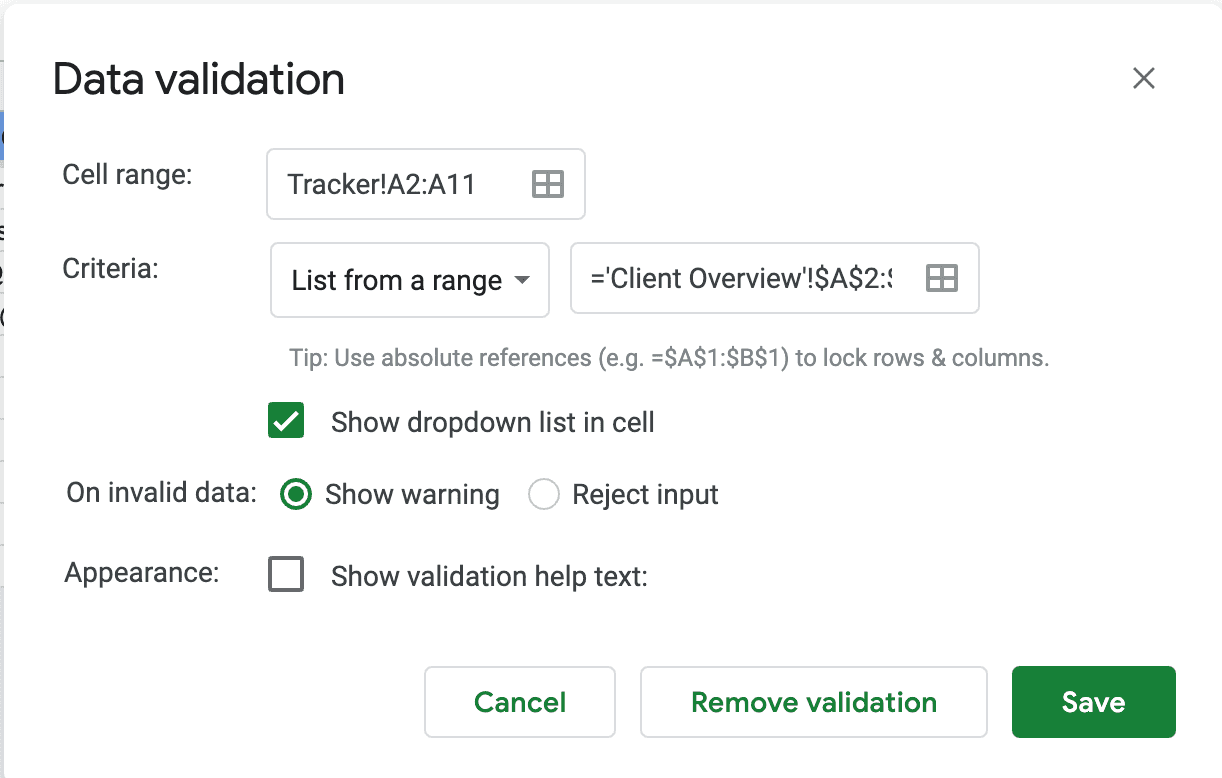
| Client | Drop-down | Pulled from the Client Overview tab |
| Topic / Project | Open text | Campaign or project identifier |
| Name | Open text | Blogger or journalist name |
| Contact | Open text | Email address |
| Last contact date | MM/DD/YY | When you last emailed this person |
| Stage | Drop-down | Initial, Follow-up 1, Follow-up 2, Follow-up 3, Restart, Personal, Rejected |
| Follow-up date | MM/DD/YY | Auto-calculated from Last contact date and Stage |
| Status | Drop-down | Pending, Awaiting, Live, Rejected |
| Notes | Open text | Anything that does not fit a column |
The drop-downs matter more than they look. Stage and Status feed the dashboard formulas and the conditional formatting on the Follow-up date column, so consistent spellings keep the whole sheet honest.
Statuses, stages, and the SWITCH formula that automates follow-up dates
This is where the tracker stops being a list and starts being a system. The Stage drop-down drives a single SWITCH formula that fills in the next Follow-up date automatically.
- Initial: +3 days
- Follow-up 1: +5 days
- Follow-up 2: +7 days
- Follow-up 3: +14 days
- Restart: +180 days (six-month gap before pitching the same contact again)
- Personal or Rejected: no follow-up date
Drop the SWITCH formula into the Follow-up date column. It reads the Stage cell and adds the right number of days to Last contact date:
=IF(F2="","",E2+SWITCH(F2,"Initial",3,"Follow-up 1",5,"Follow-up 2",7,"Follow-up 3",14,"Restart",180,0))
Layer conditional formatting on the same column to turn the sheet into a traffic light:
- Red if the follow-up date is before today (overdue)
- Yellow if it equals today (due now)
- Green if it is in the future (scheduled)
The Status column uses four values: Pending (no reply yet), Awaiting (waiting on the contact to send a draft or confirm), Live (link or guest post is published), Rejected (passed or no fit). Those four values feed the dashboard COUNTIFS in the next tab.
The Client Overview dashboard
Tab 2 is a single table with one row per client or campaign and two formulas that do the counting for you. With Live/Rejected dropdowns on the Tracker tab, both formulas update the moment a status changes.
- Count of Live Links:
=COUNTIFS(Tracker!A:A, A2, Tracker!H:H, "Live") - Count of Rejected Links:
=COUNTIFS(Tracker!A:A, A2, Tracker!H:H, "Rejected")
A tracker that does not track win-rate is a to-do list, not a system. Add two more columns to this tab if you want a quick weekly read: total contacts (a plain COUNTIF on the Client column) and conversion rate (Live divided by total). Anything below 5 percent on cold outreach usually points to a list quality problem rather than a copy problem, which is why scrubbing the address list through a bulk email verifier before the first send is non-negotiable.
Automate sending and open tracking with Gmail or GMass
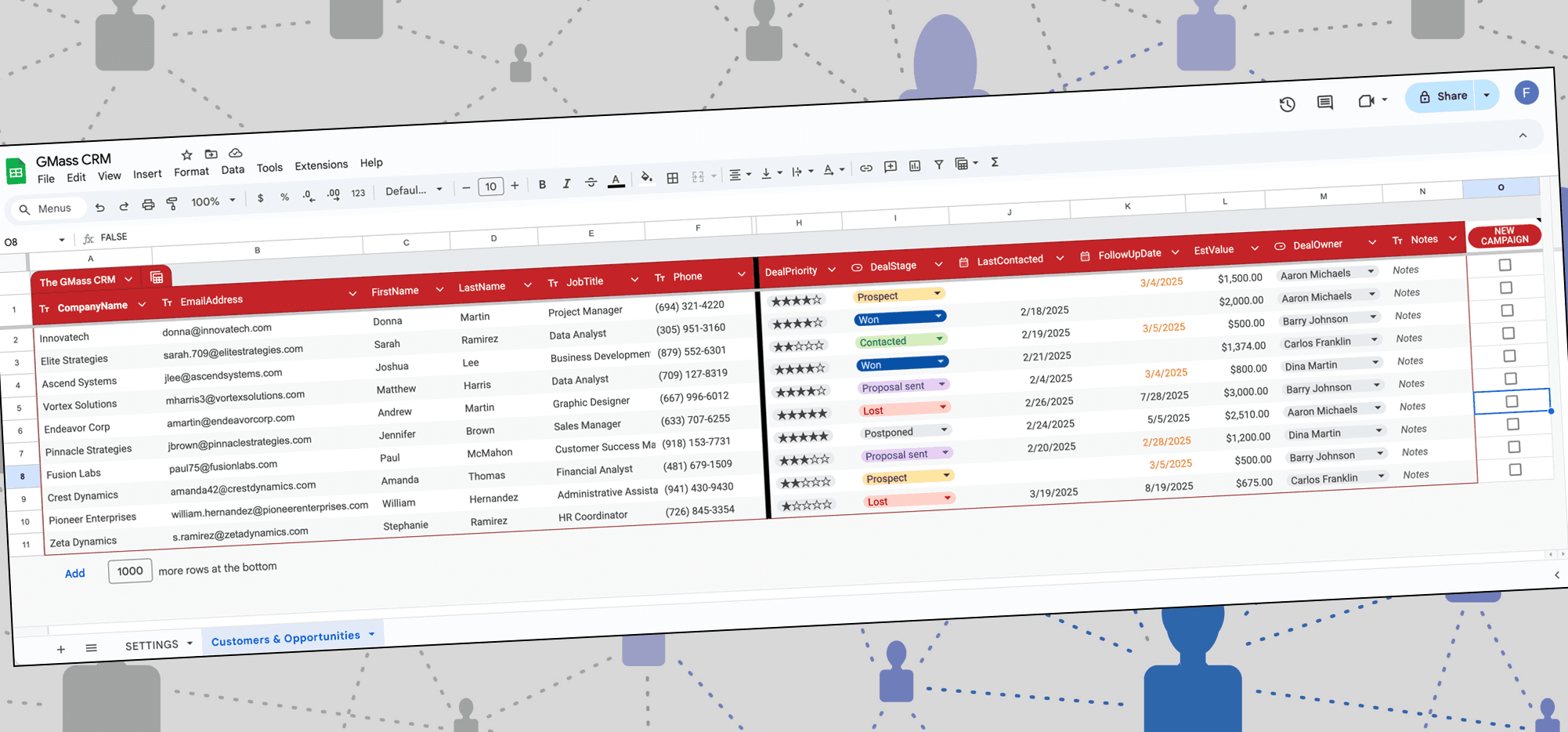
The Tracker tab works as a manual log on day one. After 50 rows you will want sends and opens to fill in automatically. GMass, a Gmail Chrome extension, does this directly against a Google Sheet with no Apps Script required.
- Format the header row with alphanumeric column names only (no spaces, no special characters).
- Reserve at least four empty columns to the right of your data for the auto-generated tracking columns.
- Install the GMass Chrome extension and click the Sheets button next to the Gmail search bar.
- Pick the worksheet, tick "Update Sheet with reporting data," and grant the OAuth permission so GMass can write back.
- Compose in Gmail, drop merge variables in
{FirstName}curly-brace syntax, then send via the GMass button. - GMass appends OPENED, CLICKED, and REPLIED columns and writes an X into the matching row when each event fires.
For copy that earns those opens and replies, the outreach pitch templates you store in Tab 3 still need personalisation per recipient. The sheet automates the send and the tracking, not the writing.
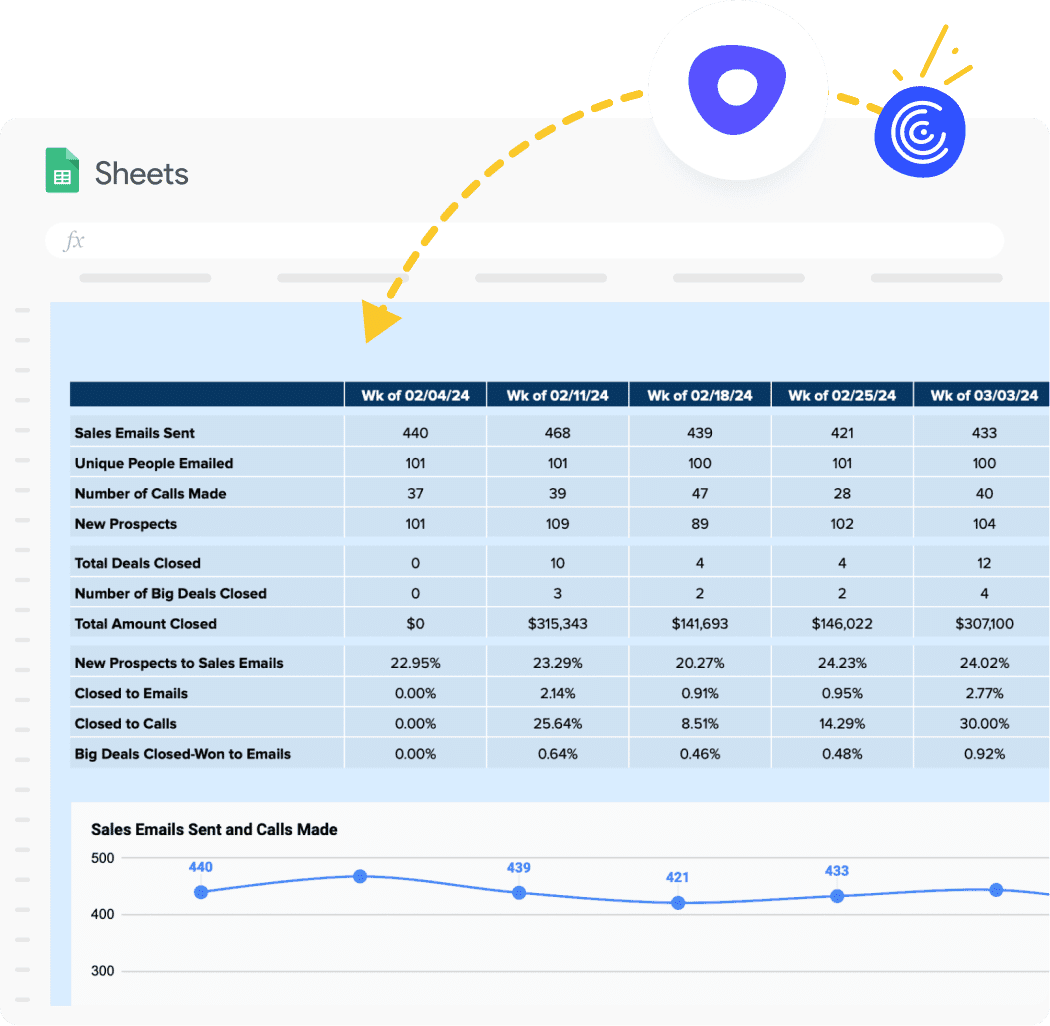
Coefficient is a heavier alternative if you want pre-built dashboards. It connects Google Sheets to Salesforce, HubSpot, or Outreach and pulls cold-vs-follow-up performance into visualisations without manual formulas. Free tier, 700,000-plus users, and the dashboards update in real time once the sync is live.
Pre-send deliverability checks before you launch the campaign
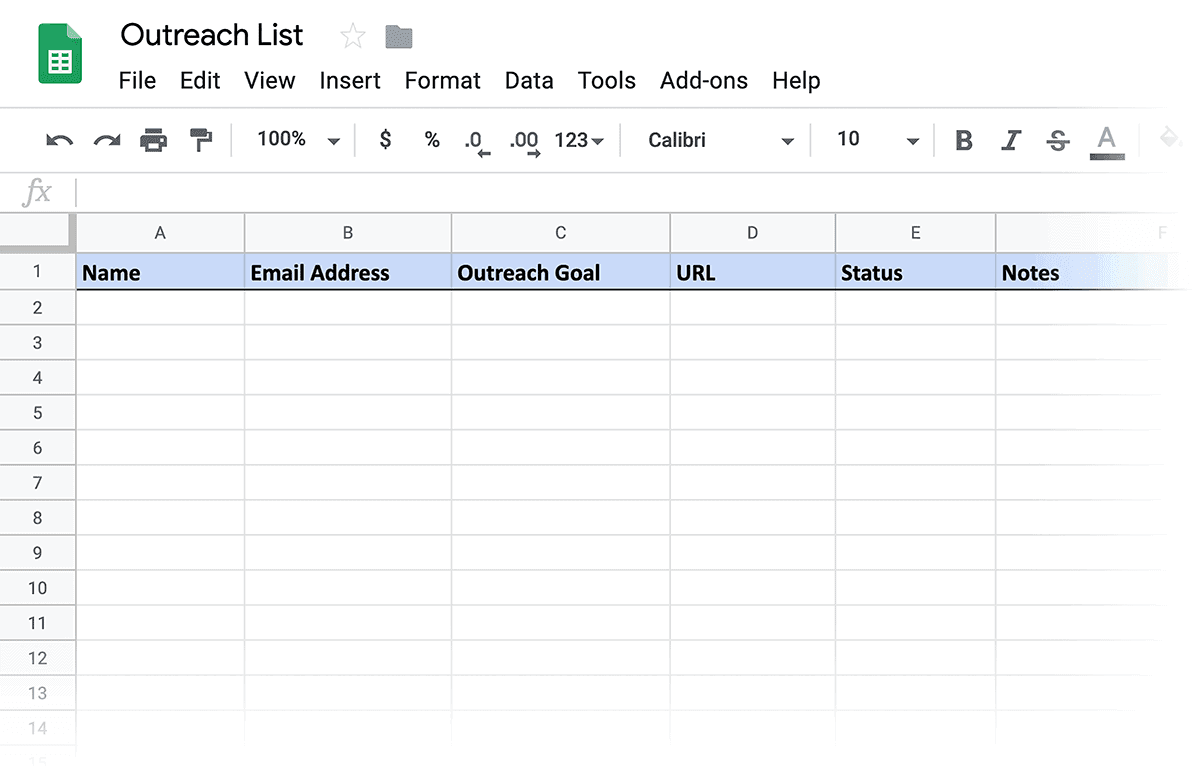
A tracker is only as good as the addresses in column D. Three checks turn a leaky list into one that protects your domain reputation:
- Run the Contact column through a verifier before the first send. A 12 to 15 percent hard-bounce rate is enough to flag your sending domain as a spam source at Gmail and Outlook.
- Confirm SPF, DKIM, and DMARC records are live on the sending domain. Without them the sender reputation you build over months can be torched in a week.
- Warm a new outreach inbox for two weeks before scaling. Day one at 80 sends trips every major spam filter.
Log the verifier result in a hidden Validation column on the Tracker tab and filter it out before merging. The cleaner the list, the more honest the Follow-up and Reply metrics will be.
Quick answers about Google Sheets outreach trackers
Can Google Sheets send email notifications when a row changes?
Yes. Tools > Notification rules lets you trigger emails on edits to the Status or Stage column. For richer logic, an Apps Script onEdit trigger can send a personalised email when a specific status flips, but most teams find the GMass write-back loop more reliable than DIY scripts.
How do I automate sending emails from Google Sheets?
The simplest route is a Gmail add-on like GMass or YAMM that reads the sheet and sends through your Gmail account, with results written back to the same sheet. Apps Script with MailApp.sendEmail works for one-off jobs but does not handle replies or unsubscribes well.
How do I track productivity inside the same tracker?
Add a small block on the Client Overview tab with COUNTIFS counting Last contact date in the current week. That gives you a live count of sends per week, which is the only productivity number that actually moves the pipeline.
How do I turn this into an application or PR pitch tracker?
Swap the Status drop-down values (Pending, Awaiting, Live, Rejected) for whatever stages your funnel uses (Applied, Phone screen, Onsite, Offer, Rejected). The three-tab structure, SWITCH formula, and dashboard COUNTIFS work identically for job applications, PR pitches, or link-building campaigns.

BounceCheck Team
The team behind BounceCheck - helping businesses verify emails and improve deliverability.