Types of Email Accounts: Protocols and Mailbox Types
 BounceCheck Team
Email accounts are categorized in two main ways: by the connection protocol they use (POP, IMAP, and Exchange for receiving, plus SMTP for sending) and by the purpose the mailbox serves (personal, shared, role-based, alias, distribution list, service, and transactional). A third factor is where the account is hosted, ranging from free webmail like Gmail to a business account on a domain you control through Google Workspace or Microsoft 365.
Which combination you choose affects security, how well mail syncs across your devices, and whether your messages reach the inbox or the spam folder. Here is what each type is and where it fits.
Types of email accounts by connection protocol
Protocols decide how mail moves between your device and the mail server, and how much of it stays in sync. Three handle receiving and one handles sending; the specific ports they use are covered in our guide to IMAP, POP3, and SMTP ports.
POP3 (download and delete)
POP, short for Post Office Protocol, is the oldest of these, with its original version dating back to 1984. It downloads messages from the server to one device and usually removes them from the server afterward. Once mail lands on your laptop, it will not appear on your phone or a second computer, and folders, flags, and read status do not sync. POP still works if you use a single device and want offline access, but POP3 has been losing ground as providers tighten security around its older sign-in method.
IMAP (sync across devices)
IMAP, the Internet Message Access Protocol, keeps messages on the server, so reading, moving, or deleting mail on one device is reflected everywhere. Download an email on your desktop and it appears on your phone; read it on a tablet and it shows as read on your laptop. That makes IMAP the better fit for anyone switching between laptop, phone, and webmail. The tradeoffs are that it uses more server resources, is not supported by every provider, and its traditional plain-text login has been a security weak point.
Microsoft Exchange (and MAPI or Graph)
Exchange is Microsoft's protocol, and it syncs far more than mail: calendars, contacts, tasks, and shared mailboxes all stay current across devices. It is built for collaboration and central management, with admin control over permissions, which is why it suits businesses running on Microsoft 365. On Windows, Outlook connects to Exchange over MAPI, and the Microsoft Graph API layers automation and reporting on top for teams that need more than a mailbox.
SMTP (the sending path)
The protocols above receive and sync mail; SMTP, the Simple Mail Transfer Protocol, is how mail gets sent. An SMTP relay authenticates the sender, applies rate limits, and routes outbound messages, which is what carries automated mail such as receipts, notifications, and password resets.
Security has reshaped all of these. Microsoft removed Basic authentication, where a username and password travel with every request, for POP, IMAP, and SMTP AUTH in Exchange Online, and that legacy login is now disabled across all tenants. Clients have to use OAuth 2.0 (modern authentication) instead, which is one reason older POP and IMAP setups have needed reconfiguring.
Free webmail vs business email accounts
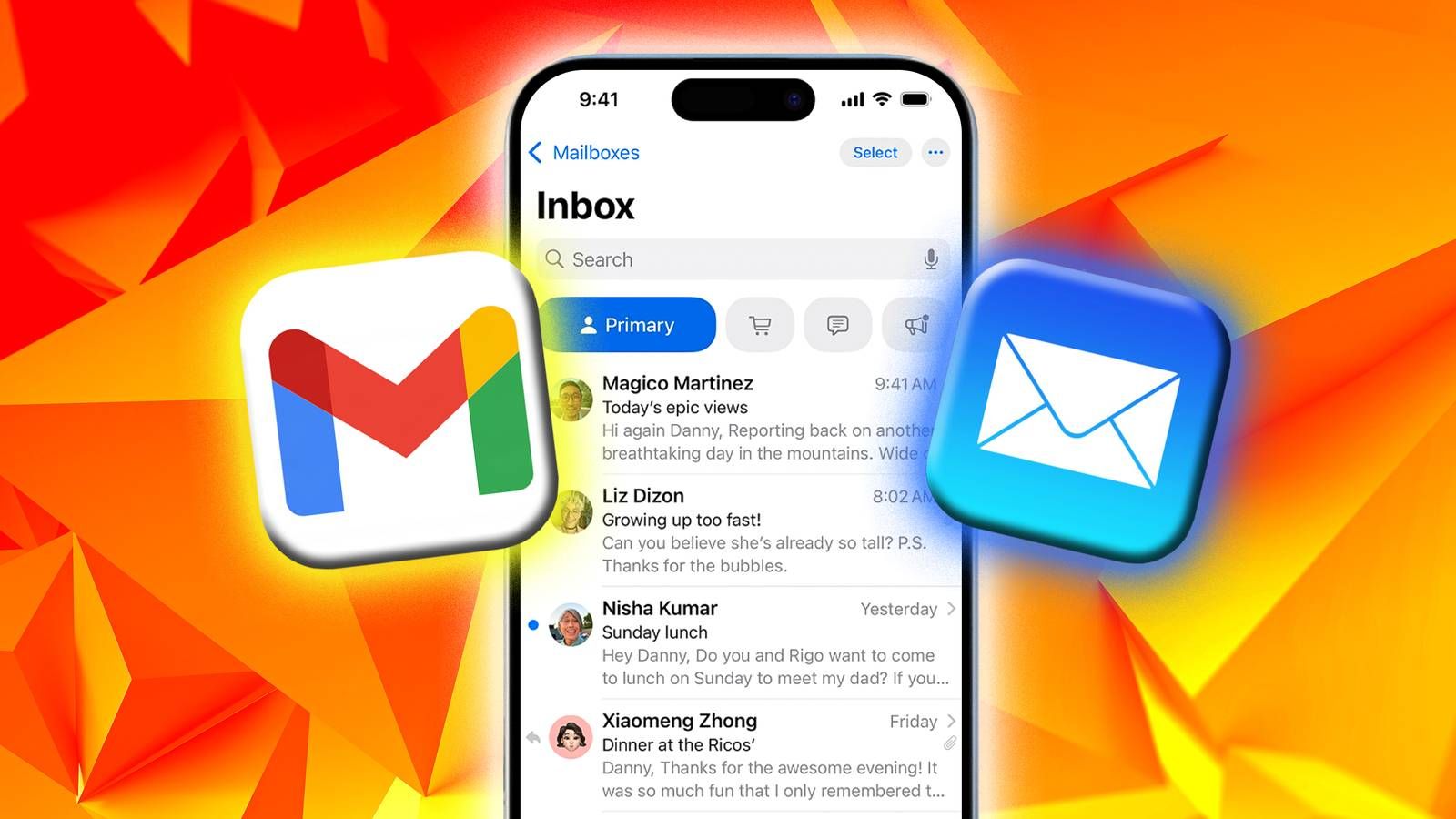
Beyond protocol, accounts split by how you reach them and who runs them. For personal use there are two main setups. An email client is an application you install, such as Mozilla Thunderbird or Apple Mail, that connects to a remote mail server. Webmail lives in the cloud and is read from a browser, with Gmail, Yahoo Mail, and Outlook.com among the best-known providers. Most services offer both.
The bigger split for organizations is free versus business email. A free webmail account is quick to set up and costs nothing, while a business account runs on a domain you control ([email protected]) and is hosted on a platform like Google Workspace or Microsoft 365. The full tradeoffs are in our breakdown of free email vs business email, but the short version is that a custom-domain account looks more professional and gives an admin control over security and mailbox structure.
Where email is hosted shapes the experience too. Google Workspace is low-maintenance with strong collaboration tools, Microsoft 365 offers deeper enterprise controls around Exchange and compliance, and a self-hosted server gives full control but leaves you responsible for uptime, TLS, and staying off blacklists.
Types of business mailboxes
Inside a business, a single protocol can back very different mailbox types, each with its own purpose and risk profile.
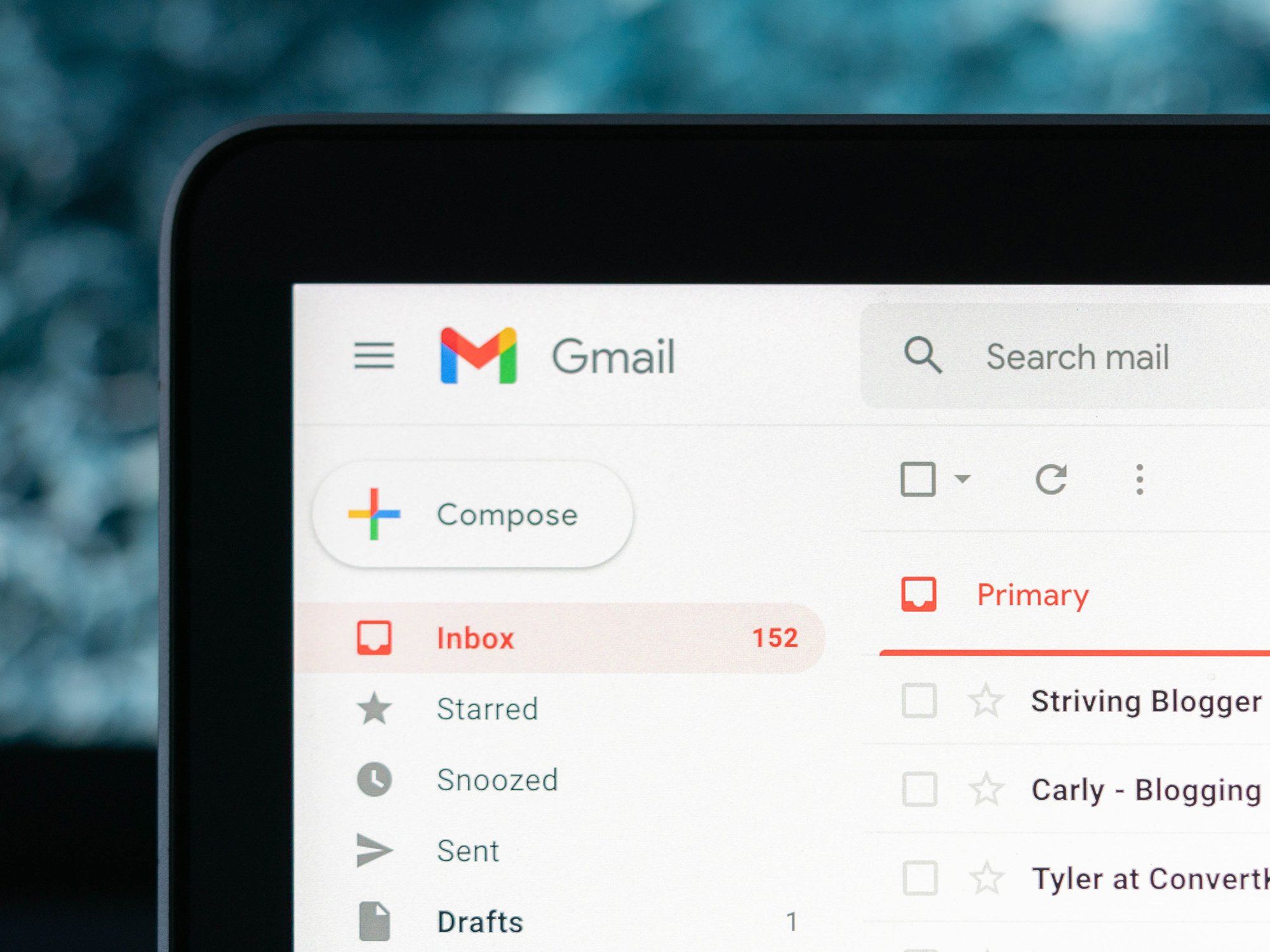
Personal (named) mailbox
Assigned to one employee, a personal mailbox is the primary tool for client outreach, internal collaboration, and reporting. A named sender builds trust, which helps in sales and lowers the odds of a message being flagged as spam. Multi-factor authentication matters here, since these accounts are a common target for compromise.
Shared mailbox
A shared mailbox lets several team members work from one address, which fits customer service or billing where any available agent should be able to reply. It removes the single-owner bottleneck and keeps a consistent From identity, but it needs clear permissions so replies do not collide or get missed.
Role-based address (info@, sales@, support@)
Role-based addresses represent a function rather than a person, so they are useful for routing inbound inquiries and keeping branding consistent. They also attract more spam and draw extra scrutiny from filters, so they are best reserved for inbound mail and generally avoided for cold outbound campaigns.
Aliases and forwarding addresses
An alias is a second name for the same mailbox: mail to jane@ and support.jane@ both land in Jane's inbox, and deliverability stays clean because nothing is rerouted. A forwarding address redirects mail to a different mailbox, which is convenient but can break SPF, DKIM, and DMARC checks and push forwarded messages toward spam.
Distribution list
A distribution list sends one message to many recipients, which suits departmental announcements and team-wide updates. Moderation controls who can post and whether external senders are allowed, and archiving keeps a compliance record of what went out.
Service account
A service account is a mailbox for a system rather than a person, such as the address your CRM sends reminders from or a scan-to-email printer uses. Because no one reads it daily, it needs tight security: OAuth or app-specific credentials, regular credential rotation, and least-privilege access.
Transactional (sending-only) mailbox
A transactional mailbox exists to send automated messages such as order confirmations and receipts. Keeping it on a separate subdomain protects your primary domain's reputation, and it still needs rate monitoring and working unsubscribe logic.
Quick comparison: business email account types
The seven business mailbox types differ most in what they suit and how spam filters treat them. Personal and shared mailboxes carry the strongest sending reputation; role-based, alias, and forwarding setups need the most authentication care.
| Type | Best for | Key deliverability note |
|---|---|---|
| Personal | Individual employees | Strong reputation when monitored; enforce MFA |
| Shared | Teams (support, billing) | Consistent headers build trust; manage permissions |
| Role-based | Function addresses (info@, sales@) | Heavily filtered; keep inbound-only, align SPF and DMARC |
| Alias | Alternate addresses, one inbox | Clean if SPF-aligned; centralize unsubscribes |
| Distribution list | Internal one-to-many | Internal use; moderate and archive |
| Service | Automation (systems, tools) | Least privilege; rotate credentials |
| Transactional | Receipts and notifications | Isolate on a subdomain; monitor send rate |
How your email account type affects deliverability

The account structure you choose has more impact on inbox placement than many teams expect. Role-based addresses like info@ and support@ are watched closely by spam filters because they are so often used for bulk mail, so sending outreach from them can hurt placement. Shared mailboxes can produce inconsistent sending patterns when several people send from one identity, and a pile of aliases can blur your domain's reputation. Forwarding is the most common technical trap, since it frequently breaks authentication and makes legitimate mail look suspicious.
The fix is separation and hygiene. Give marketing, transactional, and sales mail their own subdomains so each builds its own reputation, keep authentication aligned, and maintain a clean list. Account structure sets the stage, but reputation is still earned through consistent, wanted mail. The broader playbook is in our guide on how to improve email deliverability.
FAQs
How many types of email accounts are there?
It depends on how you count. By connection protocol there are effectively four: POP, IMAP, Exchange, and SMTP for sending. By mailbox purpose, businesses commonly run seven: personal, shared, role-based, alias, distribution list, service, and transactional.
Is POP or IMAP better?
For most people, IMAP. It keeps mail on the server and syncs across every device, so your inbox looks the same on your phone and your laptop. POP downloads mail to one device and removes it from the server, which only suits single-device, offline use.
Which email account is best for a business?
A business account on your own domain, hosted on Google Workspace or Microsoft 365, using IMAP or Exchange for sync. It looks professional, gives an admin control over security, and supports shared and role-based mailboxes as the team grows.
What is the best free email account?
The most widely used free webmail providers are Gmail, Outlook.com, and Yahoo Mail, with Proton Mail and Zoho Mail popular for privacy. Any of them is fine for personal mail; for a company, a custom-domain business account is the stronger choice.
Before your next campaign, run your list through BounceCheck to catch invalid addresses and protect your sender reputation, whatever mix of email accounts you send from.

BounceCheck Team
The team behind BounceCheck - helping businesses verify emails and improve deliverability.