Microsoft SNDS: How to Monitor Your Outlook IP Reputation
 BounceCheck Team
Before your next send Find the addresses that will bounce.
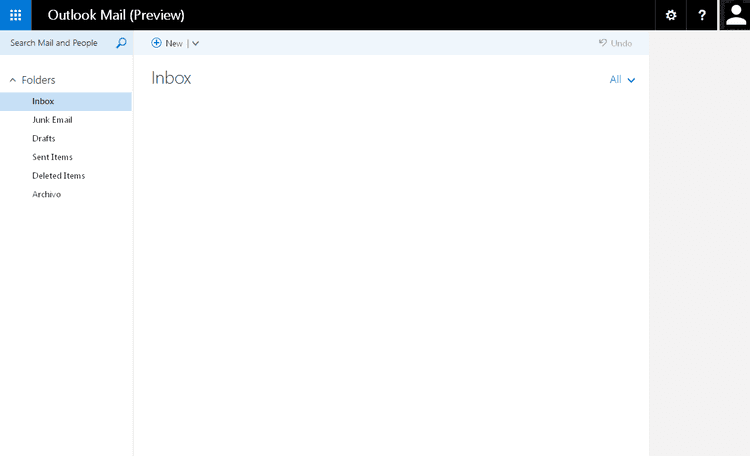
Verify an email freeMicrosoft Smart Network Data Services (SNDS) is a free tool from Outlook.com (formerly Hotmail) that shows how Microsoft's mail systems view the sending reputation of your IP addresses. It reports the data Microsoft collects when you send to Outlook, Hotmail, Live, and MSN mailboxes: how much mail you sent, your complaint rate, spam trap hits, and a color-coded reputation score for each IP. If a meaningful share of your list sits on Microsoft consumer domains, SNDS is the closest thing you get to seeing your reputation from Microsoft's side of the connection.
SNDS is built around IP addresses rather than domains, so it suits senders who control their own dedicated IP space. This guide covers what SNDS measures, how to request access, how to read each metric, and what the tool can and cannot tell you.
How SNDS differs from Google Postmaster Tools
SNDS and Google Postmaster Tools measure reputation at different levels. Google Postmaster Tools reports reputation by domain, while SNDS reports it by IP: individual IP addresses, IP ranges, and Autonomous System Numbers (ASNs). Most senders use both, one for Gmail and one for Microsoft mailboxes. Because the data is tied to IPs, access is limited to senders on dedicated IPs. If you send on a shared IP pool, which is common on lower ESP tiers, Microsoft restricts access for privacy reasons, and your ESP is the one watching SNDS on your behalf.
That IP focus is why SNDS complements domain-level checks rather than replacing them. Reputation lives at both levels, and Microsoft weighs its own signals when it decides placement. For the domain side of the equation, keep your authentication clean and confirm your configuration against Microsoft's Outlook bulk sender requirements.
How to set up SNDS access
To set up SNDS, sign in with a Microsoft account, request access to your sending IPs on the SNDS portal, and confirm ownership through the abuse contact in your WHOIS record. Approval typically takes 24 to 48 hours, and data appears once an IP sends at least 100 messages in a day.
- Sign in with a Microsoft account. Access requires a Microsoft account, such as an Outlook or Hotmail address (historically called a Windows Live ID).
- Enter your IPs. On the Request Access page, add the individual IP addresses, an IP range, or the ASN you send from.
- Confirm ownership. Microsoft verifies that you control the IPs by emailing the abuse contact listed in the WHOIS record for those addresses, and the IP owner approves the request.
- Wait for approval. Authorization usually takes 24 to 48 hours, after which the dashboard fills in.
One detail worth knowing up front: SNDS only shows data for an IP that sent at least 100 messages in a single day, and it retains roughly the past 90 days of history. Low-volume IPs may show little or nothing. You can start from the official Microsoft SNDS portal.
The metrics SNDS reports
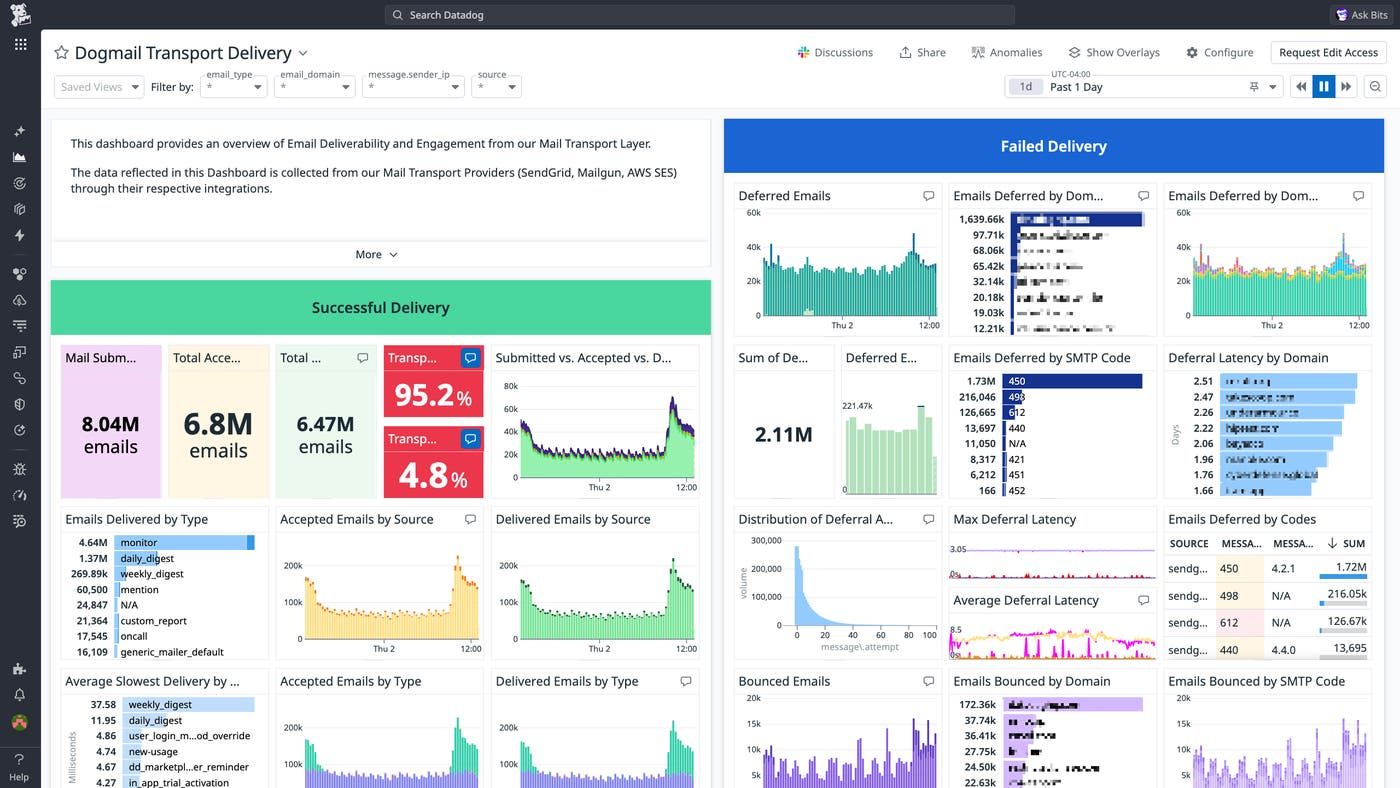
Once you are in, the main view lists each authorized IP alongside the metrics Microsoft tracks. Four groups matter most.
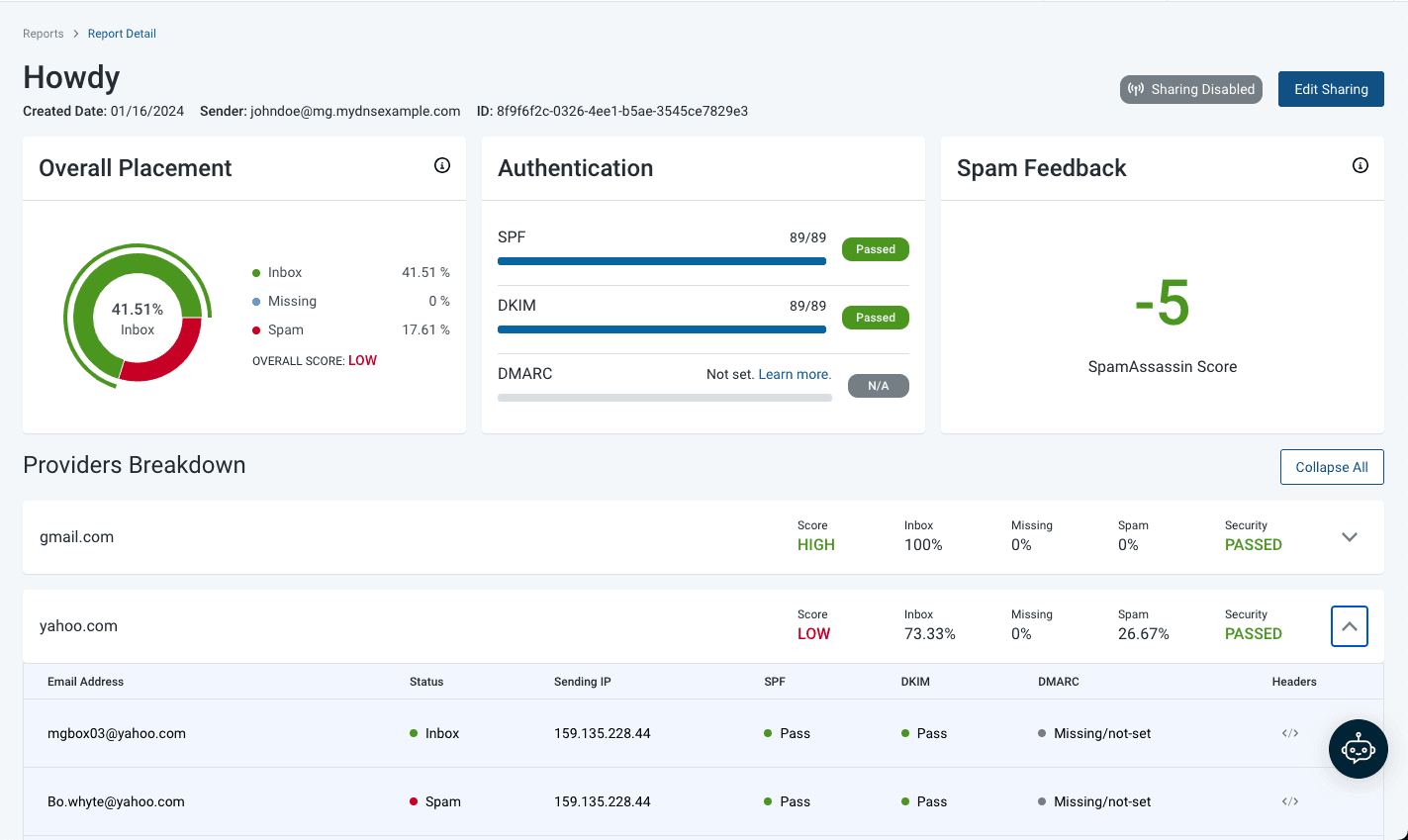
Traffic data (SMTP command counts)
SNDS reports counts for the raw SMTP commands behind each send, which is unusual among deliverability tools. The gap between commands and actual deliveries is where problems tend to surface.
| Metric | What it counts | What a gap signals |
|---|---|---|
| RCPT commands | Recipients your IP asked to send to | Many RCPT commands with no delivery points to namespace mining (guessing addresses) |
| DATA commands | Times your IP transmitted a message body | A shortfall against deliveries suggests messages were rejected |
| Message recipients | Recipients that actually received a message | A gap below RCPT commands reflects bounces and list-hygiene issues |
Filter result (green, yellow, red)
Each IP gets a color: green, yellow, or red. Green means Microsoft generally trusts your mail, and red means a large share of it was filtered as spam. Yellow sits in between and is rarely assigned. Read the color as one signal rather than a verdict. Microsoft keeps the exact thresholds vague on purpose, to keep spammers guessing, and the colors reflect just one layer of its filtering. A green IP can still land in spam, and a red IP can still reach some inboxes, so weigh the color against your own open and conversion data.
Complaint rate
The complaint rate is spam complaints divided by recipients, counted on the day a complaint is reported rather than the day you sent. SNDS shows it in tenths of a percent, so it reads 0.1% until you cross roughly 0.2%. Because of that granularity, anything above 0.1% is a warning sign, and a reading of 0.2% or higher points to a real problem. As a broader target, senders generally aim to keep complaints under 0.3%.
Spam trap hits
Spam traps are addresses that should never receive mail, either long-dead domains or lookalikes of real ones (hitmail.com in place of hotmail.com). A trap hit in SNDS means you mailed one, which usually points to weak list acquisition or hygiene. You cannot identify which addresses are traps, so watch the trend day over day and week over week instead of trying to reverse-engineer them. SNDS also marks a Trap Message Period showing the first and last hit within a window. The Comments column carries related status notes, including "Abuse Reported" when Microsoft forwards complaints through its Junk Mail Reporting Program (JMRP) feedback loop, and "JMR Block" when an IP is blocked over abuse complaints.
What to do when an IP turns red
A red filter result is worth acting on when it lines up with a real dip in your numbers, so confirm the damage first: are opens, conversions, or site traffic actually down? If they are, start by cutting your sending volume and frequency to Microsoft domains to slow further reputation loss. Then work the signals underneath it: bring down complaints, clear out bounces, and re-engage or remove inactive subscribers. Tighten the point at which you sunset unengaged addresses.
After that, it is mostly patience. A red IP can take days or weeks to move back to yellow or green. If you have worked through all of this and believe you are mislabeled, you can open a ticket through Microsoft's support request form and make your case.
What SNDS won't tell you
SNDS is a monitoring tool, not a fix. It shows Microsoft's view of your IPs, but it does not clean your list, repair authentication, or improve engagement for you. A few limits are worth keeping in mind:
- It only covers Microsoft consumer domains. Gmail, Yahoo, and corporate mail systems keep their own signals and their own postmaster tools.
- It is IP-based, so shared-IP senders see nothing directly and depend on their ESP.
- The reputation color reflects one filtering layer, not the full inbox-versus-spam picture.
- It reports symptoms; the causes (list quality, content, cadence, authentication) live upstream.
The dependable way to keep your Microsoft numbers healthy is to send wanted mail to valid, engaged addresses. That means authenticating with SPF, DKIM, and DMARC, and removing invalid addresses before they bounce or hit a trap. Clean lists and steady engagement do more for your SNDS colors than any dashboard setting, and they are the foundation of stronger email deliverability overall.
FAQs
Is Microsoft SNDS free?
Yes. SNDS is a free service from Microsoft. You need a Microsoft account and control of the IPs you want to monitor, but there is no charge to use it.
Can I use SNDS on a shared IP?
No. SNDS access is limited to dedicated IPs because the data can expose IP-level detail. If you send on a shared pool, your ESP monitors SNDS on your behalf.
How much email do I need to send to see data?
An IP must send at least 100 messages in a single day for SNDS to display data for that day. The tool keeps roughly the last 90 days of history.
How long does SNDS access take to approve?
Usually 24 to 48 hours. Microsoft emails the abuse contact in the WHOIS record for your IPs, and access opens once the IP owner approves the request.
Is SNDS the same as Google Postmaster Tools?
No. Google Postmaster Tools reports reputation by domain, while SNDS reports it by IP address and only for Microsoft consumer mailboxes such as Outlook and Hotmail. Most senders use both.
Run your list through BounceCheck before your next send to Outlook and Hotmail, so invalid and risky addresses are gone before they can trigger a bounce or hit a Microsoft spam trap.
§ Before your next send
Find the addresses that will bounce
Verify a single address free, or upload a CSV — the free plan includes 50 checks a month, no card needed.

BounceCheck Team
The team behind BounceCheck - helping businesses verify emails and improve deliverability.