How to Perform a Reverse DNS Lookup (Commands and Tools)
 BounceCheck Team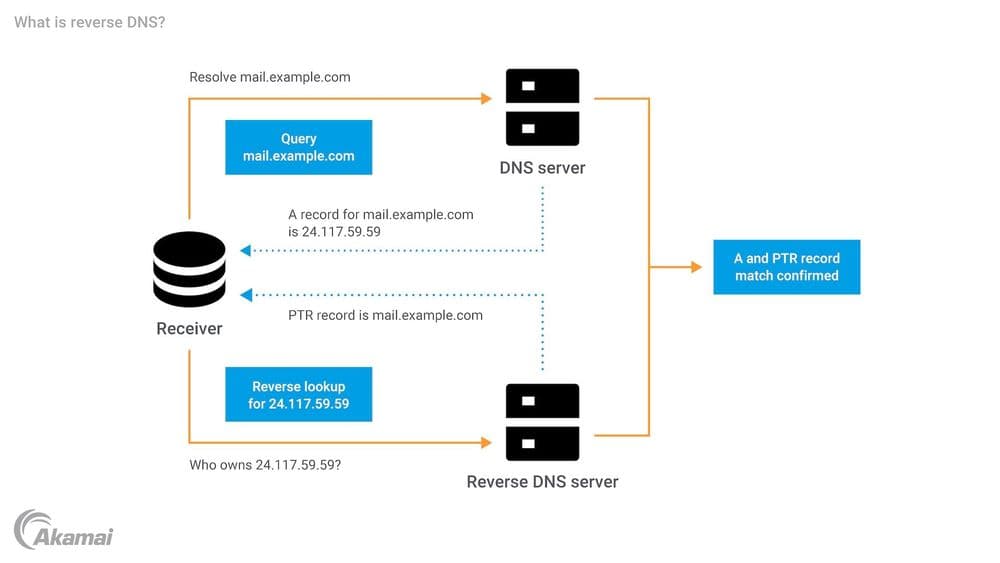
Before your next send Find the addresses that will bounce.
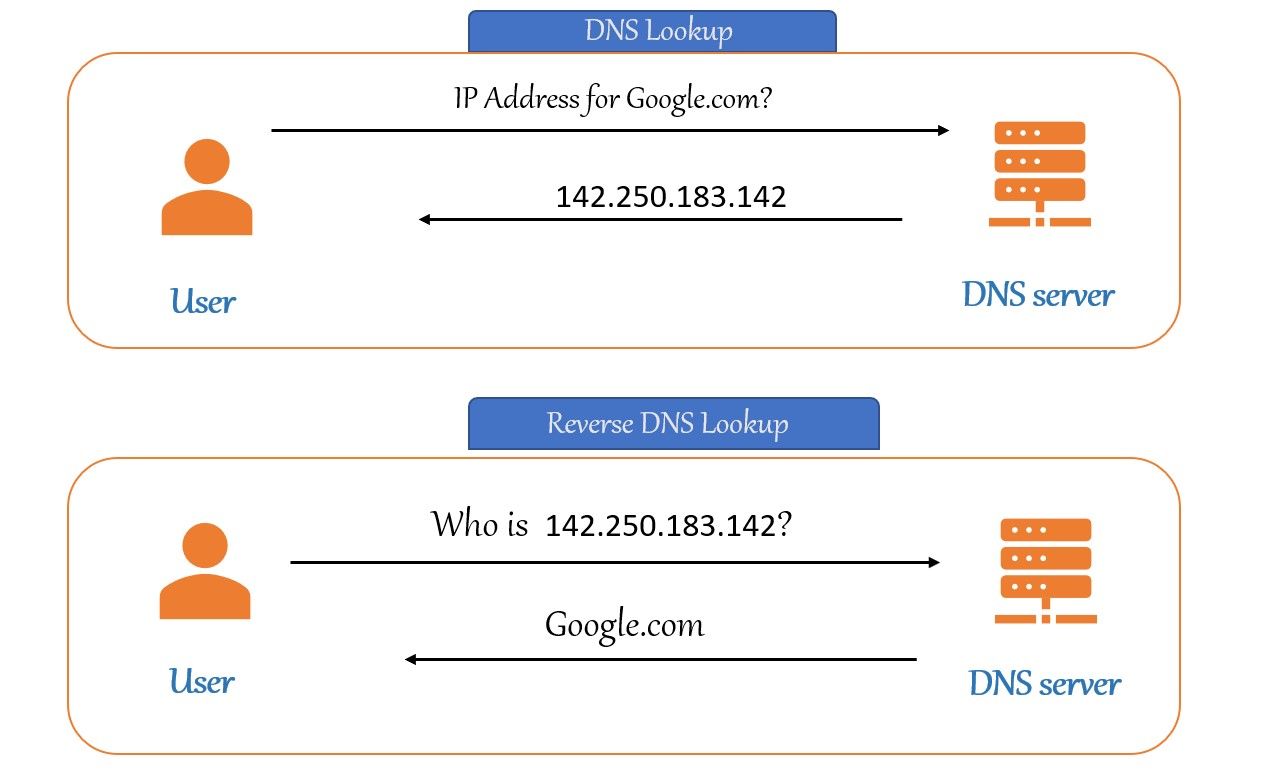
Verify an email freeA reverse DNS lookup turns a known IP address into its hostname, the opposite of the forward lookup that turns a domain name into an IP. To run one, type nslookup <IP address> on Windows or dig -x <IP address> on Linux and Mac. The query returns the hostname stored in the IP's PTR record, or an error if no PTR record exists.
An IP address tells you where a machine lives on the internet, but not what it is called. A reverse DNS lookup closes that gap. It takes a known IP address and returns the human-readable hostname tied to it, the exact opposite of the forward lookup your browser runs when it turns a domain name into an IP. This guide walks through what a reverse lookup is, the commands to run one on any operating system, and why it matters for anyone sending email.
What is a reverse DNS lookup?
A reverse DNS lookup, or rDNS, queries an IP address and converts it back into a domain name. A normal forward lookup does the opposite: it searches by name and expects an IP in return, stored in an address (A) record. Reverse lookups instead rely on a pointer record, the PTR record, which maps an address back to a host.
Those PTR records live in a special domain reserved for the job, the in-addr.arpa space (ip6.arpa for IPv6). It works much like the MX record that routes mail, except it answers a different question. One thing to know up front: reverse DNS is considered best practice but is not required for the internet to function. Without a matching PTR record, a DNS server simply cannot resolve the reverse lookup for that address.
How to perform a reverse DNS lookup
The fastest way to run a reverse lookup is from the command line. The tool you reach for depends on your operating system, but the idea is the same everywhere: type the command, swap in the IP address you want to resolve, and read back either a hostname or an error.
| Operating system | Command |
|---|---|
| Windows | nslookup <IP Address> |
| Linux | nslookup <IP>, dig -x <IP>, or host <IP> |
| Mac | dig -x <IP> |
On Windows, open the command prompt, type nslookup followed by the IP address, and press enter. You will get back the DNS name that confirms the host, or an error such as "non-existent domain" if no PTR record exists. Linux gives you the most options: nslookup, dig -x, and host all perform the query from a terminal. On macOS, dig -x followed by the address does the same job. So yes, nslookup absolutely can run a reverse lookup, on every major platform.
Use an online reverse DNS tool
If you would rather not touch a terminal, plenty of web tools format the request for you and add extra context like the country and city tied to an address. Many also bundle related features such as forward lookup or Whois lookup in the same panel. Common options include:
- viewdns.info, which packs reverse DNS, reverse Whois, IP history, and reverse MX lookup into one interface
- DomainTools reverse IP, which routes each function to its own page
- MxToolbox SuperTool, which swaps between MX lookup, SPF record lookup, and reverse lookup without leaving the page
How a reverse DNS lookup works
Behind that single command sits a small chain of steps. When you query an IP address, the resolver reverses the order of the address octets and appends in-addr.arpa to build a fully qualified domain name. The address 192.168.1.20, for example, becomes 20.1.168.192.in-addr.arpa. The octets flip because an IP reads from network to host, the opposite direction of a DNS name.
The authoritative DNS server for that reverse zone then looks for the PTR record and, if it finds one, returns the hostname mapped to the address. If the local server cannot answer, normal recursion finds the server that is authoritative for the reverse zone, exactly as a forward lookup would. The requester can then compare the returned name against the domain it expected, which is where reverse DNS becomes a verification tool rather than just a curiosity. The whole setup is technically optional in the DNS standard, but plenty of networked applications lean on it for security checks.
Why reverse DNS matters for email

This is where reverse DNS stops being a networking footnote and starts affecting whether your messages reach the inbox. Mail servers routinely run a reverse lookup on the IP that connects to them. If the PTR record does not resolve, or the hostname does not line up with the sending domain in the message's SMTP envelope and headers, the receiving filter treats the message as suspicious and is far more likely to mark it as spam. The PTR hostname should also match the HELO/EHLO name your server announces when it opens the SMTP connection.
In other words, a missing or mismatched PTR record can quietly undercut your sender reputation no matter how clean your content is. Reverse DNS sits alongside authentication standards like SPF and DKIM as one of the trust signals receivers check before they decide where your email lands. If you send in volume from your own IP, confirming that its PTR record exists and matches your domain is a basic, high-value step.
When a reverse lookup is worth running
Reach for a reverse lookup whenever you need to know what is actually behind an address. Network admins use it to put readable hostnames on raw IPs in their logs, security teams use it to vet incoming traffic, and email senders use it to confirm their sending IP is properly named. The command takes seconds, the tools are free, and the answer often explains a problem that an IP address alone never could. If email is your concern, treating reverse DNS as part of your broader deliverability checklist keeps one more avoidable issue off the table.
Reverse DNS questions, answered
Which DNS record is used for a reverse lookup?
The PTR (pointer) record. It maps an IP address back to a hostname and lives in the in-addr.arpa domain for IPv4 or ip6.arpa for IPv6. Forward lookups use A records instead.
Can nslookup do a reverse lookup?
Yes. On Windows, Linux, or Mac, run nslookup followed by the IP address and it returns the associated hostname. On Linux and Mac you can also use dig -x or host for the same result.
How do I perform a forward DNS lookup?
A forward lookup goes the other way, from name to IP. Run nslookup example.com or dig example.com and the tool returns the IP address stored in the domain's A record.
Why does my reverse lookup return no result?
Because no PTR record exists for that IP. Reverse DNS is optional, so many addresses have no pointer record. If it is your own sending IP, ask your hosting provider or ISP to create the PTR record, since they usually control the reverse zone.
§ Before your next send
Find the addresses that will bounce
Verify a single address free, or upload a CSV — the free plan includes 50 checks a month, no card needed.

BounceCheck Team
The team behind BounceCheck - helping businesses verify emails and improve deliverability.