Google Workspace SPF Record: The Default Value and How to Set It Up
 BounceCheck Team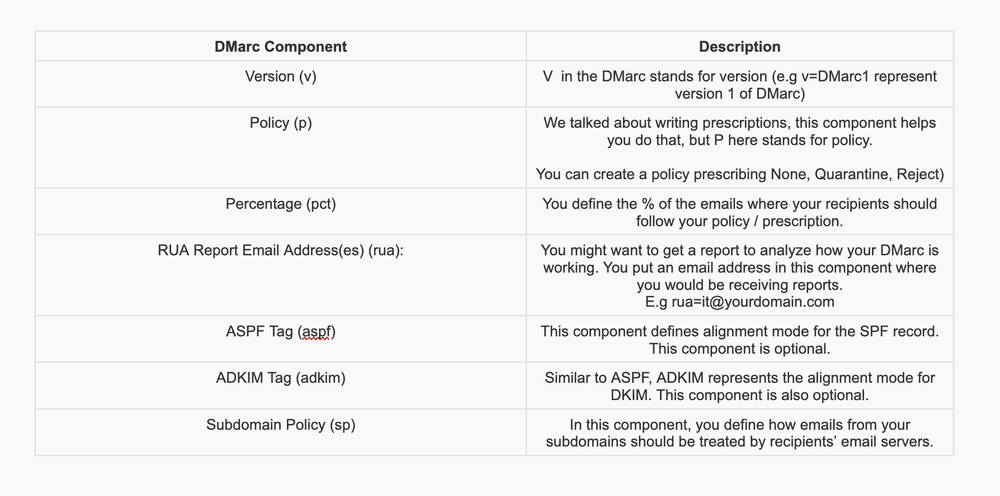
Before your next send Find the addresses that will bounce.
Verify an email freeThe default Google Workspace SPF record is v=spf1 include:_spf.google.com ~all. Because business Gmail runs on Google Workspace, this is also the Gmail SPF record: the same string whether you think of your setup as Gmail or Workspace. You add it as a single DNS TXT record at your domain host, and it tells receiving mail servers that Google's servers are authorized to send email for your domain. If you send through Google Workspace only, that one line is all you need. If you also send from other services, you fold them into the same record rather than publishing a second one.
What the default Google Workspace SPF record is
The recommended SPF record for a domain that sends only through Google Workspace is v=spf1 include:_spf.google.com ~all. It is a line of text you publish as a DNS TXT record, and receiving servers read it to confirm a message came from an authorized server before they trust it. Google publishes this exact string as its recommended record.
Each part of the record does one job:
v=spf1is the version tag. It is mandatory, and every SPF record has to begin with it.include:_spf.google.comauthorizes Google's mail servers to send for your domain. This is the piece that makes Gmail and Workspace mail pass SPF.~allis the softfail qualifier. It tells receivers to accept mail from a server that is not listed but mark it as suspicious, usually routing it to spam rather than rejecting it. Google recommends~all.
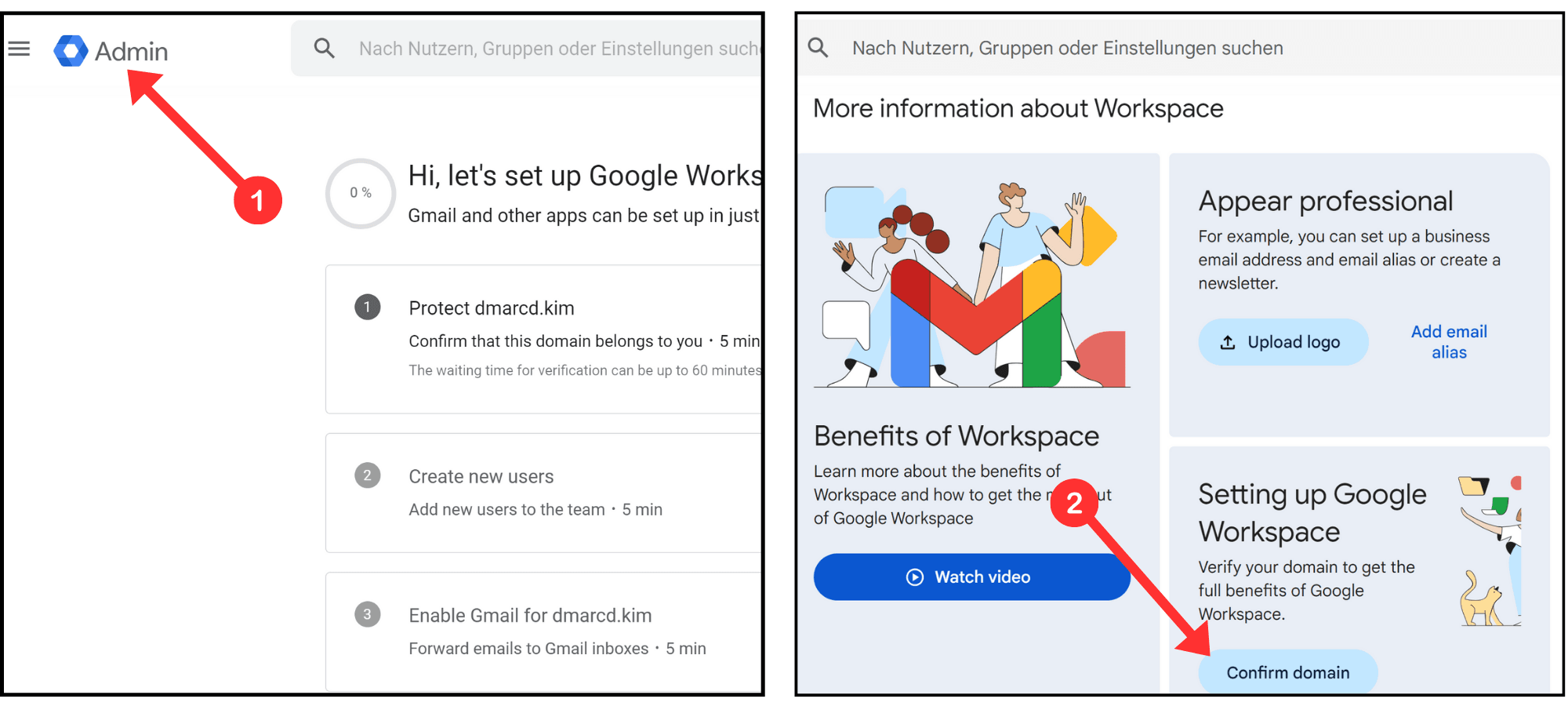
You do not need to touch the Google Admin console to set this up. SPF lives entirely in your domain's DNS, so the record is added at your domain host, not inside Workspace. Google also notes that some domains, including those bought from a Google partner during signup, may already have SPF configured by default, so it is worth checking before you add a record.
How to add the SPF record to your domain
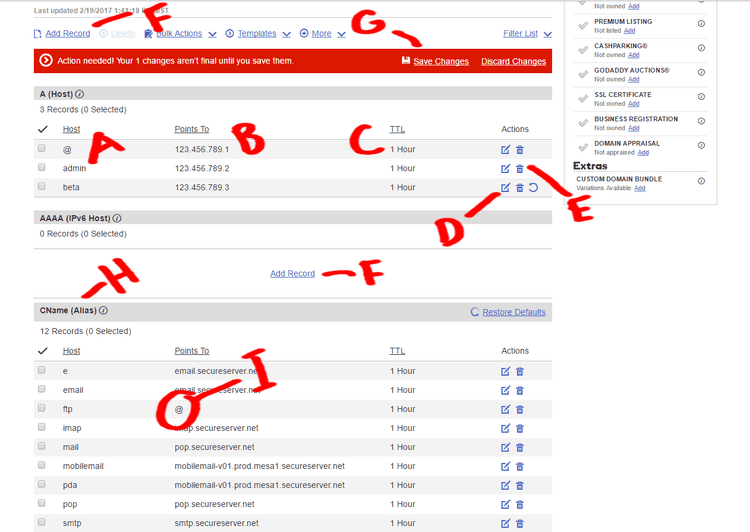
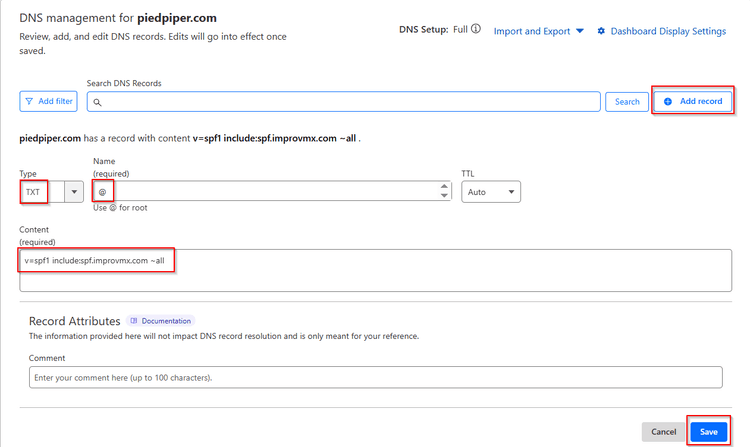
To add the record, sign in to your domain host, open the DNS settings, and publish a TXT record containing v=spf1 include:_spf.google.com ~all. The exact screens differ by provider, but the fields are the same everywhere.
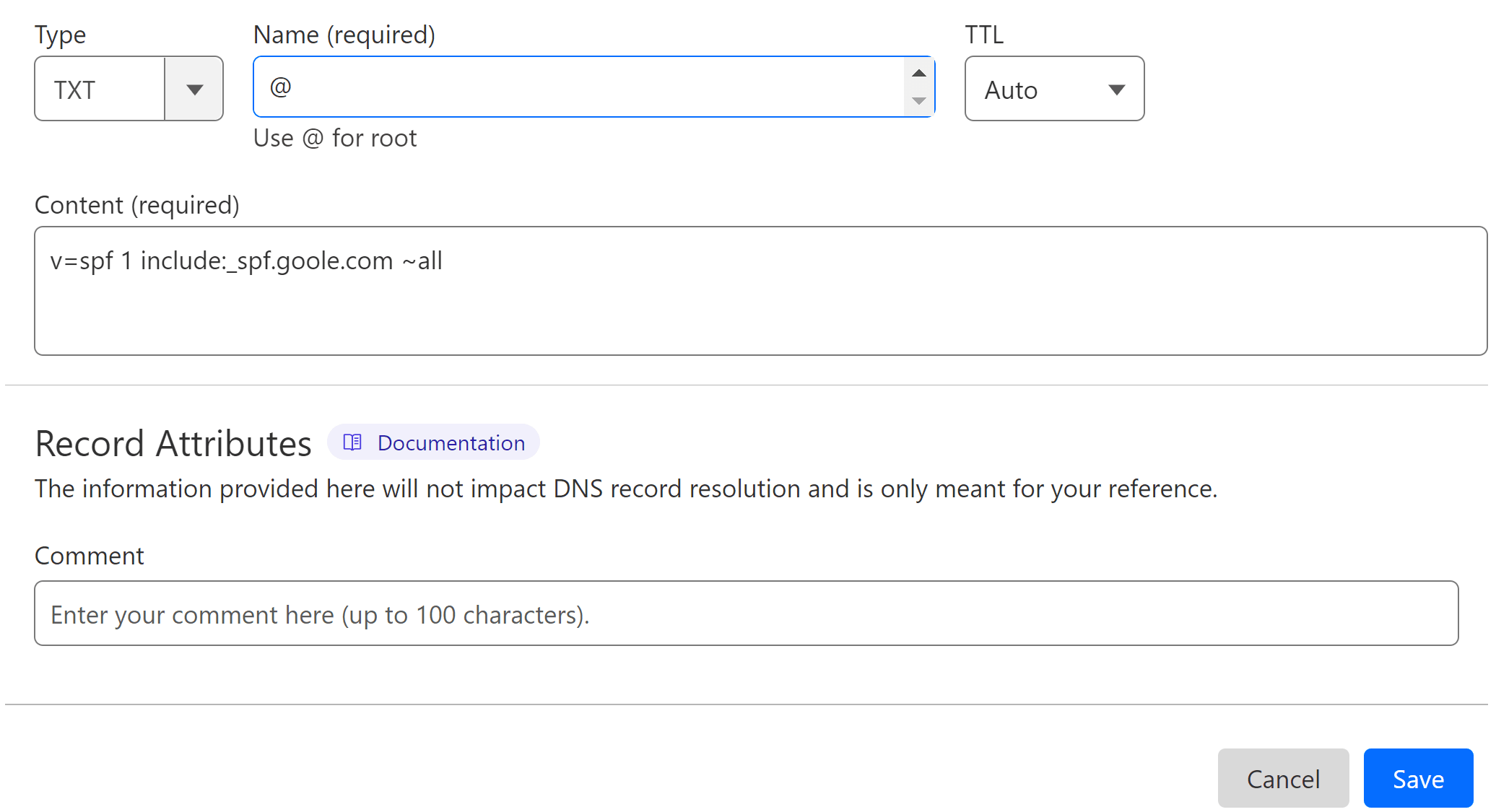
- Sign in to your domain registrar or DNS host, typically wherever you bought the domain. If you are not sure who that is, Google's identify-your-registrar guide can help you find it.
- Open the DNS management page, often labeled DNS Settings or DNS Management, and find the section for TXT records.
- Add a new TXT record. For the Host or Name field, enter
@if the record is for your root domain, or the subdomain name if you are protecting a subdomain. In the Value field, pastev=spf1 include:_spf.google.com ~all. Leave TTL at your provider's default. If Google Workspace is not your only sender, build the record with every service included rather than publishing a second SPF record. - Save the record. Some hosts require you to wrap the value in quotes, so check their documentation if the record does not validate.
It can take up to 48 hours for the record to propagate and for SPF authentication to start working, though it is often live much sooner. Each domain you send from needs its own SPF record, and each subdomain that sends mail needs one too.
Adding other senders to your Google Workspace SPF record
If you send from services beyond Google Workspace, add each one to the same record instead of creating a second SPF record. A domain is only allowed one SPF TXT record, and you authorize additional senders by adding an include: for each. For example, Google Workspace plus Mailchimp becomes v=spf1 include:_spf.google.com include:servers.mcsv.net ~all.

Google lists the include values for the senders people combine with Workspace most often:
| Senders | SPF record |
|---|---|
| Google Workspace only | v=spf1 include:_spf.google.com ~all |
| Workspace + Mailchimp | v=spf1 include:_spf.google.com include:servers.mcsv.net ~all |
| Workspace + Microsoft 365 | v=spf1 include:_spf.google.com include:spf.protection.outlook.com ~all |
| Workspace + Salesforce | v=spf1 include:_spf.google.com include:_spf.salesforce.com ~all |
| Workspace + Amazon SES | v=spf1 include:_spf.google.com include:amazonses.com ~all |
| Workspace + Zendesk | v=spf1 include:_spf.google.com include:mail.zendesk.com ~all |
If a sender gives you IP addresses rather than a domain to include, use the ip4: or ip6: mechanism, for example v=spf1 include:_spf.google.com ip4:193.22.100.7/30 ~all for an on-premise relay. Keep the ~all at the end, since it always has to be the final entry.
Common mistakes to avoid
Most Google Workspace SPF failures trace to a handful of avoidable errors: two SPF records on one domain, more than 10 DNS lookups, the wrong closing qualifier, or a missing include:_spf.google.com. The record is a single line, but these syntax and policy choices decide whether it protects you or quietly breaks your mail.
Two SPF records on one domain is the most frequent break: a domain must have exactly one SPF TXT record, and a second one makes the check ambiguous and returns a permerror that many receivers treat as a failure, so merge every sender into a single record. SPF also fails automatically once a record needs more than 10 DNS lookups, so keep an eye on how many include: tags you stack.
The closing qualifier matters as much as the includes. +all authorizes any server on the internet to send as your domain, which effectively disables SPF, and ?all (neutral) tells receivers not to enforce the result, so the record exists but protects little. Going straight to -all before you are ready is the opposite risk, because a hardfail rejects unlisted senders outright and a forgotten service such as a CRM or help desk loses its mail. Run ~all first, watch your reports, then tighten to -all once every sender is accounted for, which is the choice between softfail versus hardfail. One more thing to check: leaving out include:_spf.google.com means Gmail and Workspace servers are not authorized at all, and your own mail can fail SPF and land in spam.
Also keep the record within 255 characters per string, the TXT record limit set in RFC 1035. If it grows past that, consolidate senders or use IP ranges rather than listing individual addresses.
How to check your SPF record
After the record propagates, confirm it resolves and passes before you rely on it. Enter your domain into an SPF checker such as MXToolbox, which runs a DNS lookup and returns your record along with any errors like multiple records or too many lookups. You can also send a test message to a Gmail account, open it, choose Show Original, and look for spf=pass in the results. A spf=fail or permerror there points to a record that still needs fixing.
SPF is only one of the three checks that decide whether your mail is trusted. Google requires bulk senders to pass SPF, DKIM, and DMARC, so pairing this record with the other two is how you meet the bulk sender requirements and keep messages out of spam. If you are setting all three up together, our guide to how SPF, DKIM, and DMARC work together walks through the full picture. Google's own Set up SPF documentation is the authoritative reference for the record itself.
FAQs
What is the default SPF record for Google Workspace?
The default and recommended SPF record is v=spf1 include:_spf.google.com ~all. It authorizes Google's mail servers to send email for your domain and tells receivers to flag anything from an unlisted server as suspicious. If you send only through Google Workspace, this single line is all you need to publish.
What does v=spf1 include:_spf.google.com ~all mean?
It is a three-part instruction. v=spf1 marks the line as an SPF record, include:_spf.google.com authorizes Google's servers to send for your domain, and ~all tells receiving servers to accept but mark mail from any server not covered by the record. Together they let Gmail and Workspace mail pass SPF checks.
How do I add an SPF record for Gmail?
The Gmail SPF record is the Google Workspace record, so the steps are identical. Sign in to your domain host, open the DNS settings, and publish a TXT record with the value v=spf1 include:_spf.google.com ~all on your root domain (Host @). Save it, allow up to 48 hours to propagate, then send a test message and confirm it shows spf=pass.
Does Google require an SPF record?
Yes for bulk senders. Google requires senders of large volumes to authenticate with SPF, DKIM, and DMARC, and an SPF record is the baseline. Even below the bulk threshold, publishing SPF is strongly recommended because it protects your domain from spoofing and improves deliverability.
Where do I add the Google Workspace SPF record?
You add it at your domain host, not in the Google Admin console. Sign in to the registrar or DNS provider where your domain is managed, open the DNS settings, and publish it as a TXT record on your root domain (Host @). SPF is a DNS setting, so Workspace itself does not store it.
Should I use ~all or -all for Google Workspace?
Start with ~all, which Google recommends. It marks unlisted mail as suspicious without rejecting it, so a forgotten sender does not lose mail while you confirm your record is complete. Move to -all only once every legitimate sender is included and your reports are clean.
Before your next send, run your list through BounceCheck to clear the invalid addresses that hard-bounce, so a correct SPF record is not the only thing standing between you and the inbox.
§ Before your next send
Find the addresses that will bounce
Verify a single address free, or upload a CSV — the free plan includes 50 checks a month, no card needed.

BounceCheck Team
The team behind BounceCheck - helping businesses verify emails and improve deliverability.