Office 365 SMTP Settings: Server, Ports, and the 3 Sending Options
 BounceCheck Team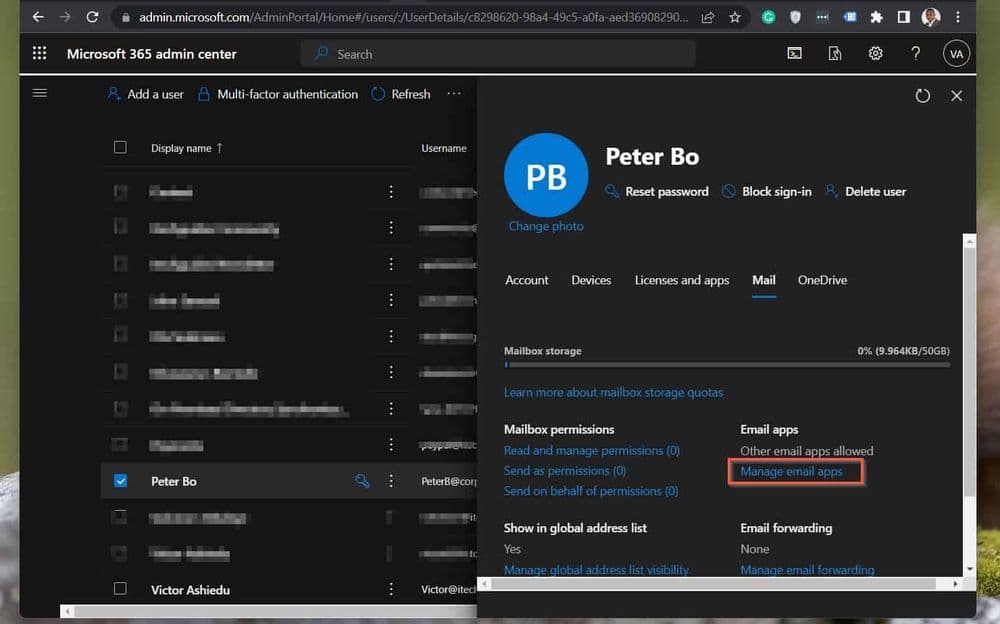
Before your next send Find the addresses that will bounce.
Verify an email freeThe correct Office 365 SMTP settings for sending from an app or client are smtp.office365.com on port 587 with STARTTLS, authenticating with a licensed mailbox's own username and password. That covers one of three ways Microsoft lets you send mail, and picking the wrong one is the most common reason a device or script silently fails to relay. This guide gives you the settings table, walks through all three sending options with a clear rule for when to use each, and covers the gotchas that trip up new tenants: SMTP AUTH being off by default, multi-factor authentication blocking basic sign-in, and the daily and per-minute sending limits.
Office 365 SMTP settings at a glance
For the standard case, an application or mail client sending as a single licensed user, these are the values Microsoft publishes for authenticated client submission:
| Setting | Value |
|---|---|
| SMTP server | smtp.office365.com |
| Port | 587 |
| Encryption | STARTTLS |
| Authentication | Required (mailbox username and password) |
| Username | The full email address of the sending mailbox |
These are the Microsoft 365 SMTP settings and the o365 SMTP server that most email clients, WordPress plugins, and backend apps expect. If you are configuring Outlook desktop or a mobile mail app rather than an application, the outlook SMTP settings are identical: smtp.office365.com, port 587, STARTTLS. Every one of these paths still speaks SMTP, the same protocol your mail client uses to hand a finished message off to a server for delivery.
The three Microsoft 365 sending options
Microsoft supports three distinct ways to send mail through Microsoft 365 or Office 365, and each has its own server, port, and authentication model. Choosing between them comes down to what is sending the mail and where the mail is going. Microsoft's own configuration guidance for devices and applications lays out all three, summarized here:
| Option | Server | Port | Auth | Best for |
|---|---|---|---|---|
| SMTP AUTH client submission | smtp.office365.com | 587 (STARTTLS) | Yes, licensed mailbox | Apps or clients sending as one user |
| Direct send | <tenant>.mail.protection.outlook.com | 25 | No | Internal devices sending to your own domain |
| SMTP relay | Connector endpoint | 25 | Certificate or static IP | Higher volume, sending to external recipients |
Option 1: SMTP AUTH client submission (port 587)
This is the option most people mean when they search for Office 365 SMTP settings. The sending application signs in as a specific licensed mailbox and submits mail to smtp.office365.com on port 587 over STARTTLS. It works from anywhere on the internet, sends to internal and external recipients, and applies the mailbox's own permissions and sending limits. Use it when a single app, form handler, or line-of-business tool needs to send as a real user account. The mailbox must be licensed, and SMTP AUTH must be enabled for that mailbox, which is where new tenants hit a wall.
Option 2: Direct send (port 25, no authentication)
Direct send skips authentication entirely. A device or application connects to your tenant's MX endpoint, in the form <tenant>.mail.protection.outlook.com, on port 25 and delivers mail without signing in. The catch is that direct send can only deliver to recipients in your own accepted domains, so it suits internal notifications from a multifunction printer, a scanner, or an app that only messages people inside your organization. It cannot send to external addresses, and because nothing authenticates, the receiving side leans entirely on SPF, DKIM, and DMARC to decide whether to trust the message.
Option 3: SMTP relay through a connector
SMTP relay is the option for higher volume and for devices that need to send to external recipients without signing in as a user. You create a connector in the Exchange admin center that authenticates the sending device by its static public IP address or by a TLS certificate, then point the device at your tenant's MX endpoint on port 25. This is Microsoft's recommended path for an office 365 SMTP relay handling application or appliance mail at scale. It takes more setup than the other two, and a device pointed at the connector without a matching IP or certificate gets a 554 5.7.1 relay access denied rejection.
How to set up SMTP AUTH client submission
To send through Office 365 with SMTP AUTH, point your app at smtp.office365.com on port 587 with STARTTLS, sign in with a licensed mailbox's full email address and password, and enable SMTP AUTH for that mailbox first. The full sequence is six steps:
- Confirm the sending mailbox has a Microsoft 365 license and a working password.
- Enable SMTP AUTH for that mailbox (see the next section, because it is off by default on new tenants).
- In your app or client, set the server to smtp.office365.com and the port to 587.
- Set the encryption method to STARTTLS.
- Enter the mailbox's full email address as the username and its password, or an app password if MFA is enforced.
- Send a test message to an external address and confirm it arrives.
Why SMTP AUTH is disabled by default
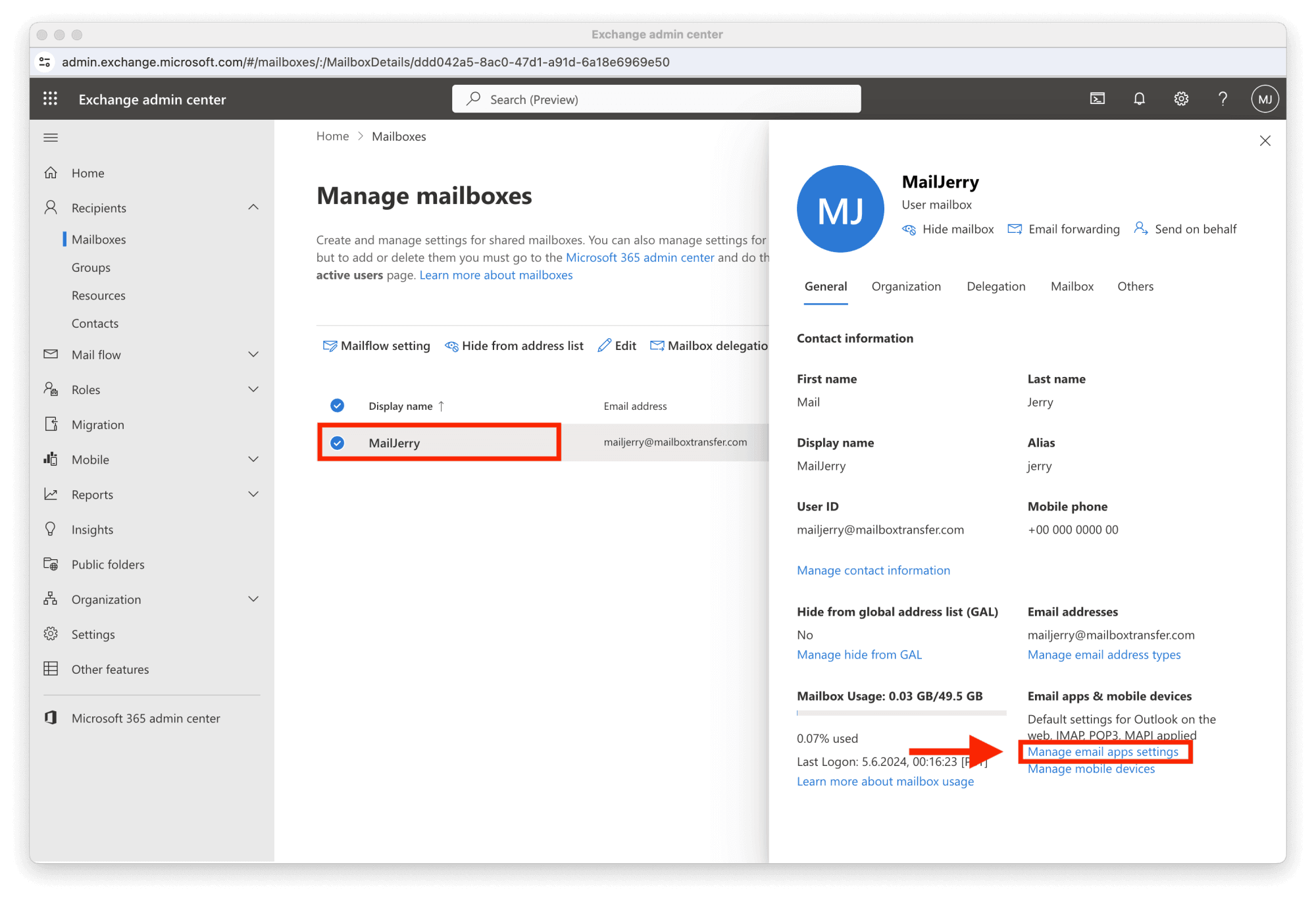
On tenants created since 2020, SMTP AUTH is turned off by default as part of Microsoft's Security Defaults, and basic authentication for legacy protocols has been retired across Exchange Online. The reasoning is security: SMTP AUTH relies on a username and password with no second factor, which is exactly what credential-stuffing attacks target. Microsoft's documentation on authenticated client SMTP submission explains how to check and change the setting at both the organization and per-mailbox level. You can enable SMTP AUTH for a single mailbox in the Exchange admin center under the mailbox's email apps, or with a PowerShell command that sets SmtpClientAuthenticationDisabled to false, leaving it off for everyone else.
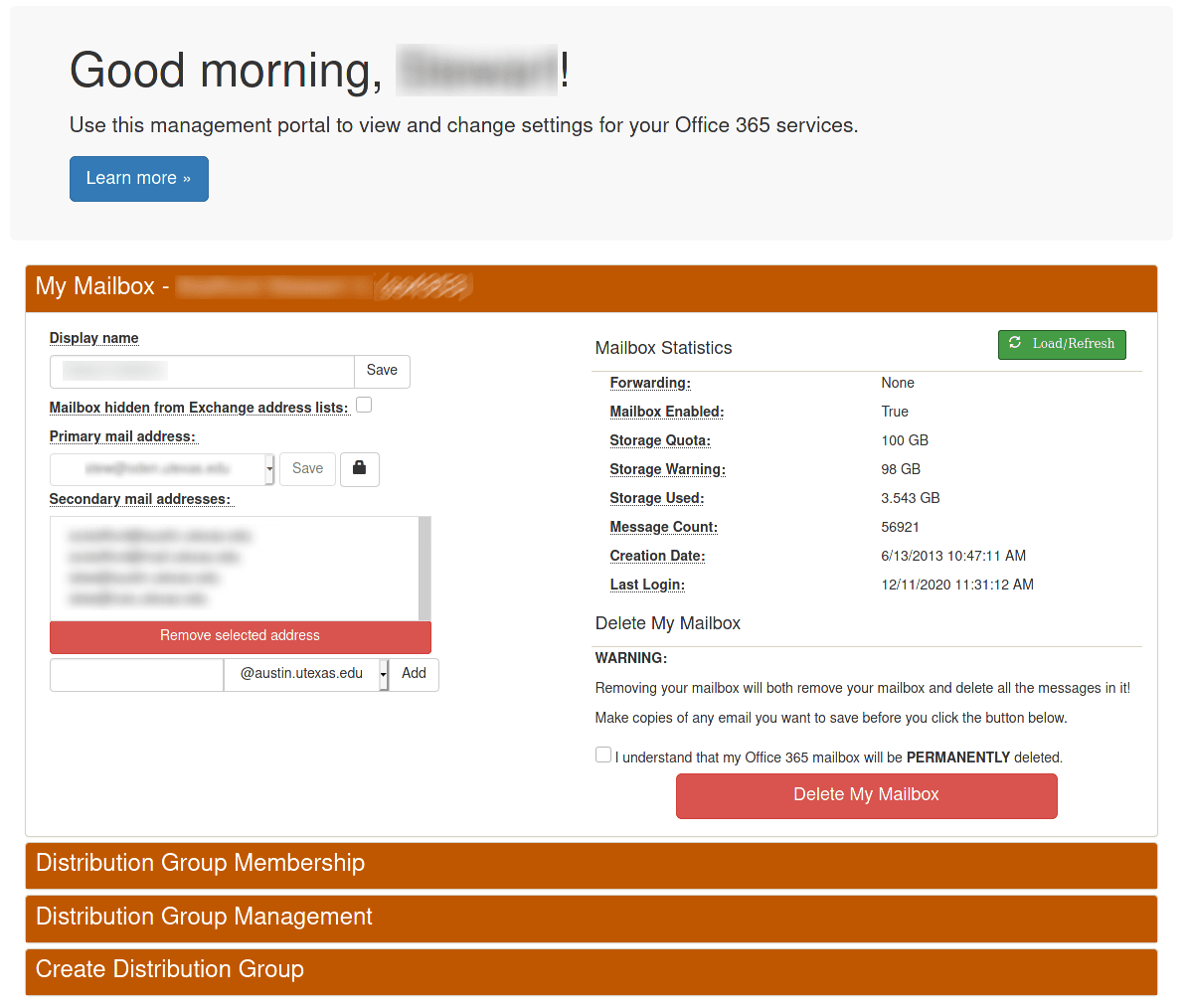
Multi-factor authentication complicates this further. When MFA or Security Defaults are enforced, a plain password will not authenticate an SMTP session, and the sign-in is blocked. The workaround is an app password: a randomly generated credential tied to one application that bypasses the interactive MFA prompt. App passwords are only available when Security Defaults are turned off and per-user MFA is configured to allow them, so the cleaner long-term path for automated senders is often a properly scoped mailbox with SMTP AUTH enabled rather than relying on app passwords.
Office 365 SMTP sending limits
Authenticated client submission is rate limited, and the ceilings matter if you send in bulk. Per mailbox, Office 365 caps you at 10,000 recipients per day and 30 messages per minute, with a maximum of 500 recipients on any single message. These figures come from the published Exchange Online limits and are enforced per mailbox, not per tenant. If your app needs to exceed them, that is a signal to move to an SMTP relay connector or a dedicated sending service rather than pushing more mail through a single user's mailbox.
Hitting the per-minute limit throttles the connection rather than dropping mail outright, but sustained bulk sending through client submission is not what the mailbox limits are designed for. A high hard-bounce rate on top of throttling compounds the damage to your sending reputation, which is why cleaning the list before a large send matters as much as the transport settings.
Troubleshooting common SMTP errors
Most Office 365 SMTP failures fall into a few recognizable patterns:
- Authentication unsuccessful (a 535 5.7.3 SMTP authentication error) usually means SMTP AUTH is disabled for the mailbox or that MFA is blocking a plain password. Enable SMTP AUTH or switch to an app password.
- Relay access denied means a device is trying to relay through the connector or MX endpoint without a matching IP or certificate, or is trying to send to an external domain via direct send.
- Client was not authenticated to send anonymous mail during MAIL FROM means you reached port 587 but never signed in, so the server refused anonymous submission.
- Throttling or "too many messages" means you crossed the 30-messages-per-minute or 10,000-recipient daily ceiling for that mailbox.
Confirming the port, the encryption method, and whether authentication is expected resolves the large majority of these before you touch anything more complex. If you are still weighing port 587 against 25 and 465, the practical differences between the SMTP ports decide which one your setup should use.
FAQs
What is the correct SMTP server address and port for Office 365?
For authenticated client submission, the server is smtp.office365.com and the port is 587 with STARTTLS encryption. Direct send and SMTP relay instead use your tenant's MX endpoint, <tenant>.mail.protection.outlook.com, on port 25.
How do I enable SMTP AUTH in Microsoft 365 or Office 365?
Enable it per mailbox in the Exchange admin center under the mailbox's email apps settings, or run a PowerShell command that sets SmtpClientAuthenticationDisabled to false for that mailbox. Leave it disabled for every account that does not need it.
Can I use SMTP with MFA enabled on my Office 365 account?
Not with your normal password, because MFA blocks basic sign-in over SMTP. You need an app password, which is only available when Security Defaults are off and per-user MFA is set to allow app passwords, or a mailbox with SMTP AUTH explicitly enabled.
What is the difference between SMTP relay and direct send?
Direct send delivers only to recipients in your own domains and requires no setup beyond pointing at the MX endpoint. SMTP relay uses a connector that authenticates the device by IP or certificate and can send to external recipients, which makes it the choice for higher volume.
What are the Office 365 SMTP sending limits?
Client submission is capped at 10,000 recipients per day and 30 messages per minute per mailbox, with up to 500 recipients per message. Volume beyond that belongs on an SMTP relay connector or a dedicated sending platform.
Whichever sending option you configure, a clean recipient list keeps your bounce rate low and your sender reputation intact. Run your list through BounceCheck before your next send to catch invalid addresses before Office 365 counts them against you.
§ Before your next send
Find the addresses that will bounce
Verify a single address free, or upload a CSV — the free plan includes 50 checks a month, no card needed.

BounceCheck Team
The team behind BounceCheck - helping businesses verify emails and improve deliverability.