CRM Migration Best Practices: How to Switch Systems Without Losing Data
 BounceCheck Team
Before your next send Find the addresses that will bounce.
Verify an email freeMost CRM migrations fail for two reasons, dirty data and bad field mapping, not the technology itself. The best practices that keep your records intact are to clean and de-duplicate your data before you move it, map every field (custom fields included) to its new home, run a test migration on a small sample before going live, set roles and permissions first, and train the team before launch. Done in that order, the serious problems surface in a pilot instead of on launch day.
Switching CRMs sounds simple right up until you are staring at mismatched fields, duplicate contacts, and a sales team that cannot log a single call. The move looks like a data export, then it turns into months of cleanup. It does not have to be that way. Most of the damage comes from a handful of avoidable mistakes, and the best practices below are the ones that keep the serious problems from derailing your rollout.
What a CRM migration actually moves
A CRM migration is the process of moving your customer data, workflows, and system configuration from one CRM, or a legacy system, to a new platform. It is not a copy and paste between two databases. You are relocating the records your whole revenue team depends on, and the relationships between them have to survive the trip.
A typical migration moves far more than contacts:
- Contacts, accounts, and company profiles
- Leads, opportunities, and pipeline stage history
- Activity history such as calls, emails, and notes
- Custom fields built for your specific processes
- Workflows, automation rules, and triggers
- User roles, permissions, and integrations
Miss any one of these and the new system launches with gaps your team notices on day one.
Why so many CRM migrations go wrong

The numbers are sobering. Up to 40% of CRM migrations run into significant problems, from data integrity failures to field mappings that quietly corrupt reporting. More than half of CRM initiatives never meet their original goal in the first place, so the migration is often happening on shaky ground to begin with.
Most of the trouble traces back to data. Research shows that over 70% of CRM records become inaccurate within a single year, and once teams actually audit their database they typically find that 10% to 30% of records are duplicates. When that mess moves into a clean new system, it skews forecasting, breaks automations, and has two reps calling the same prospect in the same week. Because data decays this fast, a migration is the best chance you will get to leave the bad records behind.
Start with a plan, scope, and clear owners
Migrations fail because teams rush in without clarity, not because the technology lets them down. Before you export anything, agree on what the project actually includes.
A solid plan answers three questions:
- Objectives: Why are you moving? Set measurable goals, such as cutting the sales cycle by 20% or lifting data accuracy to 95%, and write down how you will check them six months out.
- Scope and cut-off date: Decide which pipelines, custom fields, and historical records make the trip, and set a date when the team stops entering new data in the old system so you are not chasing a moving target.
- Owners: A CRM migration is not just an IT project. Name one project owner, a technical lead, and real representatives from sales, marketing, and support who can confirm the new setup matches how they actually work.
Audit and clean your data before you move anything
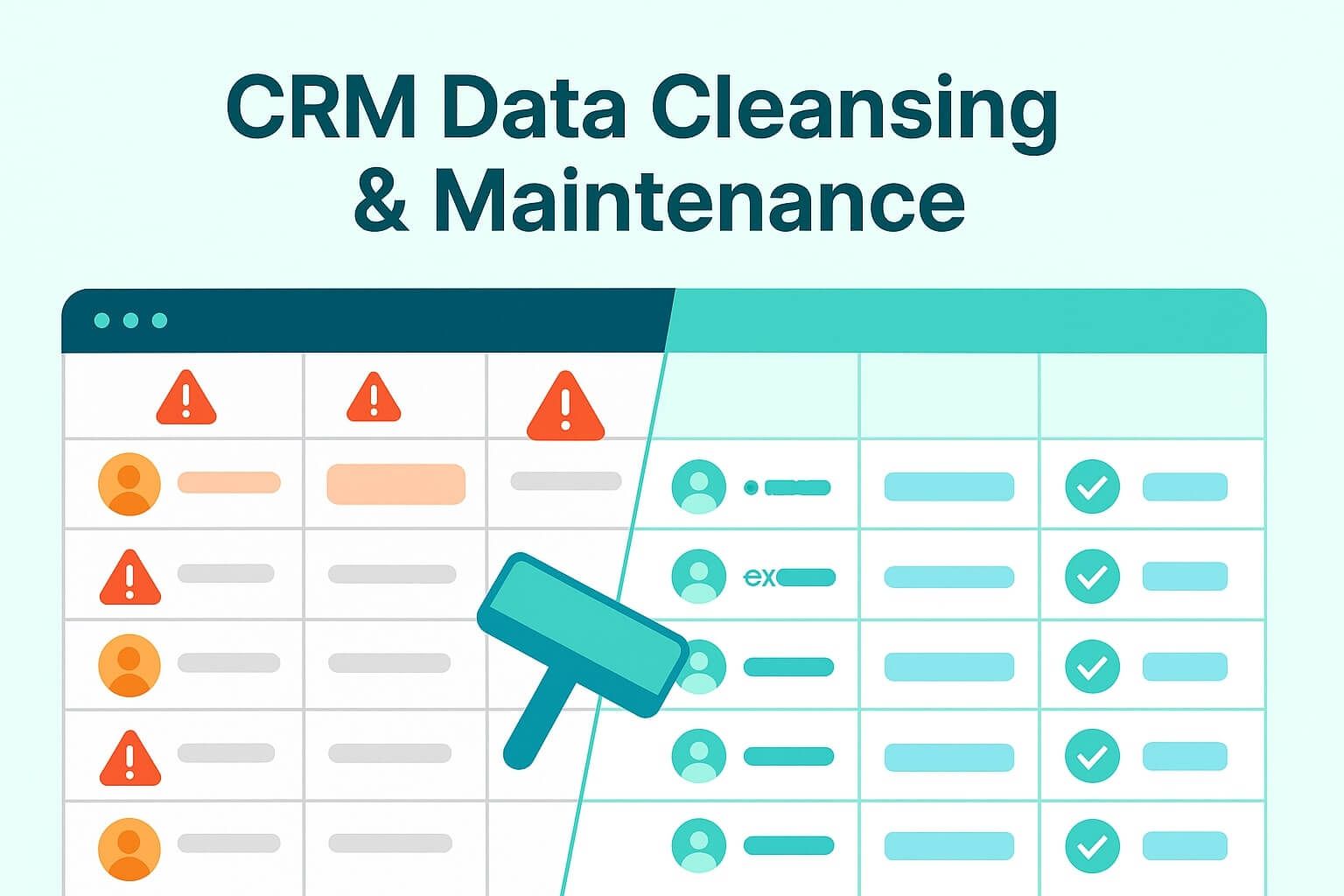
This is the step everyone wants to skip, and it is the one that decides whether your new CRM feels fresh or just like the old mess with a new logo. A migration relocates your data; it does not fix it.
Start with a data quality assessment so you know what you are dealing with: missing fields, outdated email addresses, inconsistent formatting (USA versus United States versus U.S.), and contacts nobody has touched in years. Then run a CRM data cleaning pass before you load:
- De-duplicate and merge records, using fuzzy matching to catch the near-identical versions of the same company
- Standardize formats for phone numbers, addresses, and dates
- Validate that emails and URLs are real, and drop obvious junk like test records and 1/1/1900 birthdays
- Assign an owner to every record so nothing lands in the new system orphaned
Email data deserves special attention, because invalid addresses are what quietly wreck deliverability after the move. Running the list through a verifier like BounceCheck first, the same discipline that keeps a CRM list clean day to day, removes invalid, disposable, and role-based addresses so you import contacts you can actually reach. If you have never seen what that check does under the hood, here is how email verification works.
Map every field before you move it
Field mapping is where migrations quietly fall apart. Data leaves the old system looking fine, lands in the wrong place in the new one, and nobody notices until a rep cannot find three months of deal notes.
A field mapping document is a plain reference showing how every field in your current CRM translates to a field in the new one, custom fields included. Do not assume the names match: a field called Company name in one system often maps to Account name in another, and getting that wrong breaks the relationships between records.
Pay extra attention to fields that need transforming, not just transferring. A free-text industry field may need to become a structured picklist. A single Full name field may need to split into first and last name. These are deliberate rules, not guesswork, so write them down before migration starts.
The tool you choose carries some of this load. Native importers like Salesforce's Data Loader and HubSpot's built-in import handle field mapping for standard objects, while dedicated migration platforms add validation and rollback for very large or heavily customized datasets.
Run a test migration before going live
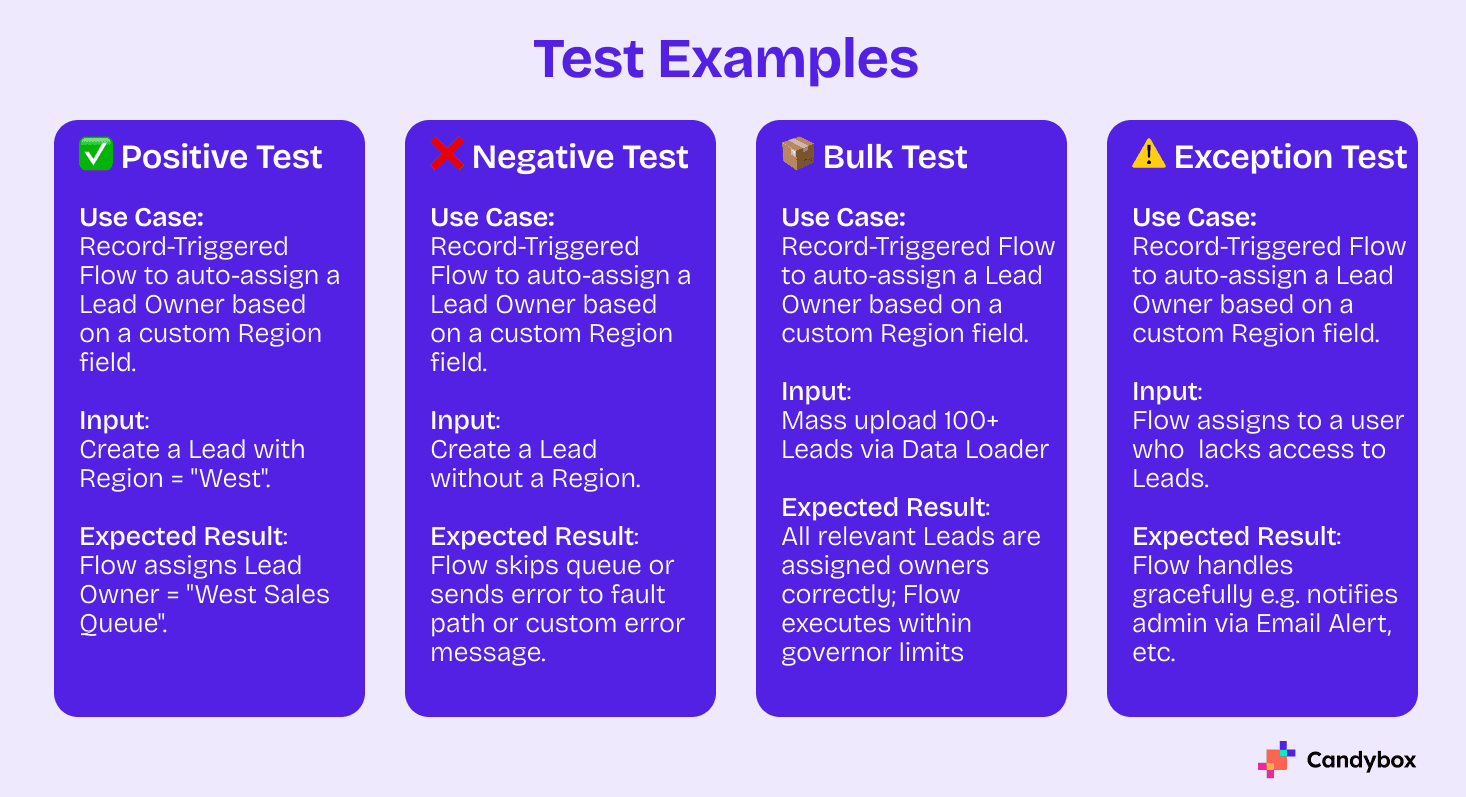
No matter how careful the plan, the first full migration surfaces problems you did not anticipate. A test migration on a small, representative sample lets you catch them without involving your entire database.
Pick a slice that covers the range: a few accounts, their contacts, some open deals, and a sample of historical activity. Run it into a staging environment, not your live system, then check that contact records, pipeline stages, activity history, and reports all look right. If deal notes did not come across or a stage mapped to the wrong phase, you want to find that in a pilot, not on launch day.
The test also calibrates your timeline. Running it early gives you a realistic sense of how long the full migration takes instead of an optimistic guess.
Set roles and permissions before go-live
Access management is one of the most overlooked steps in a migration. Teams perfect their data and field mapping, then push everything live with permissions that either lock people out of records they need or expose deal data that should stay with specific teams.
Define your permission structure from scratch rather than copying it from the old system, which was probably built up over years and reflects a company that no longer exists. The standard order is to migrate users and roles first, before accounts, contacts, and deals, so the structure exists before the data lands in it. Give every major object a business owner who signs off on who can view, edit, and delete, and you avoid a new rep bulk-editing 500 records on their first morning.
Train your team and plan for downtime
A technically perfect migration still stalls if the people using the system do not know how it works. Launch first and train later and you breed frustration, push reps back to spreadsheets, and end up with a CRM nobody trusts.
Train before go-live, and focus each team on the workflows specific to their role: how to log a call, update a deal stage, create a contact. Most people adapt faster when you show them what changed from the old system rather than teaching everything from scratch.
Your business does not stop while you migrate, so protect uptime too. Running both systems in parallel for a short window, or moving departments over in phases, keeps people working during the switch. If some downtime is unavoidable, schedule the heavy data transfer for a weekend or holiday and tell everyone the blackout window in advance. It is unexpected downtime that frustrates people, not planned downtime.
A realistic CRM migration timeline
Timelines vary with data volume and complexity. A mid-sized organization usually needs 10 to 20 weeks from planning to go-live, and that range widens when data is messy or integrations are complex. Smaller migrations wrap in a few weeks; large enterprise moves can run several months. Breaking the work into phases keeps the schedule honest:
| Phase | Typical duration | Focus |
|---|---|---|
| Planning and scope | 4 to 6 weeks | Objectives, vendor choice, team, budget |
| Data audit and cleansing | 4 to 8 weeks | De-duplication, standardization, validation |
| System configuration | 4 to 6 weeks | Setup, customization, workflows, security |
| Field mapping and build | 2 to 3 weeks | Mapping document, transformation rules |
| Testing | 3 to 4 weeks | Pilot migration, data integrity, UAT |
| Training and go-live | 2 to 3 weeks | Role-based training, cutover |
| Hypercare support | About 4 weeks | Issue resolution, monitoring, optimization |
After the migration: keep the data clean
Migration is not finished when the data lands. It is finished when the new CRM works better than the old one. Run record-count comparisons before and after, spot-check key accounts and deals, and confirm that workflows, reports, and integrations behave. Get stakeholder sign-off before you call it done, then keep someone available for the first few weeks to answer the small questions that snowball if ignored.
The bigger win is keeping the database clean for good. Automate de-duplication and validation, keep verifying new contacts as they enter the system, and maintain a suppression list so the addresses you already know are bad never creep back in. A CRM should get smarter over time, not slide back into the clutter you just escaped.
CRM migration questions teams ask
How long does a CRM migration take?
For a mid-sized organization, a full migration usually runs 10 to 20 weeks from planning to go-live. Smaller, cleaner datasets can finish in a few weeks, while large enterprise migrations with complex integrations can stretch to several months. Data quality is the single biggest factor in how long it takes.
How do you avoid losing data during a migration?
Back up everything first and verify your record counts before anything moves. Run a test migration on a small sample, confirm your field mapping is correct, and keep a rollback plan ready. Validating data before the full import is what prevents silent loss.
What is the difference between CRM migration and CRM implementation?
Migration is the process of transferring existing data and workflows into a new system. Implementation is configuring and deploying that CRM from scratch. A migration almost always happens as part of a wider implementation project.
Should you move to a cloud-based CRM?
For most teams, yes. Cloud platforms are easier to maintain, accessible from anywhere, and usually include the automation and analytics features that prompted the migration in the first place. They also simplify the move itself by reducing infrastructure work.
§ Before your next send
Find the addresses that will bounce
Verify a single address free, or upload a CSV — the free plan includes 50 checks a month, no card needed.

BounceCheck Team
The team behind BounceCheck - helping businesses verify emails and improve deliverability.