Queued Email Meaning: Why It's Stuck and How to Fix It
 BounceCheck Team
Before your next send Find the addresses that will bounce.
Verify an email freeQueued Email Meaning: Why It's Stuck and How to Fix It
A queued email is a message you have sent that is waiting in your Outbox because your app or server could not deliver it yet. It has not failed and it has not bounced. It is on hold until whatever is blocking it, usually a weak connection, a sync problem, a large attachment or a sending limit, clears. Most queued emails go out on their own once that happens.
This guide explains what "queued" means in Gmail, Outlook and other apps, how it differs from pending, failed and scheduled, why it happens, how to fix it on Android, iPhone and desktop, and what a growing queue means on a sending server.
What does "queued" mean in email?
Queued means the email has been created and is ready to go, but it has not left yet. Think of a letter sitting in the outgoing tray: it exists, it is addressed, but nobody has picked it up. On a phone or desktop app it waits in the Outbox. On a mail server it waits in the mail queue, where the server retries it automatically.
The important point is that queued is a temporary state, not an error. The recipient has not received anything, and they cannot see that a message is waiting. Your app or server keeps trying until the message either sends or is given up on.
What does "queued" mean in Gmail?
In the Gmail app on Android and iOS, "Queued" appears next to a message in the Outbox when the app could not hand it to Google's servers. This usually comes down to a connection, sync or background-activity problem on the phone. In Gmail on the web you rarely see "Queued" because the browser sends straight to Google; if a message is held there, the cause is usually an attachment upload or a sending limit.
Queued vs pending vs failed vs scheduled vs draft
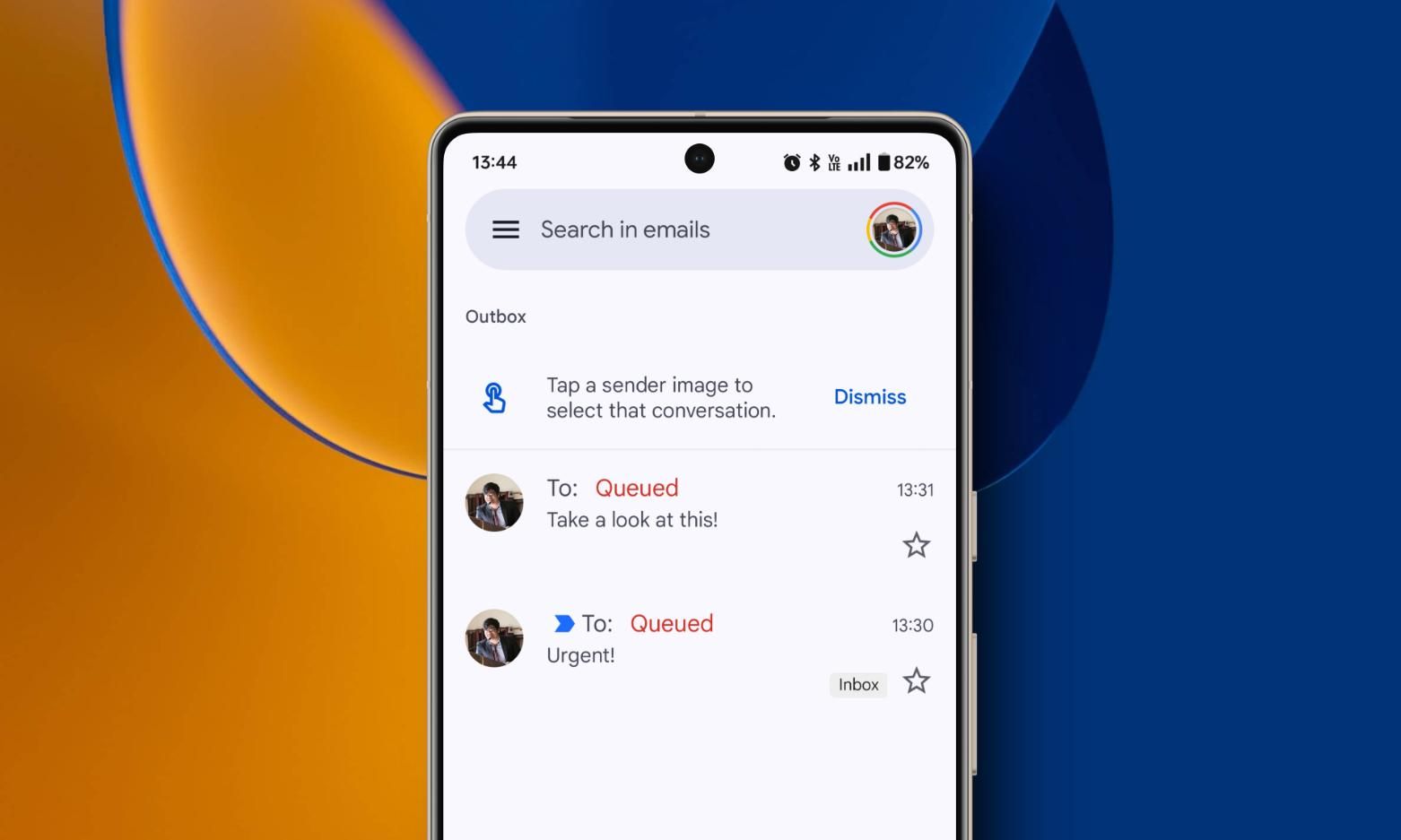
These labels are easy to mix up, and the difference tells you whether to wait or act.
| Status | What it means | What to do |
|---|---|---|
| Queued | Sent by you, waiting in the Outbox for the app or server to deliver it | Wait a few minutes, then troubleshoot |
| Pending / Sending | The app is uploading or handing the message to the outgoing server right now | Wait |
| Failed / Not sent | The send attempt stopped and the message was not delivered | Fix the cause, then resend |
| Scheduled | You chose a future send time; it is held on purpose | Nothing, or edit it in the Scheduled folder |
| Draft | Still being written; you have not pressed Send | Finish and send |
| Sent | Handed to the outgoing server and moved to the Sent folder | Nothing, unless a bounce arrives later |
Outbox is a folder, not a status. Queued, pending and failed messages can all sit there.
Why is my email queued?
An email gets queued when something stops it from leaving at the moment you press Send. On phones, the most frequent causes are a weak connection and battery or background restrictions on the email app.
- Poor or no connection. You sent it offline, on weak Wi-Fi, on patchy mobile data or in airplane mode. Showing full bars does not guarantee a working connection.
- Battery optimization or background restrictions. Aggressive battery settings, common on Samsung and other Android phones, stop the email app from sending in the background. On iPhone, Low Power Mode and disabled Background App Refresh have a similar effect.
- Sync is off or broken. If Gmail sync is turned off for the account, or the app's cache is corrupted, messages stay in the Outbox.
- Wrong date and time. A phone clock that is set manually and drifts out of step can stop the app from syncing with the mail server.
- Large attachments. Most providers cap a message at around 20 to 25 MB, and encoding makes attachments roughly a third bigger in transit. The message stays queued while it uploads and can fail if it is too large. Gmail on the web swaps files over 25 MB for a Google Drive link automatically; mobile apps and desktop clients may not.
- Low device storage. A nearly full phone may not have room to prepare a message with attachments.
- Sending limits. Personal Gmail allows 500 messages a day and Google Workspace 2,000. Desktop clients sending over SMTP may hold mail in the Outbox once you hit the cap, and Gmail itself returns a 550 5.4.5 "daily user sending limit exceeded" bounce.
- Expired login or password. A changed password or expired OAuth token stops sending even with a good connection. This is common in Apple Mail and Outlook after a password change.
- Outgoing server problems. Your provider's SMTP server may be busy, down for maintenance or rate-limiting you, or your client may have the wrong SMTP settings.
How to fix a queued email
Start with the quick checks, then move to the steps for your device. Most stuck emails clear within the first three steps.
Quick fixes for any device
- Check your connection. Open a website to confirm you are really online. Switch between Wi-Fi and mobile data if one is unstable.
- Force a retry. Pull down to refresh the Outbox on mobile, or click Send/Receive on desktop, so the app tries again now.
- Turn off offline mode. Make sure airplane mode is off on your phone and that your desktop client is not set to work offline.
- Shrink the attachment. Replace large files with a Google Drive, OneDrive, Dropbox or iCloud Mail Drop link and send again.
- Check your sending limit. If you have sent a lot today, wait for the limit to reset or space the rest out.
- Sign in again. Remove and re-add the account, or create an app password if your provider requires one, to refresh an expired login.
- Update or restart the app. Outdated versions cause sync and login bugs. Force-close the app, update it and reopen it.
Gmail on Android
- Turn Gmail sync back on. In the Gmail app, open Settings, tap your account and make sure "Sync Gmail" is checked. Also check your phone's account settings and enable sync for Google.
- Remove battery restrictions. Go to Settings > Apps > Gmail > Battery and choose Unrestricted (or turn off optimization for Gmail).
- Allow background data. In Settings > Apps > Gmail > Mobile data, turn on background data and allow data use while Data Saver is on.
- Clear the app cache. In Settings > Apps > Gmail > Storage, tap Clear cache. Avoid Clear storage unless other steps fail, because it removes offline mail and settings.
- Set date and time automatically. In Settings > General management (or System) > Date and time, turn on automatic date and time.
- Reset the connection. Turn airplane mode on, open the Outbox and delete or edit the stuck message, then turn airplane mode off and send again.
Gmail or Mail on iPhone
- Allow mobile data for the app. In Settings, open the Gmail or Mail app's settings and turn on Mobile Data (Cellular Data).
- Turn on Background App Refresh. In Settings > General > Background App Refresh, enable it for Gmail. Turn off Low Power Mode while you send.
- Re-add the account in Mail. If Apple Mail keeps a message in the Outbox, remove the account under Settings > Apps > Mail > Mail Accounts and add it again.
- Use Mail Drop for big files. Apple Mail offers Mail Drop when an attachment is too large to send directly.
Outlook on Windows or Mac
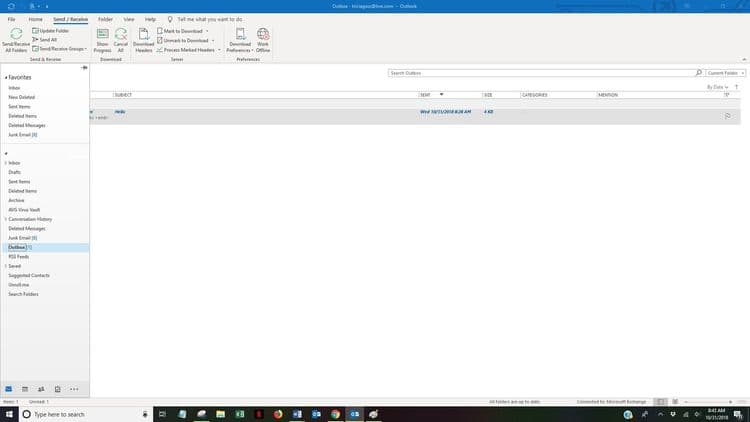
- Check Work Offline. On the Send/Receive tab, make sure Work Offline is not highlighted, and check the status bar for "Working Offline" or "Disconnected".
- Remove a stuck oversized message. Open the Outbox. If a large message is blocking the rest, turn on Work Offline, open or delete that message, swap the attachment for a OneDrive link, then go back online.
- Re-enter your password. If Outlook keeps asking for credentials or shows a sign-in banner, sign in again, then click Send All.
- Verify SMTP settings. For IMAP or POP accounts, confirm the outgoing server, port (usually 587 with STARTTLS) and "my outgoing server requires authentication" option.
Apple Mail on Mac
- Run Connection Doctor. Choose Window > Connection Doctor to see whether the outgoing (SMTP) server is reachable and accepting your login.
- Check the outgoing server. In Mail > Settings > Accounts > Server Settings, confirm the outgoing account and that authentication details are current.
If none of this works and the message changes to failed, or you receive a bounce with a 5xx code, stop resending. Check the recipient address and the bounce reason; our guide to bounce code 550 explains the most common permanent failures.
How to cancel or delete a queued email
Open the Outbox, select the message and delete it, or open it to move it back to Drafts and edit it. On mobile it is easiest to turn on airplane mode first so the app does not send the message while you are changing it. A message deleted from the Outbox was never sent, so the recipient will not receive it.
How to tell whether a queued email was sent
When a queued message goes out, it disappears from the Outbox and appears in the Sent folder. If it is still in the Outbox, it has not been sent. If it is in Sent but the recipient says they never got it, look for a bounce message in your inbox and ask them to check their spam folder.
Server-side queuing for bulk senders

If you send at scale, "queued" means something different. Here the message has already left your app and been accepted by a sending server or email service provider (ESP), which holds it until the receiving server takes it. Many ESPs show "queued" or "accepted" as the first status for every message, before "delivered", "deferred" or "bounced".
Servers queue mail for two reasons:
- On purpose, when the sender throttles volume, paces an IP warm-up or spreads a campaign over time.
- Automatically, when the receiving server defers a message with a temporary 4xx reply and the sending server has to retry later.
Temporary deferrals vs permanent bounces
| Code | Meaning | What happens |
|---|---|---|
| 421 | Service not available; the receiving server is closing the connection, often because you are sending too fast | Retried automatically |
| 450 | Mailbox temporarily unavailable; also used for rate limiting and greylisting | Retried automatically |
| 451 | Temporary local error or deferral at the receiving server | Retried automatically |
| 452 | Temporary storage problem or too many recipients | Retried automatically |
| 550 | Permanent rejection: mailbox unavailable, policy or authentication failure | Bounced, not retried |
| 553 | Mailbox name not allowed, usually an invalid address format | Bounced, not retried |
Deferred mail does not stay in the queue forever. Following RFC 5321, servers keep retrying for several days, typically four to five, before giving up and returning a bounce; Postfix's default limit is five days. Our guide to bounce codes 421, 451 and 552 covers the temporary codes in detail, and the hard vs soft bounce guide maps the same idea onto delivery outcomes.
How to check and clear a mail queue
On your own server you can inspect the queue directly. On Postfix, mailq or postqueue -p lists queued messages and the reason each one is waiting, postqueue -f retries them now, and postsuper -d QUEUE_ID deletes one. On Exim, exim -bp lists the queue and exim -qff forces a retry. In Microsoft 365, message trace in the Exchange admin center shows queued messages with a Pending status and the reason for the delay.
Look at the reasons, not just the count. If most deferrals come from one receiving domain, you are probably being rate-limited by that provider and should slow down. If they are spread across many domains with "connection refused" or "host not found", the problem is your list.
Dirty lists fill the queue
A quiet cause of a growing server queue is a list full of dead addresses and domains. Every message that is deferred and retried against a domain that no longer accepts mail takes up queue space for days and hurts your sender reputation. Verifying your list before a send removes those addresses so the queue only holds mail that can actually be delivered.
How to prevent emails from getting queued
Queued emails are mostly prevented by sending under good conditions.
- Do not send on a bad connection. Save the message as a draft and send it once you are on stable Wi-Fi or data.
- Let the app work in the background. Remove battery restrictions and allow background data for your email app.
- Keep date and time on automatic. It avoids sync failures that are hard to diagnose.
- Use cloud links for large files. Anything near 20 MB is safer as a Drive, OneDrive or Mail Drop link.
- Stay under your sending limits. Space out large batches and use a dedicated sending service for bulk mail.
- Keep logins and apps current. Re-sign in after a password change and keep your email app updated.
For business and bulk sending, a clean list and a correct SPF, DKIM and DMARC setup prevent the reputation and deferral problems that fill a server queue in the first place.
Common questions about queued emails
What does queued mean in email?
It means you pressed Send but the message is still waiting in your Outbox or mail queue because it could not be delivered yet. It has not failed, and it will usually send once the problem clears.
How do I fix a queued email?
Check your connection, then pull to refresh or click Send/Receive to force a retry. If it is still stuck, turn off offline mode, replace large attachments with a cloud link, check your daily sending limit and sign in to your account again. On Android, turn Gmail sync on, remove battery restrictions and clear the Gmail app cache.
How long does a queued email take to send?
On a phone or desktop app, a queued email usually sends within minutes of the connection or sync problem clearing. If it is still queued after an hour or two on a good connection, troubleshoot it. On a mail server, deferred messages are retried for several days, usually four to five, before they bounce.
Will a queued email send automatically?
Usually, yes. The app or server keeps retrying, and the message sends once the cause is fixed. It will not send if the cause is permanent, such as an invalid recipient address, an attachment that is too large or a broken account setup, and it can eventually fail.
Can the recipient see a queued email?
No. A queued email has not left your device or server, so the recipient has not received it and cannot see that it is waiting.
Why are my emails queued in Gmail on Android?
The most common reasons are a weak connection, battery optimization blocking Gmail in the background, Gmail sync being turned off, background data being restricted, a corrupted app cache or a wrong date and time setting on the phone.
What causes email queuing problems on a server?
Temporary 4xx deferrals from receiving servers, rate limiting, intentional throttling during IP warm-up, and lists containing dead or invalid domains that are retried for days.
§ Before your next send
Find the addresses that will bounce
Verify a single address free, or upload a CSV — the free plan includes 50 checks a month, no card needed.

BounceCheck Team
The team behind BounceCheck - helping businesses verify emails and improve deliverability.