Why Is My Email Not Sending? Causes and Fixes
 BounceCheck Team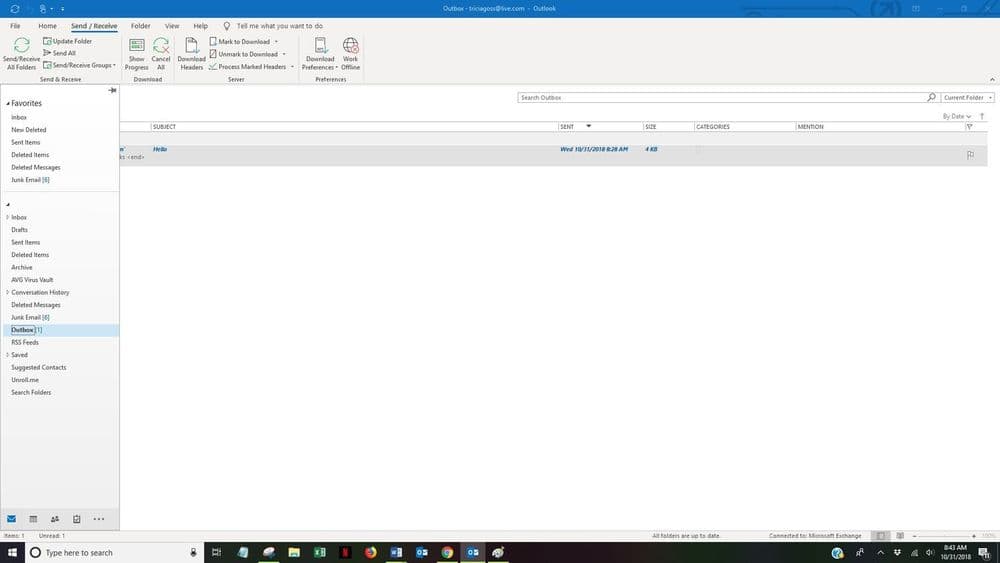
Before your next send Find the addresses that will bounce.
Verify an email freeIf your email will not send, the cause is almost always one of a short list of problems: no internet connection, a message jammed in the outbox, wrong SMTP or server settings, a failed login (an authentication error), an attachment over the size limit, a daily sending limit you have already hit, a recipient server that rejected the message, or an authentication or blacklist issue on your sending domain. This page is a cause-by-cause checklist. Work down it in order, and for each cause you get the quick fix.
Start at the top, because the fastest checks resolve most cases. The key split is whether the problem is on your side (client, settings, or a limit you have hit) or on the receiving side (a rejection or a block). Your-side causes you fix in the mail client or account settings; receiving-side causes show up as a bounce message with a status code that tells you why.
Start with the fast checks
Before you touch server settings, rule out the everyday causes. Each of these takes under a minute to check, and together they clear a large share of "email won't send" reports. Run through all five before moving to SMTP or DNS.
- No connectivity: confirm you are actually online. A dropped Wi-Fi or VPN connection stops the send silently.
- Send and receive stalled: close and reopen the mail app, then trigger a manual send/receive to flush the queue.
- Wrong or expired password: if you recently changed your mailbox password and did not update it in the client, sending fails with a login error.
- Attachment too large: most providers cap attachments at 20 to 25 MB. An oversized file blocks the whole message from leaving.
- A single bad recipient: one malformed address in the To or Cc field can stop the message. Remove it and resend.
Quick reference: symptom, cause, and fix
Use this table to jump to the likely cause, then read the matching section below for the full fix. Each row pairs the symptom you see with the fix that resolves it.
| Symptom | Likely cause | Quick fix |
|---|---|---|
| Message sits in Outbox | Stuck queue or add-in conflict | Restart the app, disable add-ins, resend |
| Login or "could not authenticate" error | Wrong credentials or missing app password | Re-enter password, create an app password |
| Cannot connect to server | Wrong server name or port | Correct the SMTP host and port |
| "Send limit exceeded" | Daily quota reached | Wait for the reset or split the send |
| Bounce with a 5xx code | Recipient server rejected it | Read the bounce code and act on it |
| Mail delayed or blocked at scale | Authentication gap or blacklist | Check SPF, DKIM, DMARC and your reputation |
Your email is stuck in the outbox
A message that shows in the Outbox but never moves is queued locally, not sent. In desktop clients like Outlook this usually points to a connection drop mid-send, an oversized attachment, or a misbehaving add-in. Restart the client first, then send and receive again. If it still hangs, open the app in safe mode to disable add-ins, because a broken plugin is a common culprit. Microsoft documents the full sequence in its guide to a stuck Outlook message.
If the message is on a server-side path rather than a local client, the equivalent state is a message that is stuck in the sending queue, waiting on a retry. In both cases, remove any large attachment, confirm you are online, and resend a smaller test message to isolate the trigger.
SMTP authentication and server settings are wrong
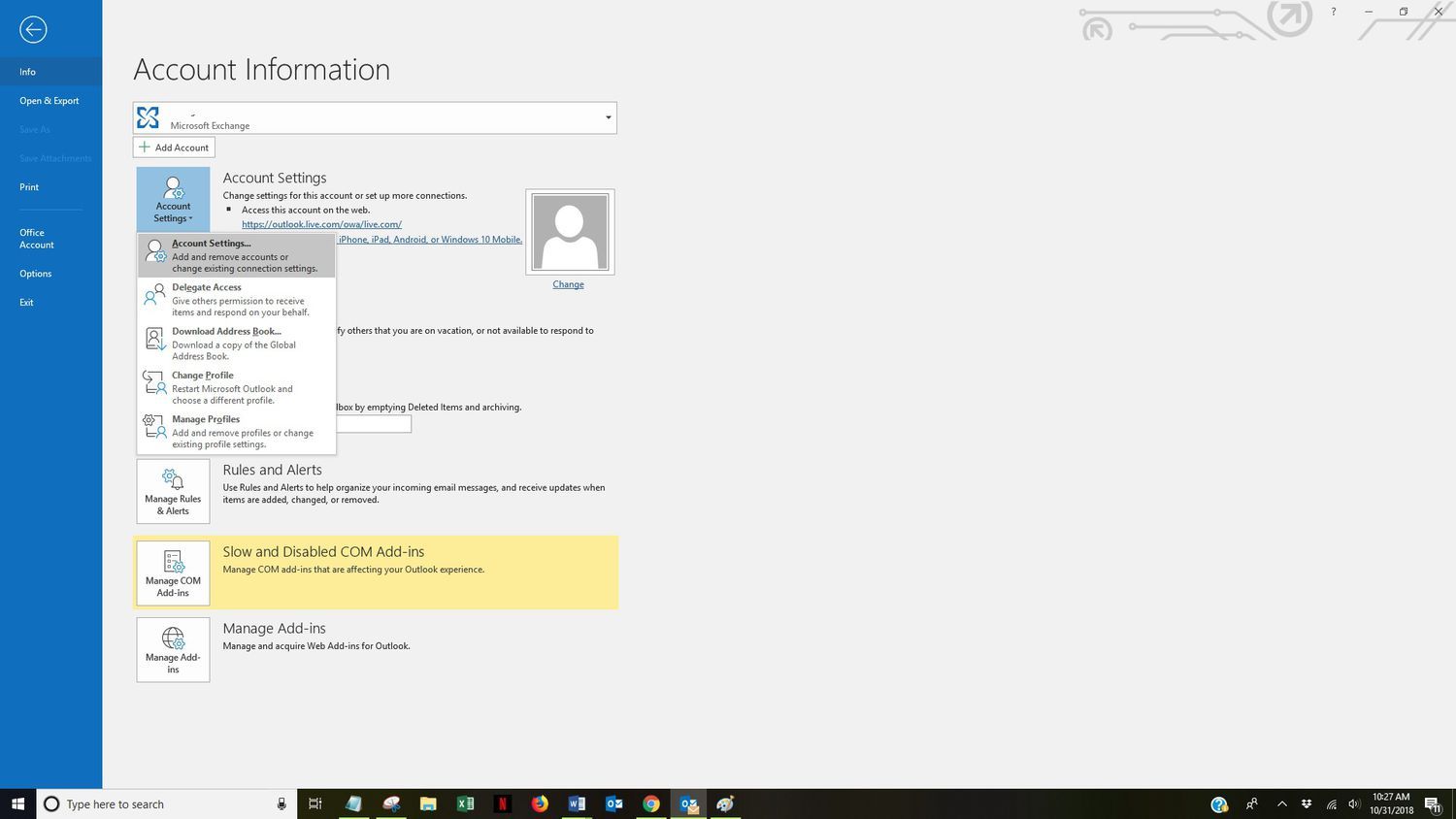
An SMTP authentication error means the outgoing server refused your login, so the message never gets accepted for sending. It shows up as "could not authenticate", "authentication required", or a 535 response. The cause is almost always credentials, an app password, or a wrong server or port, and the fixes fall into a few buckets:
- Wrong username or password: retype both. The username is usually your full email address, not just the part before the @.
- App password needed: if the mailbox uses multi-factor authentication, your normal password will not work in a mail client. Generate an app-specific password and use that instead.
- Wrong server or port: the outgoing host must match your provider (for example smtp.gmail.com). Use the correct submission port, and match the encryption setting to the port, because sending on a port meant for a different protocol blocks the message: the IMAP, POP3, and SMTP ports each have their own fixed standard value.
- SMTP authentication turned off: make sure "my outgoing server requires authentication" is enabled in the account settings.
You have hit a sending limit
Every provider caps how much you can send in a rolling window to curb spam, and Gmail's own sending limits are one example. When you cross the cap, new messages fail with a "limit exceeded" or rate-limit notice until the window resets, usually within 24 hours. If you send in bulk, you may also meet greylisting, where the receiving server temporarily defers your first attempt and accepts the retry a few minutes later. The fix is to slow down: split a large send into smaller batches, spread it across the day, and let automatic retries handle temporary deferrals rather than resending manually.
The recipient's server rejected your email
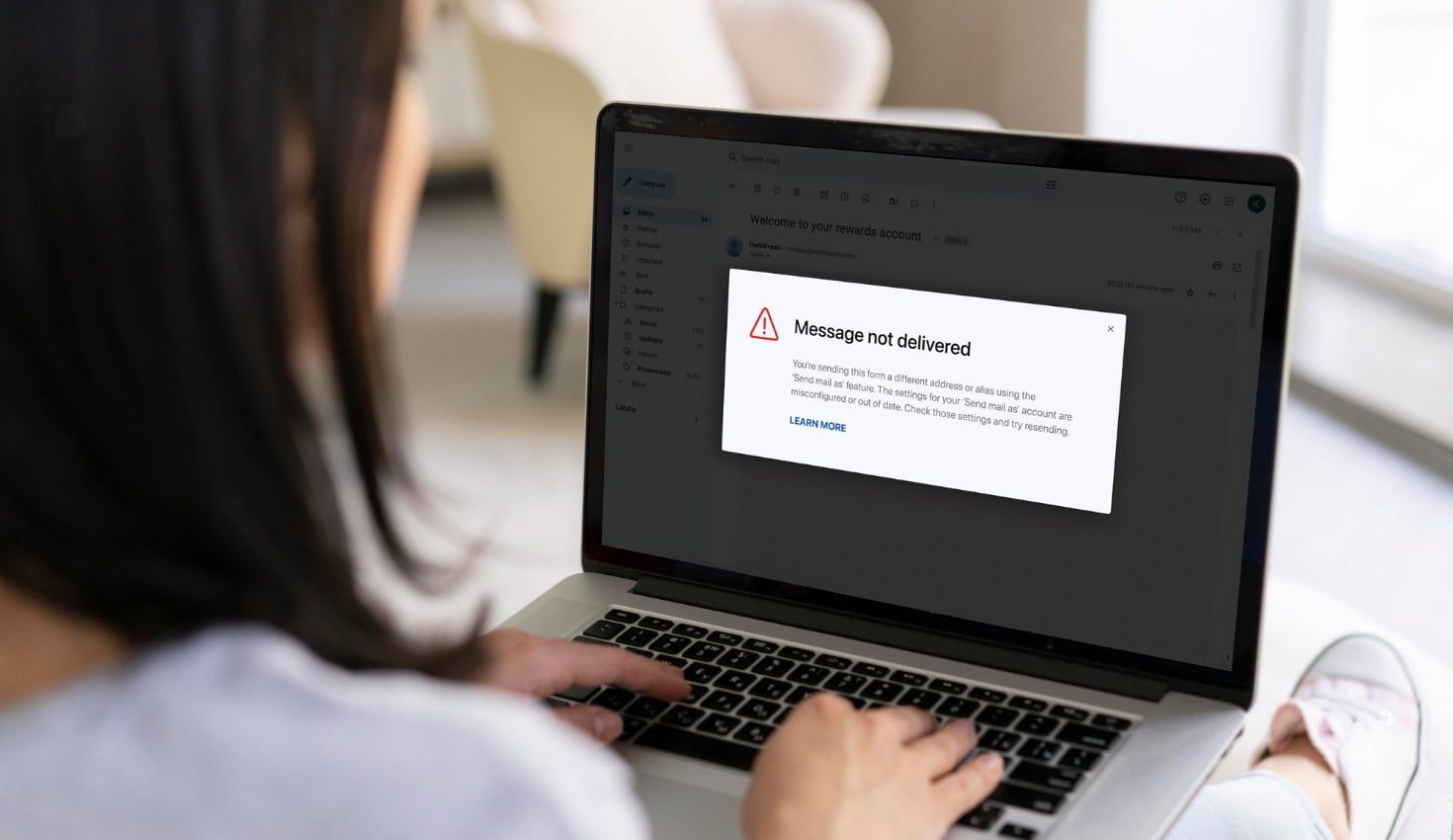
If the message left your side but came back, the receiving server rejected it and returned a bounce. Bounce codes are the three-digit SMTP status codes in that bounce message, and they tell you why. A 4xx code is a soft, temporary failure that will often clear on retry. A 5xx code is a hard, permanent failure: the address does not exist, the mailbox is full, or the server refused you outright.
Check the bounce code before you act. A 550 usually means the mailbox does not exist or was refused, so stop sending to that address. A 554 5.7.1 relay access denied means the server would not relay your message, which points back to an authentication or configuration problem on your side. Cleaning invalid addresses out of your list before you send prevents most hard bounces in the first place, though it will not override a block the receiving server has already placed on your domain.
Authentication or DNS is misconfigured
At scale, the reason a provider silently drops or rejects your mail is often missing or broken authentication. SPF, DKIM, and DMARC are DNS records that prove you are allowed to send for your domain. If they are absent or misaligned, mailbox providers treat your mail as suspicious, and Gmail and Yahoo now require them for bulk senders. Publish an SPF record, sign with DKIM, and set a DMARC policy, then confirm each record resolves. Google spells out the current requirements in its sender guidelines. A DNS lookup failure or a broken record here fails messages quietly, so verify the records rather than assuming they are fine.
Your domain or IP is on a blacklist
If mail that used to send now bounces or vanishes across many recipients at once, your sending IP or domain may be listed on a blocklist. Blacklisting follows a spike in complaints, hitting spam traps, or sending to too many invalid addresses. First, check whether your domain or IP is blacklisted against the major lists. If you are listed, fix the behavior that caused it, then request delisting through each blocklist's process. Delisting sticks only if you stop the underlying pattern: verify your list, cut the complaint rate, and warm up gradually.
FAQs
Why is my email not sending?
An email fails to send for one of a short list of reasons: no internet connection, a message stuck in the outbox, wrong SMTP server settings or port, a failed login (an authentication error), an oversized attachment, a daily sending limit reached, a recipient server that rejected the message, or an authentication or blacklist problem on your sending domain. Work through them from the fastest checks down.
Why is my email stuck in the outbox?
The message is queued locally because the client could not complete the send. The usual triggers are a dropped connection mid-send, an attachment over the size limit, or a faulty add-in. Restart the app, run send and receive, and open it in safe mode to rule out add-ins.
What does an SMTP authentication error mean?
It means the outgoing mail server refused your login, so the message was never accepted for sending. It is almost always a wrong username or password, a missing app password for a mailbox that uses multi-factor authentication, or SMTP authentication disabled in the account settings.
How do I fix hitting my daily email sending limit?
Wait for the sending window to reset, which is usually within 24 hours, then send fewer messages at a time. For larger volumes, split the send into smaller batches spread across the day so you stay under the provider's cap.
Why does the recipient's server keep rejecting my email?
The receiving server is refusing the message, shown by a 5xx bounce code. Common reasons are that the address does not exist, the server will not relay for you, or your domain lacks proper authentication. Read the bounce code, remove dead addresses, and confirm your SPF, DKIM, and DMARC records.
What are email bounce codes?
Bounce codes are the three-digit SMTP status codes returned when a message fails. A 4xx code is a temporary failure that may clear on retry, while a 5xx code is a permanent failure such as an unknown mailbox or an outright rejection.
Before your next send, run your list through BounceCheck to remove invalid addresses so a bad list is one less reason your email will not send.
§ Before your next send
Find the addresses that will bounce
Verify a single address free, or upload a CSV — the free plan includes 50 checks a month, no card needed.

BounceCheck Team
The team behind BounceCheck - helping businesses verify emails and improve deliverability.